Skip to content

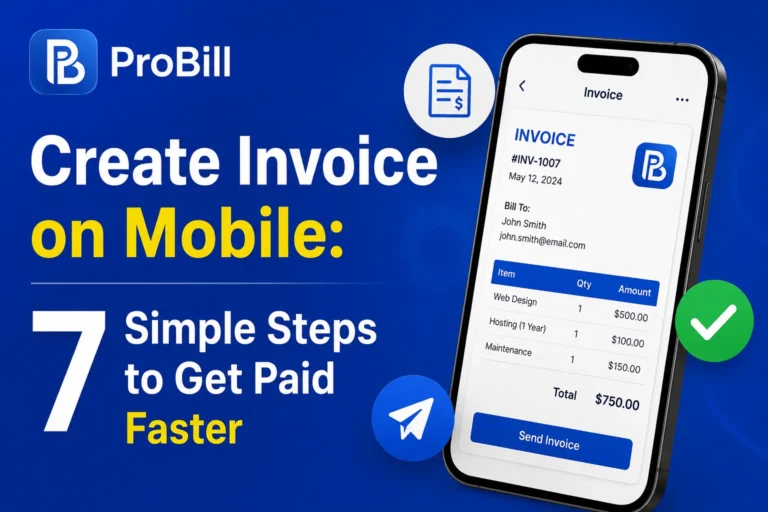
How to Create an Invoice on Mobile: Quick Answer
Creating an invoice on your mobile phone is simple and takes just a few steps:
- Choose an invoice template: Select a suitable template from a mobile invoice app or online invoice generator.
- Enter client and invoice details: Add your client’s information, along with the products or services provided.
- Customize your invoice: Include your business logo, payment terms, and invoice due date.
- Export and send: Download your invoice as a PDF or share it directly through email or messaging apps.
These simple steps allow freelancers and small business owners to create professional invoices without needing a desktop computer.
For a more detailed explanation, read our complete guide on how to create invoices.
Create an Invoice on Your Phone with a Free Invoice Generator
Ready to create your first invoice? Try our free invoice generator, designed to work on mobile devices, including iPhones, Android phones, and tablets.
With ready-to-use templates, editable fields, and instant PDF export, you can create and send invoices directly from your phone, whether you’re meeting a client or finishing a job.
A mobile-friendly invoice generator makes billing faster and easier, without requiring technical knowledge or desktop software.
You can also use our free online invoice creator if you prefer creating invoices directly in your browser.
Step-by-Step Guide to Create Invoice on Mobile Devices
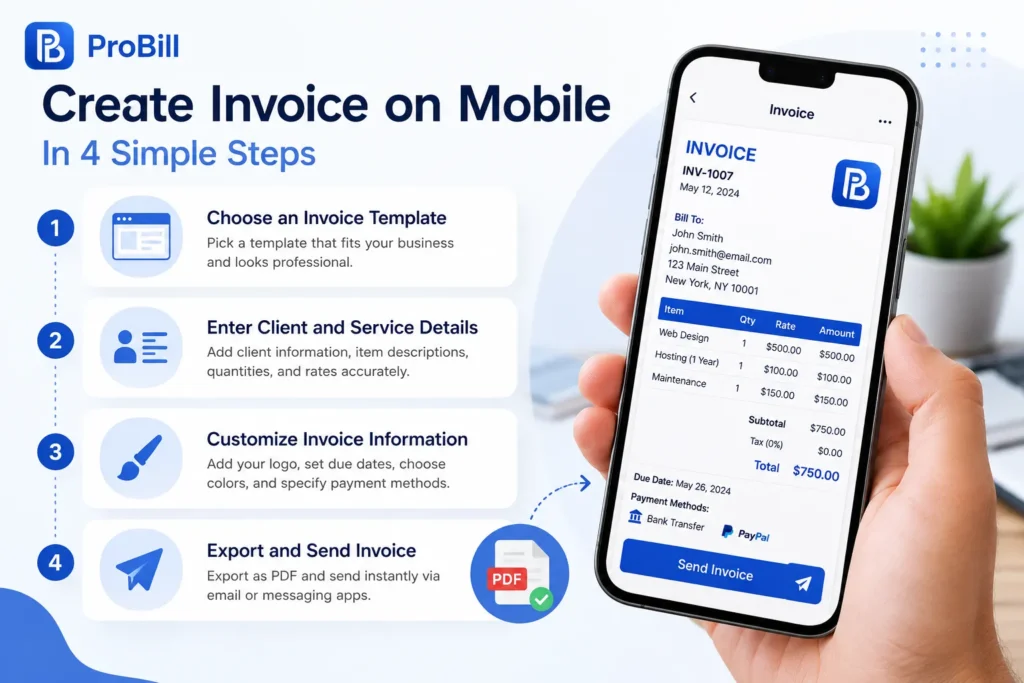
Step 1: Choose an Invoice Template
Selecting the right invoice template sets the tone for professionalism. On mobile, options range from simple one-column formats to detailed multi-section designs.
- Freelancers: Creative professionals may benefit from templates that emphasize service descriptions and hours worked.
- Small business owners: Templates highlighting taxes, subtotals, and totals can make invoices easier to understand.
- Mobile users: Choosing a template designed for mobile screens ensures readability and easier editing on devices like an iPhone or iPad.
Step 2: Enter Client and Service Details
Accurate client information is crucial to preventing payment delays. Make sure to include:
- Client’s full name and business address.
- Correct email address and contact information.
- Clear descriptions of the services or products provided.
- Accurate quantities, hourly rates, and prices.
For example, a self-employed consultant creating an invoice on their phone should double-check client email addresses before sending to avoid bounced messages.
Mobile keyboard autocorrect can be helpful, but always review the information carefully, especially when entering important client details.
Step 3: Customize Your Invoice Information
Adding personal or business branding enhances credibility and gives your invoice a professional appearance.
Consider customizing the following elements:
- Business logo: Add your logo to make the invoice recognizable.
- Colors and layout: Adjust the design to match your business identity.
- Payment due date: Set a deadline based on your contract terms.
- Accepted payment methods: Specify options such as bank transfer or PayPal.
On devices like the iPad, many apps allow drag-and-drop logo placement, making customization faster and easier.
Don’t overlook payment instructions. Missing payment details can lead to unnecessary back-and-forth communication with clients.
Step 4: Export and Send Your Invoice from Your Phone
Once your invoice is complete, export it as a PDF. This format offers universal compatibility and maintains a professional appearance across different devices.
Most mobile invoice apps and online generators support instant PDF export. After exporting, you can share your invoice directly through email or messaging apps without switching devices.
For example, a small business owner can create and send an invoice from an iPhone immediately after completing a job at a client’s location, helping accelerate the payment process.
Before sending, make sure to:
- Check that the PDF opens correctly on your device.
- Review the invoice details and final amount.
- Confirm the client’s email address or messaging contact.
- Verify that payment terms and due dates are included.
After creating your invoice, you can send it directly to your customer.
For additional guidance, consult the IRS website to review applicable U.S. tax and recordkeeping requirements for your business.
Methods and Options to Create an Invoice on iPhone and iPad
There are several ways to create invoices on an iPhone or iPad, depending on your business needs and how frequently you send invoices. You can use built-in apps, dedicated invoicing software, or online invoice generators.
1. Using Built-in Notes or Files Apps
iPhones and iPads come with native apps like Notes and Files that some freelancers use for quick invoicing.
This method requires manually formatting text and inserting tables or bullet points, which can be time-consuming and prone to errors, especially when trying to maintain professional layouts.
For example, a sole proprietor might jot down service details in Notes but then struggle to add totals or customize payment terms.
Best for: Occasional invoices and simple billing needs.
While convenient for immediate needs, relying on these apps lacks the automation features that are beneficial for frequent invoicing.
2. Advantages of Dedicated Invoice Apps
Dedicated invoice apps streamline the invoicing process with features such as:
- Ready-to-use invoice templates.
- Autofill client databases.
- Instant PDF export.
- Invoice status tracking.
- Payment reminders.
Creating an invoice on iPhone using apps like FreshBooks or Invoice2go speeds up repetitive tasks and reduces mistakes.
Small business owners often choose these apps to track invoice status and send reminders without leaving the app interface.
The downside is that some applications come with a learning curve or subscription fees. Still, the time saved and increased professionalism typically outweigh the costs for regular users.
AI-powered invoicing tools can also speed up invoice creation when you’re working from your phone.
3. Benefits of Online Invoice Generators
Online invoice generators accessed through a mobile browser offer flexibility without requiring you to install an application.
Services like our free invoice generator enable entrepreneurs to create invoices on iPhone or iPad with ease and without technical skills.
These tools usually include:
- Mobile-optimized invoice templates.
- Editable invoice fields.
- Automatic calculations.
- PDF export options.
For instance, a freelancer can complete and send invoices immediately after client calls by using these web-based tools.
Best for: Users who want to create invoices quickly without installing additional software.
The main advantage is cross-platform compatibility, although a stable internet connection is required for smooth operation.
4. Using the Probill Mobile Invoicing App
Probill combines the convenience of mobile invoicing with a dedicated native app experience, designed specifically for the challenges of creating invoices on mobile devices.
Freelancers and small business owners benefit from:
- Fast invoice creation: Choose from invoice templates and fill in editable fields.
- Client management: Keep client information organized for easier invoicing.
- PDF export: Generate professional invoices that are easy to share.
- Direct sharing: Send invoices to customers without switching devices.
Probill’s simple interface reduces friction in mobile invoicing compared to generic apps or manual methods, making it an efficient choice for those who frequently create invoices on their phones.
For those looking to explore mobile invoice creation options that balance ease and functionality, Probill’s free invoice generator is a practical starting point.
Key Elements Required When Creating an Invoice on Mobile
Creating a professional invoice on your phone requires more than entering an amount and sending a PDF. Certain details must be accurate and clearly presented to avoid payment delays, misunderstandings, and unnecessary follow-ups.
1. Client Information Accuracy
Most invoice payment delays stem from incorrect client details. On mobile, the risk of typos increases due to smaller keyboards and autocorrect quirks.
For example, an entrepreneur who sends an invoice with a misspelled email address wastes time correcting bounced messages.
Before sending your invoice, double-check the following information:
- Client’s full name or business name.
- Billing address.
- Email address.
- Other relevant contact details.
Keeping client contacts organized in your phone or using autofill features minimizes errors and speeds up the invoicing process.
2. Clear Itemized Billing
Invoices must clearly break down services or products with quantities, unit prices, and totals to avoid confusion.
Mobile screens encourage concise presentation, but omitting itemization can lead to payment disputes and unnecessary delays.
For example, a freelancer who combines all completed work into one vague line item risks client pushback.
When creating invoices on an iPhone or iPad, use multiple line items and straightforward descriptions to make every charge easy to understand.
Make sure your invoice includes:
- Clear product or service descriptions.
- Quantities or hours worked.
- Individual unit prices or hourly rates.
- Subtotals and applicable taxes.
- The final amount due.
A well-organized breakdown improves transparency and helps clients understand exactly what they are paying for.
3. Payment Terms and Due Dates
Missing or unclear payment terms are among the common causes of late payments.
When creating an invoice on mobile, explicitly state the accepted payment methods, payment deadlines, and any applicable late payment penalties.
For example, a small business owner who forgets to mention payment terms such as “Net 15” or an accepted option like PayPal may receive follow-up inquiries that slow down collections.
To avoid confusion, clearly display:
- Payment due date: Specify when the invoice must be paid.
- Payment terms: Include conditions such as Net 15 or Net 30.
- Accepted payment methods: Mention options such as bank transfer or PayPal.
- Late payment fees: Include applicable charges when agreed upon and legally permitted.
Clearly displayed payment terms reduce back-and-forth communication and ensure everyone understands the expected payment timeline.
4. Contact Information
Your invoice must include reliable contact information so clients can handle questions or disputes promptly.
This typically includes:
- Business or seller name.
- Phone number.
- Email address.
- Company address, if applicable.
When creating an invoice on an iPhone or iPad, avoid the common mistake of omitting these details.
Clients appreciate having quick access to seller contact information without having to search through emails or websites. This makes resolving questions easier and helps prevent unnecessary payment delays.
Create Professional Invoices on Mobile Without Missing Important Details
For a quick and professional way to check all the key invoice elements before sending, mobile users can try our free invoice generator.
It provides editable invoice fields and ready-to-use templates, helping you organize essential billing information and avoid common mistakes when creating invoices on your phone.
Common Mistakes to Avoid When Creating an Invoice on Mobile
Creating invoices on your phone is convenient, but a few common mistakes can lead to payment delays, misunderstandings, and an unprofessional impression. Knowing what to avoid helps freelancers and small business owners create accurate invoices and get paid on time.
1. Inaccurate Client Details
A frequent source of payment delays comes from simple typos or outdated client information. On a mobile device, small keyboards and autocorrect can introduce errors in names, email addresses, or billing addresses.
For instance, a freelancer who accidentally enters a client’s email as “client@emial.com” will face bounced emails and potentially delayed payments.
To avoid this mistake:
- Verify client details against saved contacts.
- Double-check email addresses before sending.
- Confirm billing addresses directly with clients when necessary.
- Use autofill features within invoice apps to reduce manual entry.
Taking a few seconds to review client information can prevent unnecessary corrections and communication problems.
2. Missing Payment Terms
Failure to clearly communicate payment terms is a common oversight that leads to confusion and slower cash flow.
Mobile invoices that lack due dates, accepted payment methods, or applicable late payment penalties often require additional follow-up.
For example, a small business owner creating an invoice on an iPhone who omits “Payment due within 15 days” may force clients to ask for clarification, causing delays.
Always include explicit payment terms, such as:
- Payment deadline: Specify the exact due date.
- Payment conditions: Use clear terms such as Net 15 or Net 30.
- Accepted payment methods: Mention options such as bank transfer or PayPal.
- Late payment fees: Include applicable charges when agreed upon and legally permitted.
Avoid vague phrases like “Pay when convenient.” Clear payment instructions help clients understand exactly when and how to pay.
3. Using Poor Invoice Templates
Not all invoice templates work well on mobile screens. Using a cluttered or overly complex template on an iPhone or iPad can make important information difficult to read or cause essential details to be overlooked.
For example, cramming tax details into a tiny font or using a layout that isn’t optimized for mobile devices can frustrate clients and reduce professionalism.
When choosing an invoice template, look for one that includes:
- A clean, easy-to-read layout.
- Clearly displayed client and business information.
- An organized breakdown of products or services.
- Visible subtotals, taxes, and final totals.
- Clearly presented payment terms and contact details.
Choosing a mobile-friendly invoice template makes your invoices easier to review across different screen sizes.
4. Delays in Sending Invoices
Speed matters when creating an invoice on mobile, yet some people delay sending invoices because of multitasking or technical difficulties.
A common scenario is a freelancer who finishes a job, drafts an invoice on their phone, but postpones sending it until they return to their computer. This can unnecessarily delay the payment process.
Using a mobile-friendly invoice generator or dedicated invoicing app allows you to create and send invoices immediately after completing a job.
This helps maintain a consistent billing routine, keeps clients informed, and reduces unnecessary waiting time.
Create and Send Professional Invoices with Probill
Avoiding these common mistakes is easier when you have the right invoicing tools.
Probill Invoice Maker helps freelancers and small business owners create professional invoices directly from their iPhone. With ready-to-use templates, editable invoice fields, client management, and PDF export, you can prepare and share invoices without relying on a desktop computer.
Whether you’re working at a client’s location or managing your business on the go, Probill makes mobile invoicing simple and convenient.
Create invoices in your browser: Try our free invoice generator for a quick, browser-based invoicing experience.
Download Probill for iPhone: Get Probill on the App Store.
Tips for Faster and More Efficient Invoice Creation on Mobile
Creating invoices on your phone doesn’t have to be time-consuming. With the right tools and a few simple habits, freelancers and small business owners can reduce repetitive tasks, minimize errors, and send professional invoices faster.
1. Save and Reuse Invoice Templates
Saving and reusing invoice templates drastically cuts preparation time.
A freelancer juggling multiple clients can set up a master template with standard fields once, then quickly duplicate it for each new job. This avoids repetitive formatting and reduces errors caused by manual input.
On an iPhone or iPad, many invoice apps allow you to save and reuse templates, making it easier to maintain consistency while speeding up your workflow.
Why reuse invoice templates?
- Save time when creating recurring invoices.
- Maintain a consistent and professional layout.
- Reduce repetitive data entry.
- Minimize formatting mistakes.
Without reusable templates, every invoice risks having inconsistent layouts that confuse clients and potentially slow down payments.
2. Use Autofill Features in Mobile Invoice Apps
Autofill is essential for reducing typos and accelerating data entry. Instead of typing client names, addresses, and service descriptions from scratch, you can populate these fields with just a few taps.
For example, a consultant creating an invoice on their phone can minimize mistakes by selecting saved client contacts from an autofill list.
This feature also helps prevent common errors, such as misspelled email addresses, that can delay invoice delivery.
Not all mobile apps offer robust autofill capabilities, so choosing one with effective client management features can directly improve invoice accuracy and efficiency.
3. Keep Client Data Organized
Disorganized client information wastes time and increases the risk of errors during mobile invoice creation.
A small business owner who stores contacts in one app, project details in another, and invoices separately faces unnecessary friction when preparing bills.
To simplify your workflow:
- Keep client names and contact details organized.
- Store frequently used billing information.
- Use cloud-based contact syncing when available.
- Choose a mobile-friendly invoicing app with client management features.
Keeping billing information organized and accessible on your iPhone or iPad allows you to generate invoices quickly without checking multiple sources.
Well-organized client data also makes follow-ups and payment reminders easier to manage.
4. Leverage PDF Export for Professional Presentation
Exporting invoices as PDFs ensures a polished and universally accessible format.
Sending invoices as editable documents from your phone risks accidental changes or formatting issues on the client’s end.
For example, a self-employed designer using PDF export on an iPad can maintain a professional appearance with intact logos, clear line items, and fixed totals.
PDF invoices also integrate easily with accounting software and other business tools, helping streamline the billing process.
Before sending your invoice, remember to:
- Check that your logo and business details display correctly.
- Verify that all line items and totals are accurate.
- Make sure the PDF is easy to read.
- Open the exported file on your phone to catch any display problems.
Find Professional Invoice Templates for Faster Billing
Using the right invoice template can make mobile invoicing faster and more consistent.
Explore our invoice templates to find well-designed layouts suitable for professional invoices, quick customization, and PDF generation.
Invoice Templates and Examples to Create an Invoice on Mobile
Using ready-made invoice templates makes mobile invoicing faster and easier. Instead of designing every invoice from scratch, freelancers and small business owners can choose a suitable layout, customize the details, and send professional invoices directly from their phones.
1. Downloadable Mobile Invoice Templates
Having access to downloadable invoice templates optimized for mobile devices eliminates the hassle of designing from scratch and ensures consistent professionalism.
Templates crafted for phones like the iPhone or iPad maintain legibility without overwhelming smaller screens.
For instance, a freelance photographer who downloads a minimalist, mobile-friendly template can quickly fill in session details on their phone, cutting billing time in half.
Many templates also include predefined sections for:
- Taxes and discounts.
- Product or service descriptions.
- Client and business information.
- Payment terms and due dates.
- Subtotals and final amounts.
These ready-made layouts save repetitive manual work and help reduce formatting errors.
Using downloadable templates adapted to mobile devices improves accuracy and makes it easier to maintain a consistent professional appearance across invoices.
2. Customizable Invoice Examples for Freelancers and Small Businesses
Tailored invoice examples provide a solid starting point that freelancers and small business owners can easily adapt on their mobile devices.
Different professions have different invoicing needs. For example:
- Graphic designers: Can use customizable templates emphasizing project milestones, creative services, and hourly rates.
- Freelancers: Can highlight service descriptions, hours worked, and individual project costs.
- Small retailers: Can include product quantities, unit prices, and shipping fees.
These examples demonstrate how to balance branding, client details, and payment terms within a mobile-friendly layout.
Through customization, users can add logos, adjust invoice information, and include payment instructions without cluttering the design.
Real-world feedback shows that mobile-optimized templates can help reduce omissions, such as missing due dates or subtotals, by guiding users through the invoice creation process.
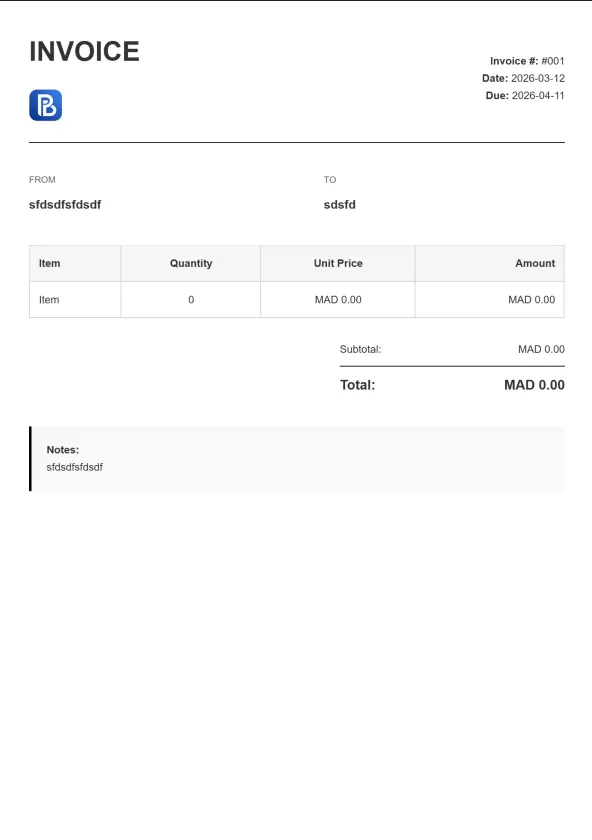
Mobile Invoice Template Example
Use the following example to explore how a professional invoice template can organize billing information into a clear, easy-to-read layout.
Create Professional Mobile Invoices with Probill
If you frequently create invoices on your iPhone, using a dedicated invoice maker app can make the process even more convenient.
Probill Invoice Maker lets freelancers and small business owners create professional invoices directly from their iPhones. You can choose invoice templates, customize editable fields, organize client information, and export invoices as PDFs for easy sharing.
Instead of repeatedly downloading and editing separate templates, Probill brings essential invoicing features together in one mobile application.
Download Probill on the App Store.
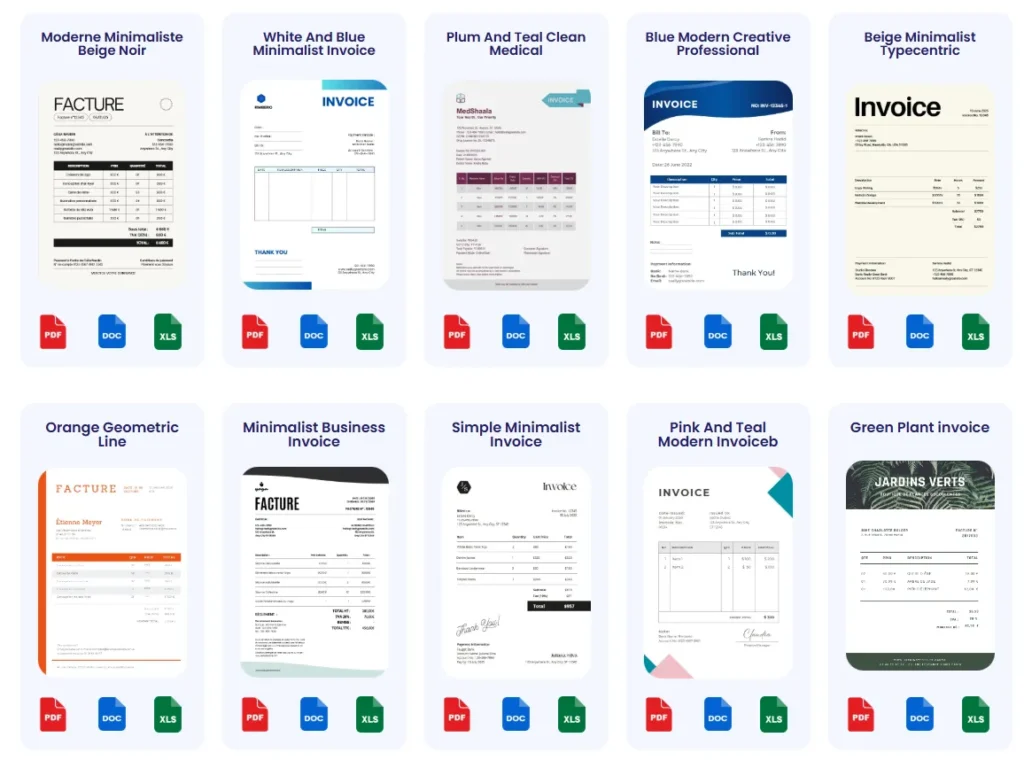
Find More Free Invoice Templates
For those ready to try different layouts, explore our free invoice templates for downloadable and customizable formats suitable for freelancers and small businesses.
Whether you prefer editing a downloadable template or using a mobile invoice app like Probill, choosing the right format makes invoice creation faster and more reliable.
Frequently Asked Questions About Creating Invoice on Mobile
Can I create an invoice on my phone without installing an app?
Yes. Many online invoice generators work directly in your mobile browser, letting you create an invoice on your phone quickly without app installation. These services often include mobile-optimized templates and PDF export. For example, freelancers can draft and send invoices on an iPhone immediately after client calls, simplifying cash flow management.
How do I create an invoice on iPhone quickly?
Speed comes from using templates and autofill. To create an invoice on iPhone efficiently, select a mobile-friendly template, enter client info from saved contacts, and customize payments terms. Export as PDF and send via email or messaging apps without switching devices. Dedicated apps or online tools help avoid manual formatting delays.
Are there free tools for creating invoices on iPad?
Free options exist, including web-based invoice generators optimized for iPad screens. These allow users to create and export professional invoices without subscription fees or downloads. Alternatively, using built-in apps involves manual formatting, which is less efficient. For a better experience, free tools with templates ease the process and ensure mobile compatibility.
What details must I include to make my mobile invoice valid?
Ensure client information is accurate, billing is itemized clearly, payment terms are explicit with due dates, and your contact details are present. Missing payment terms or unclear billing lines often cause payment delays. Always review before sending to maintain professionalism and compliance with IRS invoice requirements.
How can I send an invoice from my phone after creating it?
After creating the invoice—whether via app or browser—export it as a PDF to guarantee formatting. Then, share it directly through email, messaging apps, or cloud storage links on your phone. Many invoicing tools, including those that help create an invoice on iPhone or iPad, enable instant sending without switching devices.
Is creating invoices on mobile as professional as desktop methods?
Mobile invoicing can match desktop professionalism if you use optimized templates and add branding. For example, adding your logo and consistent payment terms on your iPhone preserves a polished appearance. Mobile PDF export also retains formatting integrity, which clients expect. The key is choosing tools designed for mobile ease and professional output.
Can I manage client and invoice data efficiently on mobile?
Yes. Many mobile invoice apps support client databases and autofill, reducing repeated manual input. This minimizes errors and saves time compared to manually creating invoices on iPhone or iPad. Keeping client info organized within your chosen invoicing tool speeds up future invoice creation and follow-ups.
What if my invoice template doesn’t display well on mobile screens?
Poorly optimized templates cause readability issues on small screens. Avoid cluttered, dense layouts that shrink text or hide key elements. Use mobile-friendly designs with clear sections and visible totals. Many online resources, including invoice templates, provide tested mobile-responsive options for better presentation.
Are payment tracking features available when creating invoices on mobile?
Some dedicated apps offer integrated payment tracking, allowing you to see when clients view or pay an invoice directly from your phone or tablet. This helps freelancers and small businesses manage cash flow proactively without relying on separate software.
How do I avoid common mobile invoicing mistakes?
Mistakes like entering inaccurate client details, missing payment terms, or delays in sending invoices are common. Cross-check information carefully, use templates designed for mobile, and send invoices immediately after creation. Employing autofill and reminder tools reduces errors and accelerates payments.
For hands-on experience, try the free invoice generator that supports creating invoices on iPhone and iPad with guided steps to minimize errors.
Start Creating Invoices Faster with the Probill Mobile App
Creating invoices on your phone doesn’t have to involve complicated forms, repetitive data entry, or switching between multiple tools. With Probill, freelancers and small business owners can manage essential invoicing tasks directly from their iPhones and create professional invoices wherever they work.
1. How Probill Simplifies Mobile Invoice Creation
Probill makes invoice creation on mobile simpler by combining an intuitive interface with essential invoicing features designed for freelancers and small business owners.
Instead of spending time formatting invoices manually, users can:
- Choose invoice templates: Start with ready-to-use layouts for professional invoices.
- Manage client information: Keep client details organized for easier invoice creation.
- Customize invoices: Edit invoice fields to match your business and services.
- Export PDF invoices: Generate professional PDF documents ready to share.
- Share invoices easily: Send completed invoices directly to customers.
For example, a busy consultant can create an invoice between meetings or immediately after completing a project without needing to return to a desktop computer.
By bringing these essential features together in one application, Probill helps reduce repetitive administrative work and makes everyday invoicing more convenient.
2. Try the Free Online Invoice Generator
Prefer creating invoices directly in your browser? Our free invoice generator provides a convenient alternative without requiring you to install a mobile application.
The browser-based tool works on mobile devices, including iPhones, Android phones, and tablets, allowing you to create professional invoices wherever you have an internet connection.
You can use it to:
- Select a ready-to-use invoice template.
- Enter client and business information.
- Add products, services, quantities, and prices.
- Customize invoice details and payment terms.
- Export your completed invoice as a PDF.
This option is particularly useful for freelancers and small business owners who need to create an occasional invoice quickly or prefer working directly from their mobile browser.
Explore the free online invoice generator and start creating professional invoices without additional software.
3. Download Probill for Your iPhone
If you create invoices regularly, having a dedicated invoice maker app on your phone can make your billing workflow even more convenient.
Probill brings essential invoicing tools together in one mobile application, helping you create, customize, and share professional invoices without relying on desktop software.
Whether you’re a freelancer managing multiple clients or a small business owner handling daily transactions, Probill helps you stay organized and prepare invoices on the go.
You can also explore our invoice templates to discover different layouts and find inspiration for your business invoices.
Ready to simplify your invoicing process?
Download Probill Invoice Maker on the App Store and start creating professional invoices directly from your iPhone.