Skip to content
How to Create an Invoice in Google Docs: Quick Answer
Basic Steps to Create Invoice in Google Docs
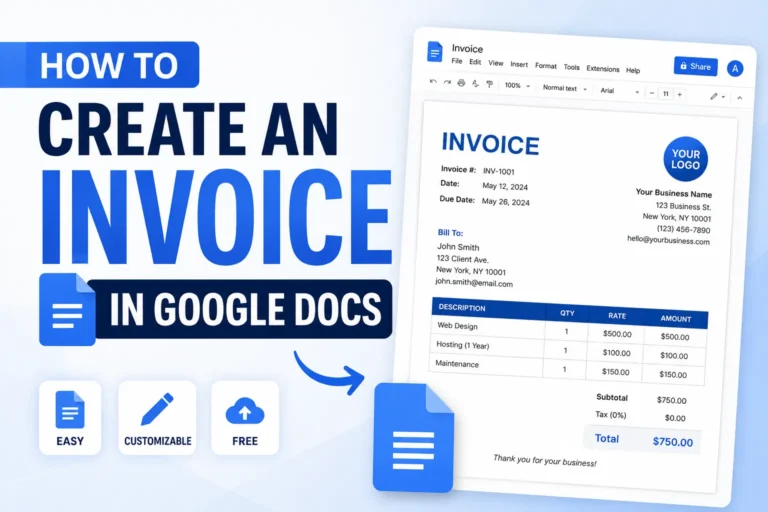
Creating an invoice in Google Docs starts with opening a new document or using a template designed for invoicing. Begin by inserting your business and client details at the top, followed by a clear list of products or services provided with corresponding prices. Include payment terms, invoice number, and date to ensure completeness. Keep formatting simple for clarity—use tables to organize item descriptions and totals. The straightforward Google Docs interface requires no advanced skills, making it easy for freelancers or small businesses to get a professional invoice ready quickly. For example, a freelance graphic designer can open Google Docs, type their details and client’s name, list design services and amount due, format it neatly, and then export as PDF for sending. For the overall process, see our guide on how to create invoices.
Using the Invoice Generator Page for Faster Creation
For faster and more automated invoice creation, consider using an online invoice generator page, which can integrate well with Google Docs workflows. These tools offer pre-built templates and prompt you to fill key invoice fields, reducing manual input and errors. Once generated, the invoice can be exported and opened in Google Docs for any needed customization before sharing. This speeds up invoicing especially for businesses handling multiple clients or recurring jobs, eliminating repetitive formatting. While not a Google Docs feature itself, linking to a free invoice generator can provide a more streamlined alternative to creating invoice on Google Docs manually without sacrificing the document’s flexibility and control.
This quick guide addresses how to create an invoice in Google Docs, balancing manual steps with the option to accelerate the process using supporting external tools, ensuring entrepreneurs and freelancers can invoice without delays.
Step-by-Step Guide to Create an Invoice in Google Docs
Opening Google Docs and Selecting a Template
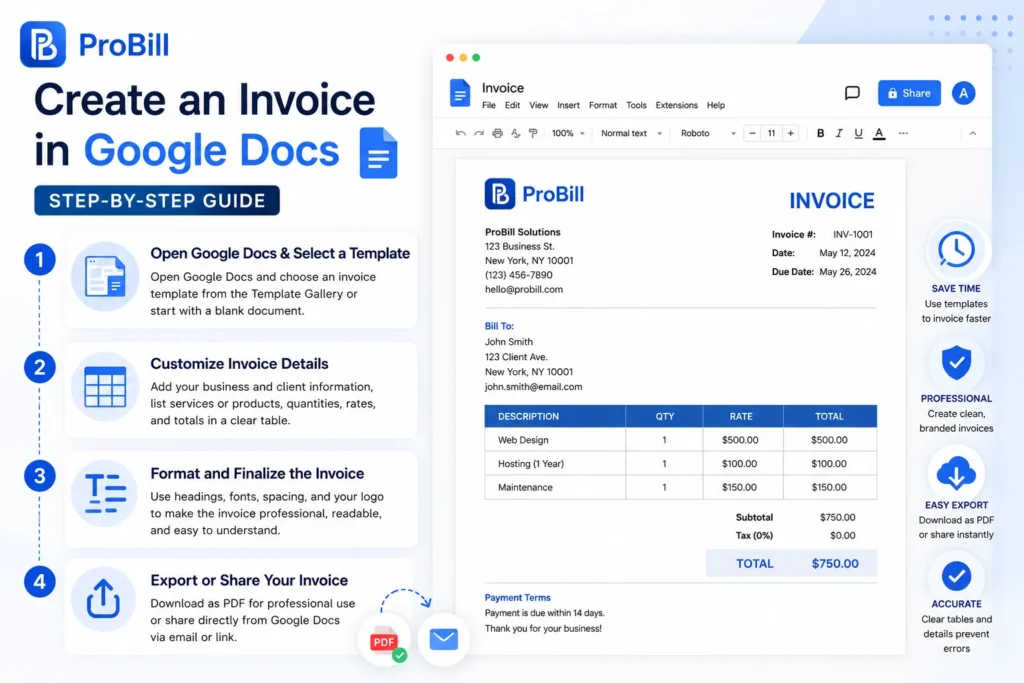
Start by logging into your Google account and opening Google Docs. You can either create a blank document or browse through the “Template Gallery” to choose an invoice template. Using a template accelerates the process, providing a pre-structured layout to fill in your details. For freelancers managing multiple clients, templates minimize formatting hassles and maintain professional consistency across invoices. If you plan to create invoice formats repeatedly, selecting a template upfront saves time and reduces errors.
Customizing Invoice Details (Client, Services, Prices)
Once you have your template or blank document, replace the placeholder content with your business name, client’s contact information, and invoice details such as invoice number and date. Next, list each product or service provided along with quantity, rate, and total price in a clear, organized manner—using tables is highly recommended to avoid layout shifts. For example, a consultant tracking billable hours should itemize time worked and rates precisely. Accuracy here prevents disputes and speeds up payments. Be sure to update payment terms or notes tailored to each client’s agreement.
Formatting and Finalizing the Invoice
Professional formatting enhances readability and trust. Use bold headings, consistent fonts, and spacing to separate sections like billing info, services, totals, and terms. Double-check alignment within tables to prevent miscalculations from confusing the recipient. Avoid overcrowding the page—keep the invoice crisp and scannable. Add your logo if applicable, but keep file size manageable to avoid delivery issues. Remember, too much customization can complicate reusability, so balance creativity with practicality.
Exporting or Sharing Your Invoice
After finalizing the invoice, export it as a PDF for professional presentation and security. Google Docs makes it easy to download or directly email the invoice from the interface. PDF format preserves your formatting and is widely accepted by clients. For freelancers sending invoices frequently, saving a PDF version enables quick re-sending or proof of delivery. Alternatively, share the Google Docs link with view-only permissions, although this is less common for official billing. A streamlined export workflow reduces administrative delays, allowing you to spend more time on core business activities.
For those looking to streamline invoice creation even further, consider integrating with a free invoice generator to speed up filling out fields, then export and customize invoices in Google Docs if needed. This method cuts down manual input, particularly useful for small business owners juggling multiple clients or recurring invoices.
Methods to Create an Invoice in Google Docs
Creating Invoice Using Blank Google Docs
Starting from a blank Google Doc is the most flexible but also the most time-consuming method to create invoice in Google Docs. You have full control over layout and design but must manually build sections such as client info, itemized services, pricing tables, and totals. This approach suits freelancers or small business owners who want a fully customized invoice and are comfortable with Google Docs’ formatting tools. However, it risks inconsistencies and errors—such as forgotten payment terms or misaligned tables—that delay payment. For example, a graphic designer creating unique project invoices monthly might prefer this route despite the extra effort for the sake of branding.If you prefer Microsoft’s word processor, you can also create an invoice in Word.
Using Pre-made Invoice Templates in Google Docs
Using pre-made invoice templates in Google Docs drastically cuts creation time while ensuring professional structure. These templates come with preset tables, headings, and placeholders for essential details like invoice number, date, and payment terms. This method benefits entrepreneurs who need consistent invoices but want to avoid formatting hassles. For instance, a freelance writer billing multiple clients can swiftly edit templates with individual service details and export PDFs. The tradeoff here is less design freedom compared to blank docs but far fewer mistakes and faster turnaround. For even faster completion, you can combine this with a free invoice generator to pre-fill data before opening in Google Docs. For spreadsheet-based invoicing, Google Sheets offers another useful option. For spreadsheet-based invoicing, Google Sheets offers another useful option.
Using Google Sheets Invoice Templates as an Alternative
Although the main focus is Google Docs, some users find that creating invoices in Google Sheets offers better automation for calculations and data management. Google Sheets invoice templates allow automatic summing of item totals and taxes, reducing manual calculation errors common in Google Docs. A small business owner tracking inventory might prefer Sheets since it integrates easily with their expense tracking. However, Sheets invoices can be less visually polished and require exporting as PDF for professional sharing. Additionally, you can create invoice templates in Sheets and then open or convert them in Google Docs for further customization, bridging the gap between accuracy and presentation.
All these methods cater to different user needs, balancing customization, speed, and error reduction. For small businesses and freelancers seeking the simplest path, experimenting with a template or leveraging an invoice generator tool linked above ensures invoices get out fast without sacrificing professionalism.
Key Elements of Creating an Invoice in Google Docs
Client and Business Information
Clear identification of both your business and the client is crucial for timely payment and record keeping. Include your company’s legal name, address, phone number, and email, alongside the client’s contact details. Omitting or mixing up these can lead to invoice disputes or lost communications. For example, a freelance consultant who missed adding a client’s correct billing address experienced payment delays. Always double-check these details before sending the invoice.
Invoice Number and Date
An invoice number is not just a formality but a key tracking tool for bookkeeping and audits. Use a sequential or structured numbering system that suits your workflow. Including the invoice date alongside the due date helps clarify payment timelines. Missing invoice numbers often cause confusion in accounting systems, as seen with small businesses who reported repeated payment delays due to unmatched records. Keeping these elements explicit avoids unnecessary follow-ups.
List of Services or Products with Prices
The heart of any invoice is the detailed itemization of what’s being billed. Provide clear descriptions, quantities, unit prices, and line totals in a clean table format. This transparency reduces client questions and accelerates approval. For instance, a graphic designer who provided vague service descriptions faced repeated invoice disputes. Accurate and specific listings also help when integrating invoices with tax authorities or accounting software.
Payment Terms and Notes
Explicit payment terms set clear expectations for when and how payment is due, preventing misunderstandings. Common terms include net 15 or net 30 days, late fees, and accepted payment methods. Including additional notes—like project milestones or thank-you messages—can improve client relationships but should never obscure payment details. Many freelancers overlook terms, leading to late or partial payments. Stating these clearly, preferably in a dedicated section, enforces timely cash flow.
Effectively covering these key elements when you create invoice in Google Docs ensures your invoices are professional and complete, reducing back-and-forth and accelerating payments. For streamlined invoicing, leveraging reliable tools like a free invoice generator can help maintain consistency and prevent missed details. For official compliance, always align your invoice content with IRS invoice requirements.
Common Mistakes When Creating an Invoice in Google Docs and How to Avoid Them
Forgetting Important Invoice Details
One of the most frequent errors when creating an invoice in Google Docs is omitting vital details such as invoice number, date, or client contact info. Missing an invoice number disrupts bookkeeping and delays payments—as experienced by a freelancer who lost track of several invoices without unique IDs. Always cross-check your invoice for completeness before sending to avoid follow-up confusion. Skipping payment terms is another common oversight that can cause late payments; clearly stating net 30 or deposit requirements prevents this.
Formatting Issues That Affect Professionalism
Poor formatting undermines trust and can make invoices hard to read. In Google Docs, inconsistent fonts, uneven spacing, or misaligned tables often occur when manually adjusting the layout without templates. For example, a small business owner’s client questioned invoice legitimacy due to cluttered text and jumbled line items. Use tables for line items and bold headings for clarity. Avoid cramming too much info on one page—clean, simple design communicates professionalism and speeds client approval.
Manual Calculation Errors
Calculating totals, taxes, and discounts manually in Google Docs frequently leads to errors. A freelancer once undercharged a client because of a math mistake in the invoice. Google Docs lacks built-in calculation tools, so it’s easy to miscalculate or forget applying tax rates. Double-check your sums or consider using Google Sheets for automated calculations. To minimize mistakes, use calculator tools or invoice templates that prompt for calculated fields to ensure invoice accuracy.
Delays Caused by Manual Processes
Manually creating every invoice from scratch or tweaking templates each time wastes valuable time. Small business owners juggling multiple clients often experience invoicing backlogs because the process isn’t streamlined. Repeatedly entering the same client details or services slows down cash flow. Avoid delays by saving reusable invoice templates or using a free invoice generator to prefill data and generate invoices faster. This reduces manual repetition and shortens billing cycles significantly.
Avoiding these common mistakes when creating an invoice in Google Docs will lead to faster payments, fewer disputes, and a more professional appearance. For entrepreneurs wanting to eliminate repetitive manual steps, tools linked above make creating, correcting, and managing invoices more efficient.
Tips for Creating Invoices in Google Docs Faster and More Accurately
Using Templates Effectively
Templates eliminate repetitive setup and formatting errors that stall invoice creation. For example, a freelancer who reused a polished Google Docs invoice template cut invoice prep time by half while maintaining a professional look. Choose templates with preset tables and clear placeholder text to avoid accidental omissions. Leveraging templates reduces formatting frustration and lets you focus on customizing client-specific details, making the process smoother and more reliable.
Saving Reusable Invoice Formats
Saving a master invoice file with generic placeholders allows you to duplicate and update it quickly for each new client. This method suits small business owners who invoice similar services repeatedly. One consultant reported faster turnaround by keeping a reusable Google Docs invoice draft, only swapping client names and dates. Be cautious to clear all previous client data to avoid accidental disclosure. This approach balances speed and accuracy without requiring external tools.
Double-Checking Calculations
Manual total and tax calculations in Google Docs often cause costly mistakes. A common scenario: missing a decimal point or incorrect tax rate leads to undercharging clients. Always verify sums before sending invoices or use external calculators. For accurate invoice math, spreadsheet-based templates or external invoice generators reduce errors dramatically. Inline formulas are unavailable in Google Docs, so double-checking is critical to prevent payment delays triggered by calculation disputes.
Automating with Invoice Tools
Invoice generator apps that integrate with Google Docs workflows let you input data once and create polished invoices instantly. For instance, many small entrepreneurs benefit from using a free invoice generator to automate calculations and template filling. This minimizes repetitive manual entry and accelerates billing cycles. While not a native Google Docs feature, automation tools enhance accuracy and free up time for core business tasks by streamlining invoice creation end-to-end.
Adopting these tips helps you create invoices on Google Docs faster and with fewer errors, ensuring you get paid promptly. While Google Docs is excellent for formatting and customization, combining it with smart processes or external tools optimizes your entire invoicing workflow.
Invoice Templates in Google Docs and Google Sheets
Accessing Official Google Docs Invoice Templates
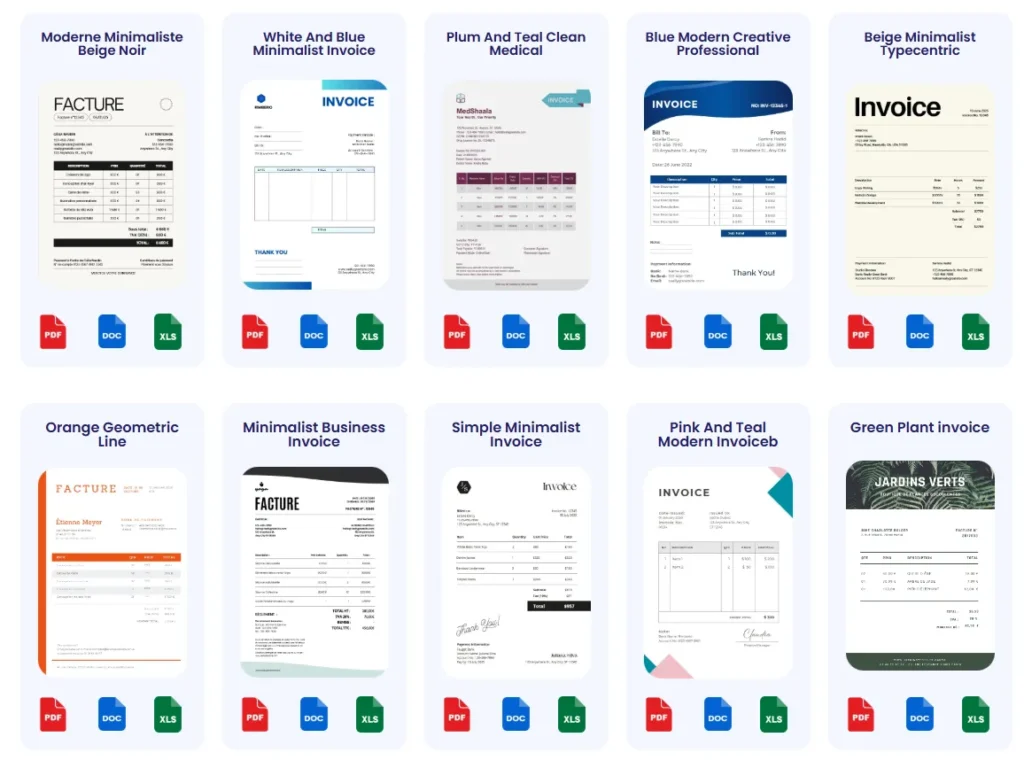
Google Docs includes several professionally designed invoice templates accessible via the Template Gallery. These templates feature clear sections for client details, itemized billing, and payment terms, making them ideal to quickly create invoice on Google Docs with minimal formatting. Freelancers benefit from these presets by editing placeholders instead of building invoices from scratch. Templates reduce risks of missing key fields while maintaining a polished look. Note that these official templates may lack automated calculation features, so verifying totals manually remains important. Using Google Docs invoice templates is a practical first step before exploring more advanced tools or custom formats.
How to Create an Invoice Template in Google Sheets for Reuse
Google Sheets is preferable when recurring invoices demand accurate calculations and easy data updates. To create an invoice template in Google Sheets:
- Start with a blank spreadsheet or access Google Sheets invoice templates.
- Set up cells for client info, services, quantities, and prices.
- Embed formulas to automatically calculate subtotals, taxes, and totals.
- Format the sheet to ensure legibility and professional appearance.
- Save the template for repeated use by duplicating and updating client data only.
For example, a small business owner with monthly subscriptions benefits from this approach to minimize math errors and speed up invoicing. While it sacrifices some of Google Docs’ layout flexibility, Sheets’ calculation power outweighs this in many cases. After creating in Sheets, invoices can be exported as PDFs or imported into Google Docs for branding polish. This hybrid workflow balances precision with aesthetics effectively.
Where to Find Additional Free and Paid Templates
Beyond Google’s native templates, many websites and marketplaces offer a rich selection of invoice templates compatible with Google Docs and Sheets. Popular sources include:
- Template marketplaces like Envato or Etsy, offering customizable premium invoice designs.
- Free template collections from small business blogs and freelance forums.
- Online invoice generators that export documents usable in Google Docs.
Using these expands your options, catering to niche needs such as service-specific layouts, multilingual invoices, or branded options. However, beware of templates that prioritize design over functionality, such as missing required invoice fields or lacking space for payment terms. Always review templates in the context of IRS invoice requirements to ensure compliance if you’re in the U.S.
When speed and accuracy matter most, blending templates with invoice generator tools—like the invoice templates available at Probill—can provide a reliable middle ground. These accessible resources empower freelancers and small business owners to create invoice in Google Docs or Sheets that look professional and comply with accounting standards without sacrificing ease of use.
Frequently Asked Questions About Creating an Invoice in Google Docs
How do I create an invoice in Google Docs?
Start by opening a new Google Docs file and either select an existing invoice template from the Template Gallery or create your own layout. Insert your business and client details, itemize services with rates and quantities, include invoice number and date, and add payment terms. Using tables helps organize the content clearly. Keep your formatting professional but simple to facilitate easy updates and reuse.
Can I create invoice templates in Google Docs for repeated use?
Yes. Save your completed invoice as a master file with placeholder text for client names, dates, and services. Duplicate this file for each new invoice and update only the variable data. This method speeds up your workflow while maintaining consistent branding and invoice structure.
Are there limitations to creating invoices directly in Google Docs?
Google Docs lacks built-in calculation features, so you must manually calculate totals and taxes, increasing the risk of errors. Also, heavy formatting can slow down document loading on low bandwidth. If you need automatic calculations, consider using Google Sheets invoice templates or integrating external invoice generators.
How do I share invoices created in Google Docs with clients?
Export your finalized invoice as a PDF to preserve formatting and prevent editing. PDFs are widely accepted and look professional. Alternatively, you can share a view-only Google Docs link, but this is less common for official billing since it requires clients to have Google accounts.
Can I automate or speed up invoice creation using Google Docs?
While Google Docs itself is limited to manual entry, combining it with an online free invoice generator allows you to pre-fill data and generate invoices faster. You can then export and customize invoices in Google Docs if needed, which streamlines workflows for freelancers and small business owners handling multiple clients.
How do I ensure my Google Docs invoices meet legal and tax requirements?
Include essential elements like your business and client information, invoice number, date, detailed list of products or services, prices, payment terms, and tax details as required. Always verify your invoice against IRS invoice requirements or your local tax authority’s guidelines to ensure compliance and smooth bookkeeping.