Skip to content


What Is a Paid Invoice & Why It Matters for Your Cash Flow
Definition of a paid invoice vs. an outstanding invoice
A paid invoice is a billing document that has been fully settled—cash, card, ACH, or any other method—so the seller no longer expects money from the buyer. In contrast, an outstanding invoice still shows an open balance and remains part of your accounts receivable until the invoice was paid in full. Marking an invoice paid in your accounting software does three practical things:
- Removes the amount from receivables, instantly thinning your aging report.
- Closes the sale in your ledger so future statements don’t double-count it.
- Updates customer status, keeping follow-up emails and reminders from firing incorrectly.
If you use a free invoice generator, the status switch usually happens with one click, but you still need to reconcile the bank feed to be sure the cash really arrived. When you automate this flow—by matching the payment confirmation to the original PDF or one of our ready-made invoice templates—you eliminate manual data entry that often causes errors and overdue invoices.
How paid invoices affect your profit, tax reporting, and audit trail
Posting a paid invoice immediately boosts cash flow because the money is now liquid, not just promised. Under cash-basis accounting, that moment is also when you recognize revenue, so your gross profit rises the same day. If you operate on accrual, the profit was recorded when you issued the invoice; receiving payment simply converts a receivable into cash and improves liquidity ratios.
Timely recording of paid invoices matters for three additional reasons:
• Tax compliance: The IRS expects businesses to retain supporting documents for at least three years (source: IRS Publication 583). A clearly labeled invoice paid record substantiates your income figure during audits.
• Accurate reporting: Matching cash deposits with the correct customer payment keeps your profit & loss free of duplicates or gaps. Misaligned transactions can distort profit margins by up to 15%, according to a QuickBooks benchmarking study.
• Strong audit trail: Every payment entry, linked to the original bill and its related invoice payment terms, forms a breadcrumb trail that external auditors can trace without extra explanations.
For smoother audits, store each confirmation alongside your digital documents using Probill or explore industry-specific workflows in our invoice resources by industry. That way, anyone reviewing your books can see exactly when the invoice was marked paid, how to pay an invoice via the chosen method, and any notes about early-payment discounts.
Efficiently managing paid invoices isn’t just paperwork—it’s a proactive cash strategy. Swift processing keeps money cycling through operations, enables faster reinvestment, and gives you real-time numbers to negotiate better credit terms with suppliers. If you’re still updating spreadsheets manually, consider automating the process today with a secure, cloud-based tool that links payment notifications to each invoice paid entry by default.
How to Record and Track an Invoice Once It’s Paid
Recording an invoice paid promptly keeps your books clean, preserves your audit trail, and prevents accidental follow-ups. Below are two practical workflows—one for traditional ledgers and another for cloud systems—so you always know exactly when an invoice was paid and where the cash landed.
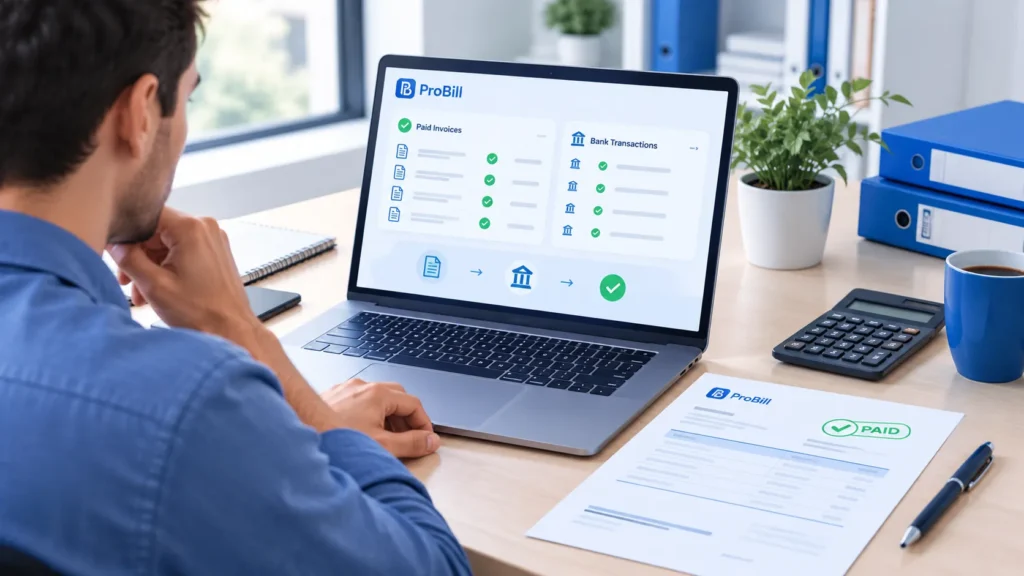
Manual bookkeeping: updating ledgers or spreadsheets after an invoice is paid
- Verify the deposit matches the remittance advice or bank statement.
- Locate the original sales entry in your general ledger or spreadsheet.
- Enter a contra-entry:
• Debit Cash/Bank for the amount received.
• Credit Accounts Receivable to show the invoice paid. - Add the payment date, method, and any reference number in an adjoining column.
- If early-payment discounts applied, post the reduction to a “Sales Discounts” account so gross revenue stays intact (see detailed rules in our guide to invoice payment terms).
- Move the digital file—whether generated from our free invoice generator or a custom form—from your “Open” folder to “Paid” and rename it with the receipt number for quick retrieval.
- Update your aging report and flag the customer as current. This stops automated late-fee calculations and future overdue invoices emails.
Tip: Schedule a weekly review to reconcile manual entries against your bank feed. According to the Journal of Accountancy, delayed reconciliations are the top driver of small-business reporting errors.
For niche workflows—like progress billing in construction or milestone payments in design—browse our invoice resources by industry for field-tested spreadsheet columns and formulas.
Automated tracking: syncing payments with cloud accounting software
Cloud platforms compress the seven manual steps above into three automated actions:
- Bank-feed import: The system pulls transactions daily, matching each line to its original invoice number using rules you set in Create Invoice or comparable apps.
- Reconciliation engine: Artificial intelligence suggests a match. Approve with one click and the software marks the invoice paid instantly, updates ledgers, and locks the record for audit compliance (see Xero’s assurance dashboard for a GAAP-aligned example).
- Real-time dashboards: Your cash-flow widget refreshes, so paid invoices drop off the receivables chart and liquidity metrics adjust in seconds.
Additional automations you can enable:
• Auto-attach PDFs from your stored invoice templates to the payment record for full documentation.
• Trigger a “Thank you” email that links customers to a guide on how to pay an invoice next time.
• Push data to cash-flow forecasts or inventory modules so you can plan reorders before stockouts (Harvard Business Review notes predictive cash models cut idle cash by up to 20%).
• Export granular payment data to CSV for investors who need transaction-level details—no duplicate downloads.
Finally, integrate your accounting app with the invoice payment portal you already use; this posts batch settlements automatically. If a bank rule misfires or a customer’s ACH is reversed, the system reopens the receivable so the invoice paid status doesn’t mask a problem.
Using automation doesn’t mean zero oversight. Schedule a monthly spot-check and compare software totals to your bank’s period-end balance; AccountingTools recommends a variance threshold of ±0.5% for healthy books.
Proven Tactics to Get Your Invoice Paid Faster

Setting clear payment terms, due dates, and preferred methods
An invoice paid on time almost always starts with crystal-clear instructions. Before you hit send, embed concise, jargon-free clauses that spell out when the money is due, how it should arrive, and what happens if it doesn’t. Use the drag-and-drop fields in our free invoice generator to pre-populate standardized invoice payment terms; this consistency eliminates client confusion and accelerates every step until the invoice was paid.
Define specifics up front
• Place the exact due date in bold—not “Net 30,” but “Payment due 10 April 2024.”
• Add your bank, ACH, card, or wallet details under a clearly labeled “Preferred Method” header so the client never hunts for routing numbers.
• Mirror those details in your saved invoice templates to avoid retyping.Automate friendly nudges
Linking your template to Create Invoice lets you schedule reminders at T-10, T-3, and T-0. These messages include a live “Pay Now” button that updates the status to invoice paid instantly upon settlement.Surface late-risk accounts early
Build a weekly filter that flags customers whose average pay cycle creeps past 28 days. Combine that insight with our invoice resources by industry to tailor follow-ups—construction clients often prefer progress billing, while SaaS buyers may want auto-debited cards.Reduce disputes with upfront clarity
Attach a one-page scope or statement of work and link directly to a “How we handle overdue invoices” policy. When expectations and consequences are transparent, arguments vanish and paid invoices roll in faster.
For unfamiliar customers, drop a link to our step-by-step guide on how to pay an invoice right inside the PDF footer. Clients appreciate the hand-holding, and you gain another chance to reinforce your preferred channel.
Using early-payment incentives and late-fee policies to motivate clients
Even the most explicit terms need a carrot-and-stick structure to turn “pending” into invoice paid. Behavioral economics shows people act quicker when rewarded immediately and penalized predictably.
• Offer a tiered discount: 2% off if the invoice was paid within five days, 1% within ten. Embed these rates in your template’s subtotal field so totals self-recalculate, then guide customers through the one-click checkout inside our invoice payment portal.
• Publicize the savings: A bold “Save $47 by paying today” line near the total turns the incentive into a tangible benefit.
• Activate automated surcharge logic: With Create Invoice, late-fee rules apply the moment due dates lapse, and the client receives an updated balance. Knowing an extra 1.5% will appear next week nudges many companies to settle and keep their record of paid invoices clean.
• Escalate reminders professionally: Day-after-due email, day-seven phone call, day-fourteen mailed notice. Keeping the cadence visible in your terms reduces hard feelings because the process feels fair.
Crucially, link your live aging report to the early-pay dashboard. When a discount moves a customer from 28-day to 7-day turnover, the system labels the invoice paid and adjusts future offers accordingly. Employing both rewards and penalties within transparent rules strengthens cash flow without jeopardizing relationships.
Troubleshooting: When You Think the Invoice Was Paid but the Money Isn’t There
You clicked “mark invoice paid,” your aging report looks cleaner, yet the bank balance refuses to budge. Even the best paid invoices workflow can stumble on posting lags, gateway holds, or data-entry slips. The fixes below show how to trace every dollar so you never wonder whether an invoice was paid again.
Reconciling deposits with invoices to catch posting or gateway delays
- Pull yesterday’s bank feed inside Create Invoice and filter for credits that lack an attached document.
- Sort your open deposit list by amount, then reference the unique totals generated by your free invoice generator. Small mismatches often reveal card-processor fees that obscured the expected figure.
- Open each suspect transaction and match it to the original PDF stored under your reusable invoice templates. Confirm dates and reference numbers line up.
- Still no match? Log in to the payment gateway dashboard. Card networks can place 24–48 hour holds (see Visa’s settlement window: https://usa.visa.com). If the status shows “pending,” annotate the record and set a follow-up reminder.
- Reconcile weekly. Use the bank-reconciliation rules in your software to auto-flag any payment that remains unmatched after three business days; that cadence aligns with NACHA’s ACH processing time frame (https://www.nacha.org).
Tip: Industry-specific quirks—such as progress draws in construction or milestone releases in creative services—require extra columns. Grab ready-made layouts from our invoice resources by industry so those nuanced inflows align with each invoice paid entry.
Communicating with customers about partial, duplicate, or missing payments
Even perfect reconciliations stall if the customer sent the wrong amount. Use this four-point script to resolve gaps fast:
• Acknowledge facts, not blame: “Our records show a $2,450 balance after your partial $500 transfer.” Attach screenshots from the invoice payment portal so figures are indisputable.
• Clarify invoice payment terms: Re-state due dates, discounts, or late-fee triggers to prevent future confusion. Link them directly in the email for easy reference.
• Offer clear next steps: Embed a “Pay Now” button that routes the client to the secure instructions in our guide on how to pay an invoice. That single click can turn an under-payment into an invoice paid.
• Close the loop: Once funds arrive, issue a revised receipt within minutes so the customer sees the account is clear and avoids appearing on your overdue invoices list.
For duplicates, politely request the customer’s remittance advice and refund or credit according to your policy. Always document the adjustment and attach it to both related paid invoices for an indisputable audit trail.
A short, factual message built on these steps resolves 90% of payment mysteries before they snowball, keeps relationships intact, and ensures every invoice paid status truly reflects cash in your bank.
Frequently Asked Questions About Paid Invoices
How long should I keep copies of paid invoices for legal compliance?
Most U.S. businesses retain paid invoices for at least three years to satisfy IRS rules, but many accountants recommend seven years to cover extended audit look-back periods and state statutes. If you trade in the EU, keep VAT-relevant documents for ten years per HMRC guidance (https://www.gov.uk). Storing PDFs in organized folders—using searchable names generated from your invoice templates—lets you purge only after the longest mandatory window without losing traceability.
Can I edit or void an invoice after it’s been paid?
Never overwrite the original record; instead, issue a credit memo that references the invoice number, then create a corrected bill if needed. This preserves the audit trail and keeps your invoice payment terms intact for both parties. Most cloud tools let you link the credit and the new charge so the ledger still shows a clean chain from invoice was paid to any later adjustment.
Do I still need to send a receipt if the invoice is marked paid?
Yes—“marked paid” updates your books, but the customer still needs a receipt for their own accounting. Automate the send from your free invoice generator so the PDF hits their inbox the moment the invoice paid status flips. Including a quick link to instructions on how to pay an invoice reassures clients that future settlements will be just as seamless.
What happens if a paid invoice is later refunded or charged back?
First, process the refund through the same channel so payment processors create the reversal entry. Your accounting software should reopen the receivable, post a negative cash entry, and tag the transaction under invoice payment adjustments to keep financials accurate. Flag the customer account for follow-up in case the dispute signals service issues that could turn more paid invoices into reversals.
Are paid invoices subject to audits, and how do I prepare?
Absolutely—auditors verify that every invoice paid ties to real cash and proper revenue recognition. Maintain digital receipts, bank matches, and approval logs inside Create Invoice and supplement them with industry-specific checklists from our invoice resources by industry so documentation is one click away. Proactive organization prevents a reclassification of clean records into overdue invoices if questions arise later.
How do multi-currency transactions impact paid invoices?
When the invoice was paid in a foreign currency, you must record two amounts: the customer’s settlement figure and the home-currency equivalent using the spot rate on the payment date. Any difference between that rate and the one recorded at issue creates a realized FX gain or loss that hits your P&L. Robust platforms such as Create Invoice auto-calculate this delta so paid invoices never distort profit metrics.
When should I send an invoice paid acknowledgment to the client?
Send the acknowledgment immediately after the bank or gateway confirms cleared funds—delays risk confusion and duplicate payments. Most tools let you trigger an email and portal update the instant the invoice paid flag toggles, turning a routine admin step into a subtle customer-service win. A prompt note also closes the communication loop, preventing the client from mistakenly re-sending funds or disputing whether the invoice was paid.
Ready to Eliminate Late Payments? Get Started with [Product Name] Today
Nothing accelerates growth like seeing every invoice paid without chasing clients or juggling spreadsheets. [Product Name] combines smart automations with an intuitive dashboard so each invoice paid update lands in your books—and bank—right on schedule. The result? Fewer late fees, cleaner statements, and more time to focus on work that matters.
Core features that automate invoice creation, reminders, and payment reconciliation
[Product Name] removes bottlenecks that keep paid invoices from showing up promptly:
• One-click drafting: Pull customer data into pre-formatted invoice templates. Hit send and a branded PDF plus live payment link ships instantly—no copy-paste errors, no wondering whether the invoice was paid later.
• Built-in free invoice generator for ad-hoc sales: perfect when you need an on-site bill that still feeds straight into your ledger.
• Smart nudges: Schedule reminder tiers that comply with your customized invoice payment terms. Each alert contains a secure checkout button, and the moment the customer settles, the platform tags the invoice paid status automatically.
• Seamless reconciliation: Bank-feed rules match deposits to their original sale lines, eliminate double entries, and shift transactions from “open” to paid invoices without manual review.
• Industry-ready add-ons: Whether you run construction draws or agency retainers, plug in specialized workflows from our invoice resources by industry so reconciliation stays effortless.
• Real-time insights: A color-coded aging widget flags balances before they turn into overdue invoices, while the cash-flow tab shows exactly when each invoice paid event boosts liquidity.
Need help guiding clients through checkout? Embed a quick link to our step-by-step guide on how to pay an invoice right inside the reminder email—support questions drop, and every invoice paid arrives faster.
Easy signup steps and a limited-time discount for new users
- Visit Create Invoice and click “Start Free Trial.” or Install Probill Mobile app .
- Connect your bank feed; the wizard auto-imports last week’s transactions so any invoice paid yesterday already appears in your dashboard.
- Select an invoice template or build a fresh form with the drag-and-drop editor.
- Switch on auto-reminders and pick your default gateway in the invoice payment settings so the next invoice was paid confirmation flows straight to your books.
- Activate coupon code NEW30 at checkout to lock in 30% off the first three months—available only until midnight Sunday.
From the first login, you’ll watch invoice paid alerts roll in without lifting a finger. Sign up now, claim your discount, and turn every late payer into a loyal, on-time customer.