Skip to content


What Is a Draft Invoice & Why It Belongs in Every Billing Workflow
Defining a Draft Invoice vs. Proforma and Final Invoices
A draft invoice is the first editable version of a bill you prepare for a client. It allows you to review and adjust important details, such as line items, due dates, taxes, quantities, and branding, before officially issuing the document.
Unlike a draft invoice, a proforma invoice is a preliminary cost estimate sent to a customer before goods or services are delivered. A final invoice, on the other hand, is the official payment request issued after the agreed work or transaction is completed.
Think of a draft invoice as a safe workspace between preparing a quote and issuing the final bill. You can create one using ready-made invoice templates or start directly with Create Invoice and save your progress until all details are confirmed.
Once everything has been reviewed and approved, you can issue the final invoice without having to enter the information again. For businesses operating in different sectors, draft invoices also make it easier to include industry-specific details using our invoice resources by industry.
Key Benefits: Error Reduction, Client Approval, and Faster Payments
Using draft invoices before issuing final bills offers several practical advantages for businesses:
1. Reduce billing errors
Preparing an invoice as a draft gives you time to catch mistakes before sending it to a customer. You can correct typos, adjust quantities, update prices, and verify tax calculations before the document becomes official. This helps prevent unnecessary corrections, cancellations, and credit notes.
2. Make client approval easier
Sharing a draft invoice with a customer allows both parties to review the charges before the final document is issued. Clients can ask questions about specific items, request adjustments, confirm payment details, or provide purchase order numbers. Resolving these issues early helps avoid delays during the final approval process.
3. Speed up payments
When you identify and correct billing issues at the draft stage, the final invoice is more likely to be accurate and ready for payment. Combining this workflow with our free invoice generator makes it easy to prepare professional invoices and generate ready-to-send PDFs in seconds.
Ultimately, treating every invoice as a draft before issuing it creates a more reliable billing process. It gives you time to review important details, secure client approval, and send accurate payment requests, helping your business avoid unnecessary delays and maintain healthier cash flow.
How to Create a Draft Invoice Step-by-Step (With Free Template)
Information to Gather Before You Start
Collecting the right data upfront lets you finish a draft invoice in minutes instead of chasing details later.
– Client master data: Legal name, billing address, and tax or VAT ID. Pull it directly from your CRM or reuse a saved profile in Create Invoice.
– Project or order reference: Signed SOW, PO number, or milestone ID so accounts-payable can match the bill instantly.
– Approved pricing source: The accepted quote, rate card, or contract section that justifies every amount on the draft invoice.
– Tax jurisdiction rules: Current sales-tax or VAT percentages for the customer’s location. The OECD’s tax database keeps global rates updated.
– Delivery evidence: Timesheets, shipment proofs, or completion notes confirming work is done. Attaching these to the draft invoice speeds approval.
– Payment terms and methods: Net days, early-pay discounts, bank details, or PayPal links. Decide now so you don’t edit the document twice.
– Custom fields: Industry-specific info such as lot numbers or insurance codes. If you need ideas, browse our invoice resources by industry and copy any required labels into the free template.
Having this bundle ready means the draft invoice can flow straight to review, then convert to a final invoice without rework.
Filling Out Each Section: Line Items, Taxes, Terms, Notes
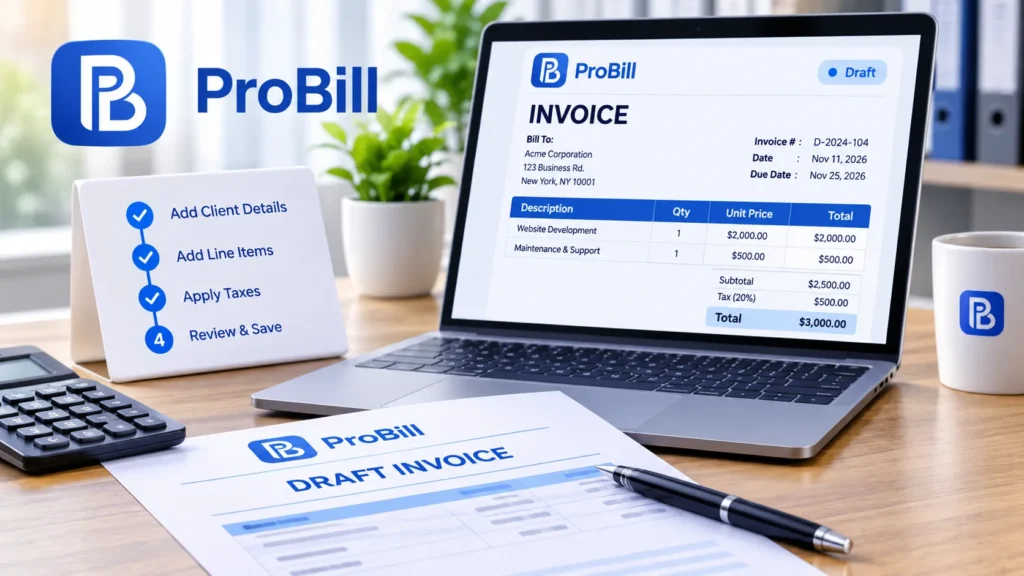
1. Download a blank template: Download a blank file from our invoice templates or open the in-app editor. The template already includes editable cells for every mandatory field.
2. Header: Insert your logo, business info, and a unique draft number (e.g., D-2024-104). Flagging it as “Draft” prevents premature posting.
3. Client block: Paste the customer details you gathered. Confirm spelling—this block transfers verbatim to the final invoice.
4. Line items:
- Description: Use plain language plus any SKU or task code.
- Quantity & unit price: Mirror the signed quote; avoid rounding that could trigger disputes.
- Subtotals: Let the spreadsheet or free invoice generator calculate to eliminate manual math errors.
5. Taxes: Select the correct rate from a dropdown or type it in. The template auto-applies tax to taxable items only, aligning with guidance from the OECD source above.
6. Terms & payment instructions: State “Net 30,” early-settlement discounts, late fees, and accepted methods. Clear terms on the draft invoice are statistically linked to 1.5-day faster payments, according to FreshBooks’ 2023 data set.
7. Notes section: Add delivery confirmations, warranty periods, or a friendly “Thank you for your business.” This human touch can improve customer satisfaction scores.
8. Internal review: Route the draft invoice to project managers or finance for sign-off. Using Create Invoice, you can lock editing while still labeling it “Draft,” preserving an audit trail.
9. Issue: Once every field checks out, hit “Convert to Final.” The system clones the draft invoice into an immutable final invoice, preserving line-item integrity and timestamping it for revenue recognition.
By following these nine steps, your draft invoice moves smoothly from editable worksheet to revenue-ready document without ever re-keying a single figure.
Best Practices to Turn a Draft Invoice into a Final Invoice That Gets Paid
Moving from a draft invoice to a final invoice is where billing mistakes, branding gaps, and approval delays either disappear or snowball into cash-flow blockers. Follow the practices below to convert every editable draft into a polished final invoice that lands in your client’s pay queue on the very first pass.
Internal Review Checklist: Accuracy, Compliance, Branding
1. Arithmetic audit
- Re-total every line and tax column using the in-app validator inside Create Invoice. A single miscalculated subtotal is the top reason a final invoice gets rejected, according to QuickBooks’ 2023 payment data.
2. Contract & PO match
- Confirm quantities, rates, and scope against the signed agreement or purchase order before the draft moves forward.
3. Tax jurisdiction confirmation
- Check that VAT or sales-tax codes match the ship-to location. When in doubt, validate rates against the OECD database you referenced earlier.
4. Regulatory disclosures
- Insert mandatory statements such as reverse-charge notices or local e-invoicing IDs. Pull industry-specific wording from our invoice resources by industry.
5. Visual branding sweep
- Logo placement, color palette, and font size should mirror your standard invoice templates so the client instantly recognizes the sender.
6. Payment rails verification
- Test that bank details, ACH numbers, or PayPal links render correctly. The built-in preview in our free invoice generator flags broken URLs before the document becomes a final invoice.
7. Approval sign-off trail
- Require digital initials from project and finance leads. The audit log travels with the final invoice, protecting you during external audits.
Client Communication Tips for Seamless Approval & Conversion
– Share a watermarked PDF labeled “Draft” 48 hours before issuing the final invoice. This courtesy window lets clients flag changes without halting the payment clock.
– In the cover email, restate the purchase-order number and net terms in the subject line; AP bots often route emails based on those fields alone.
– Highlight early-pay discounts in a bold sentence at the top of the final invoice; behavioral studies by the Association of Finance Professionals show a 12% lift in on-time payments when incentives are prominently displayed.
– Offer multiple payment options—card, ACH, or bank transfer—inside the same final invoice using the one-click pay buttons embedded by Create Invoice.
– Schedule an automated reminder three days before the due date. A polite nudge linked to the original final invoice keeps your request at the top of the inbox without additional manual work.
Automating the Draft-to-Final Invoice Workflow with Invoicing Software
Modern invoicing platforms erase the manual hops between a draft and a final invoice. By storing every edit in the cloud, the software auto‐populates client data, syncs taxes, and pushes the approved draft straight into your accounting ledger as a final invoice the moment you click “Issue.” This automation removes re-keying, preserves an audit trail, and cuts the turnaround time from draft creation to paid final invoice by days.

Features to Look For: Version Control, Collaboration, E-Signatures
Robust version control keeps a timestamped copy of each draft so you can roll back if a stakeholder questions a charge after the final invoice goes out. Look for granular user roles that let project leads edit quantities while finance locks pricing—this segregation of duties satisfies internal auditors.
Real-time collaboration tools, such as inline comments and @mentions, pull legal, sales, and finance into the same workspace. Because everyone sees the identical document, fewer discrepancies surface when the draft becomes the final invoice. Platforms like Create Invoice embed live chat next to line items, avoiding long email threads.
Integrated e-signatures accelerate sign-off. Under the U.S. ESIGN Act and the EU’s eIDAS Regulation, a digital signature is as enforceable as ink, so clients can legally approve the draft on any device. The signature locks the file, converts it to a final invoice instantly, and triggers automated payment reminders from the free invoice generator.
Must-have automation checklist:
- Edit history with one-click restore.
- Multi-user permissions tied to the accounting calendar.
- Native e-signature that writes back to the ledger.
- Auto-fill fields pulled from reusable invoice templates and industry-specific labels stored in the invoice resources by industry library.
Comparing Top Tools & Choosing the Right Fit for Your Business
According to Deloitte’s 2023 Digital Accounting Survey, 67% of midsize firms already automate invoices, but feature depth varies. Compare platforms side by side before you bet cash flow on a new system.
| Tool | Draft-to-Final Automation | Version Control | Collaboration | E-Signature | Price Tier* |
|---|---|---|---|---|---|
| Probill Invoice Maker | One-click convert, auto reminders | Unlimited, with diff view | In-app chat & mentions | Built-in; EU & US compliant | Free–$29/mo |
| QuickBooks Online | Converts but limits bulk actions | Snapshot log only | Shared comments | Requires DocuSign add-on | $30–$200/mo |
| Xero | Auto convert & ledger post | 20 versions stored | Comment feed | Integrated Adobe Sign | $13–$70/mo |
Public pricing at time of writing.
When selecting software, weigh the time saved per final invoice against subscription cost. If your team needs deep approval workflows or niche tax fields, a specialized tool like Create Invoice—with its custom invoice templates and industry modules—outperforms general ledgers.
Low-volume freelancers might favor Xero’s lower entry price, while enterprises that already use Intuit products often bundle QuickBooks despite the extra e-signature fee.
Whatever you pick, insist on seamless draft migration, tight version control, and native signatures so every final invoice leaves your system accurate, authenticated, and ready for prompt payment.
Draft Invoice FAQs
When should I send a draft invoice instead of a proforma?
Send a draft invoice after the work or shipment is complete but before you lock amounts in a final invoice. A proforma suits the pre-work estimate stage, whereas a draft invoice lets you fine-tune real costs, taxes, or PO numbers with the client’s input. If you start with our customizable invoice templates, you can flip a proforma into a draft invoice in seconds and keep the approval flow moving.
Is a draft invoice legally binding?
No—because a draft invoice is still editable, it carries no legal weight until you convert it into a final invoice that meets statutory requirements. Most jurisdictions, including the U.S. IRS rules and the U.K. HMRC guidelines (https://www.gov.uk), treat the document as an internal or preliminary record, not an enforceable demand for payment.
How do I edit or cancel a draft invoice after sending?
Simply open the saved draft invoice in your billing platform, make the change, and re-share the updated PDF marked “Revised.” In Create Invoice, you can click “Revert to Edit” to unlock fields or hit “Void” to cancel; the system stores every version so your audit trail remains intact.
Can clients pay from a draft invoice?
Generally, accounts-payable teams won’t release funds against a draft invoice because it lacks a finalized invoice number. However, you can add a note that the amount will not be collected until the draft converts to a final invoice. With the free invoice generator, one click turns the draft into a pay-enabled document so the client can settle immediately.
What information should never be left off a draft invoice?
Always include the customer’s legal name and address, a unique draft invoice identifier, full line-item descriptions, applicable tax rates, and your payment terms. Skipping any of these fields risks client rejection or non-compliance when the document becomes a final invoice—especially in regulated niches highlighted in our invoice resources by industry.
How soon should I follow up on a draft invoice?
Follow up 24–48 hours after you share the draft invoice. This window respects the client’s review time yet keeps the billing cycle on track; Ardent Partners’ 2023 AP Metrics Report notes that queries resolved within two days shorten overall payment timelines by nearly a week.
Does a draft invoice affect my accounting records?
A draft invoice never posts to your general ledger, so it has zero impact on revenue recognition, tax liability, or aged receivables. Only when you mark it “Issued” does the system create the final invoice entry that syncs with your accounting software and financial reports.