Skip to content
How to Create Invoice on Mobile: Quick Answer
Summary of Simple Invoice Creation Steps
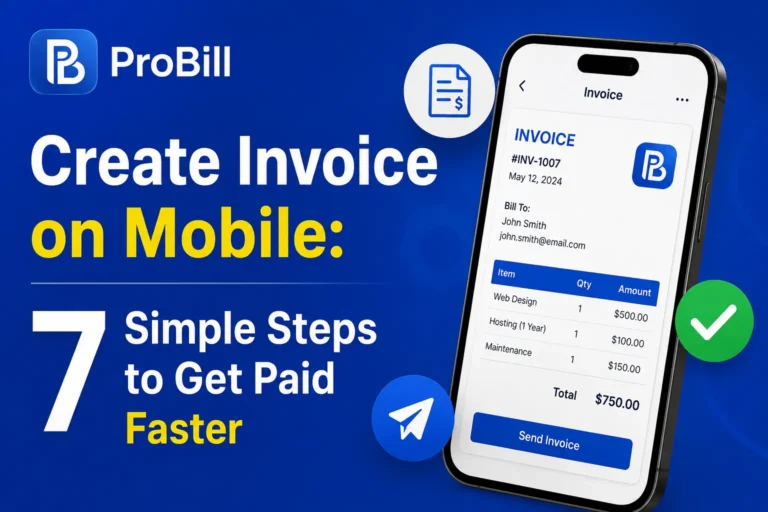
Creating an invoice on mobile follows a streamlined sequence that anyone can master quickly. First, select a suitable invoice template — many mobile apps and online tools offer a variety tailored to different professions. Then, enter the client’s details and service or product information, ensuring accuracy for faster payment processing. Customize your invoice by adding your logo, payment terms, and a due date. Finally, export the invoice as a PDF or share it directly via email or messaging apps on your phone. These minimal steps help freelancers and small business owners produce professional invoices without a desktop.For the complete invoicing process, see our guide on how to create invoices.
Link to invoice generator page for hands-on use
To practice these steps with no hassle, use the free invoice generator designed for mobile devices. This tool lets you create an invoice on your phone or tablet quickly, supporting both iPhone and Android platforms. It provides ready-to-use templates, editable fields, and instant PDF export so you can generate and send invoices during client meetings or right after completing a job. The generator reduces friction in the invoicing process, enabling faster billing without technical complexity. If you’re looking for a browser-based option, you can also create an invoice online for free.
Step-by-Step Guide to Create Invoice on Mobile Devices
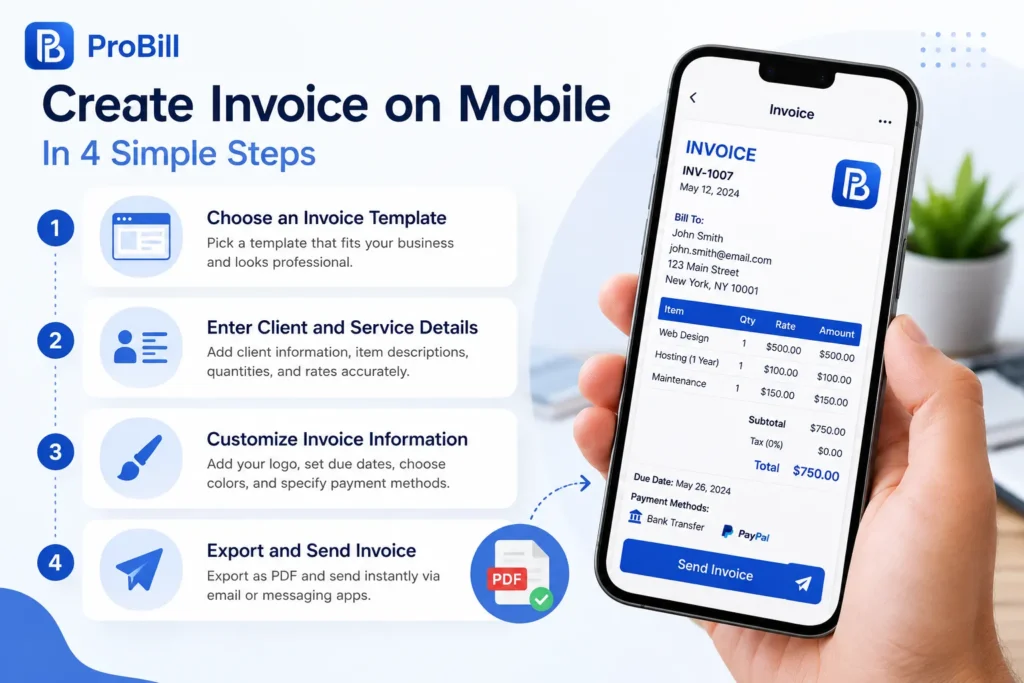
Step 1: Choose an Invoice Template
Selecting the right invoice template sets the tone for professionalism. On mobile, options range from simple one-column formats to detailed multi-section designs. For example, freelancers offering creative services benefit from templates emphasizing descriptions and hours worked, while small business owners may prefer formats highlighting taxes and totals clearly. Picking a template designed for mobile screens ensures readability and ease of editing on devices like an iPhone or iPad.
Step 2: Enter Client and Service Details
Accurate entry of client information is crucial. Avoid typing errors in names, addresses, or email contacts to prevent payment delays. Include precise service descriptions or product details with quantities and rates. For instance, a self-employed consultant creating an invoice on their phone should double-check client emails before sending to avoid bounced messages. Mobile keyboard autocorrect can be helpful but requires careful review when entering sensitive data.
Step 3: Customize Invoice Information
Adding personal or business branding enhances credibility. Use your logo, adjust colors, or include a payment due date tailored to contract terms. On devices like the iPad, many apps allow drag-and-drop logo placement, speeding up customization. Don’t overlook specifying payment methods accepted, such as bank transfer or PayPal. Missing this detail often leads to back-and-forth communication that wastes time.
Step 4: Export and Send Invoice from Phone
Export your invoice as a PDF for universal compatibility and professional appearance. Most mobile apps and online generators support instant PDF export. After exporting, share it directly through email or messaging apps without switching devices. For example, a small business owner can create and send an invoice on an iPhone right after completing a job at a client’s site, accelerating cash flow. Always verify the file opens correctly on your device before sending. After creating the invoice, you can send it directly to your customer.
IRS invoice requirements provide a good reference to ensure your mobile-created invoice meets official standards.
Methods and Options to Create Invoice on iPhone and iPad
Using Built-in Notes or Files Apps
iPhones and iPads come with native apps like Notes or Files that some freelancers use for quick invoicing. This method requires manually formatting text and inserting tables or bullet points, which can be time-consuming and prone to errors, especially when trying to maintain professional layouts. For example, a sole proprietor might jot down service details in Notes but then struggle to add totals or customize payment terms. While convenient for immediate needs, relying on these apps lacks automation features beneficial for frequent invoicing.
Advantages of Dedicated Invoice Apps
Dedicated invoice apps streamline the process with built-in templates, autofill client databases, and instant PDF export. Creating an invoice on iPhone using apps like FreshBooks or Invoice2go speeds up repetitive tasks and reduces mistakes. Small business owners often choose these apps to track invoice status and send reminders without leaving the app interface. The downside is sometimes a learning curve or subscription fees. Still, the time saved and increased professionalism typically outweigh the costs for regular users. AI-powered invoicing tools can also speed up invoice creation when you’re working from your phone
Benefits of Online Invoice Generators
Online invoice generators accessed via a mobile browser offer flexibility without the need to install apps. Services like the free invoice generator enable entrepreneurs to create invoices on iPhone or iPad with ease and no technical skills. These tools usually include mobile-optimized templates and export options. For instance, a freelancer can complete and send invoices immediately after client calls by using such web tools. The main advantage is cross-platform usage, but it requires a stable internet connection to function smoothly.
Using Probill Mobile Invoicing App
Probill combines online convenience with a native app experience, designed specifically for the challenges of creating invoices on mobile devices. Freelancers and small business owners benefit from fast invoice template selection, editable fields, and client management features, all accessible on iPhone and iPad. The app supports seamless PDF export and direct sharing, speeding up payment cycles. Probill’s simple interface reduces friction in mobile invoicing compared to generic apps or manual methods, making it an efficient choice for those who frequently create an invoice on their phone.
For those looking to explore mobile invoice creation options that balance ease and functionality, Probill’s free invoice generator is a practical starting point.
Key Elements Required When Creating Invoice on Mobile
Client Information Accuracy
Most invoice payment delays stem from incorrect client details. On mobile, the risk of typos increases due to smaller keyboards and autocorrect quirks. For example, an entrepreneur who sends an invoice with a misspelled email address wastes time correcting bounced messages. Always double-check names, addresses, and contact details before sending. Keeping client contacts organized in your phone or using autofill features minimizes errors and speeds up the process.
Clear Itemized Billing
Invoices must clearly break down services or products with quantities, unit prices, and totals to avoid confusion. Mobile screens encourage concise presentation, but omitting itemization leads to payment disputes that cause delays. A freelancer who lumps all work into one vague line risks client pushback. Use multiple line items and straightforward descriptions even when creating invoices on iPhone or iPad to improve understanding and prompt payment.
Payment Terms and Due Dates
Missing or unclear payment terms rank among the top causes of late payments. When creating an invoice on mobile, explicitly state accepted payment methods, due dates, and any penalties for late payments. A small business owner who forgets to mention “Net 15” or “PayPal accepted” faces follow-up inquiries that slow collections. Clearly displayed terms reduce back-and-forth and ensure everyone knows the timeline.
Contact Information
Your invoice must include reliable contact information to handle questions or disputes promptly. This includes a phone number, email, and company address if applicable. When creating an invoice on an iPhone or iPad, avoid the pitfall of omitting these details to sidestep client frustration. Clients appreciate quick access to seller contacts without hunting through emails or websites, expediting resolution and payments.
For a quick and professional way to check all key invoice elements before sending, mobile users can try the free invoice generator which prompts you to fill critical fields correctly and helps prevent common mistakes.
Common Mistakes to Avoid When Creating Invoice on Mobile
Inaccurate Client Details
A frequent source of payment delays comes from simple typos or outdated client information. On a mobile device, small keyboards and autocorrect can introduce errors in names, email addresses, or billing addresses. For instance, a freelancer who accidentally enters a client’s email as “client@emial.com” will face bounced emails and late payments. To avoid this, verify details against saved contacts or confirm directly with clients before sending. Using autofill features within invoice apps helps reduce these mistakes.
Missing Payment Terms
Failure to clearly communicate payment terms is a common oversight that leads to confusion and slower cash flow. Mobile invoices that lack due dates, accepted payment methods, or penalties for late payment require additional follow-up. For example, a small business owner creating an invoice on iPhone who omits “Payment due within 15 days” forces clients to ask, causing delays. Always include explicit payment terms, and avoid vague phrases like “Pay when convenient.”
Using Poor Invoice Templates
Not all invoice templates work well on mobile screens. Using a cluttered or overly complex template on an iPhone or iPad can result in important information being hard to read or missing entirely. For example, cramming tax details into a tiny font or ignoring mobile responsiveness frustrates clients and reduces professionalism. Choose templates optimized for mobile that display a clear item breakdown, totals, and contact information at a glance.
Delays in Sending Invoices
Speed matters when creating an invoice on mobile, yet some delay sending due to multitasking or technical difficulties. A common scenario is a freelancer who finishes work, drafts an invoice on their phone, but postpones sending it until back at their computer—risking payment delays. Using a mobile-friendly invoice generator ensures invoices can be created and dispatched right away, keeping cash flow steady and clients informed without waiting.
For practical mobile invoice creation that minimizes these common pitfalls, try the free invoice generator designed for smooth workflow and error reduction.
Tips for Faster and More Efficient Invoice Creation on Mobile
Save and Reuse Invoice Templates
Saving and reusing templates drastically cuts invoice preparation time. A freelancer juggling multiple clients can set up a master template with standard fields once, then quickly clone it for each new job. This avoids repetitive formatting and reduces errors caused by manual input. On iPhone or iPad, many invoice apps allow template saving—making it easy to maintain consistency while speeding up your workflow. Without templates, every invoice risks inconsistent layouts that confuse clients and slow payments.
Use Autofill Features on Mobile Apps
Autofill is indispensable for reducing typos and accelerating data entry. Populate client names, addresses, and service descriptions with a tap rather than typing from scratch. For example, a consultant creating an invoice on their phone minimizes mistakes by selecting saved contacts from an autofill list. This feature also prevents common errors like misspelled emails that delay payment. Not all mobile apps have robust autofill, so choosing one with intelligent client management directly impacts invoice accuracy and efficiency.
Keep Client Data Organized
Disorganized client info wastes time and invites errors during mobile invoice creation. A small business owner who stores contacts in one app, project details in another, and invoices separately faces unnecessary friction. Consolidate client data in a single mobile-friendly invoicing app or use cloud-based contact syncing. This keeps billing details consistent and accessible on your iPhone or iPad, enabling quick invoice generation without cross-checking multiple sources. Well-organized data management streamlines follow-ups and payment reminders too.
Leverage PDF Export for Professional Presentation
Exporting invoices as PDFs ensures a polished and universally accessible format. Sending invoices as editable documents from your phone risks accidental changes or formatting issues on the client’s end. For example, a self-employed designer using PDF export on iPad maintains a professional look with intact logos, clear line items, and fixed totals. Additionally, PDFs integrate easily with accounting software or payment platforms, smoothing the entire billing cycle. Always verify your exported PDF on your phone before sending to catch any display problems.
Use a mobile-optimized invoice templates resource to obtain well-designed layouts suitable for quick PDF generation and export.
Invoice Templates and Examples to Create Invoice on Mobile
Downloadable Mobile Invoice Templates
Having access to downloadable invoice templates optimized for mobile devices eliminates the hassle of designing from scratch and ensures consistent professionalism. Templates crafted for phones like the iPhone or iPad maintain legibility without overwhelming small screens. For instance, a freelance photographer who downloads a minimalist, mobile-friendly template can quickly fill in session details on their phone, cutting billing time in half. Many templates include presets for taxes, discounts, and service descriptions, saving repetitive manual calculations. Using downloadable templates adapted to mobile boosts accuracy and reduces formatting errors common with manual setups.
Customizable Examples for Freelancers and Small Businesses
Tailored invoice examples provide a solid starting point that freelancers and small business owners can easily adapt on their mobile devices. A graphic designer might use a customizable template emphasizing project milestones and hourly rates, while a boutique retailer could highlight product quantities and shipment fees. These examples demonstrate how to balance branding, client details, and payment terms within a mobile screen space. Through customization, users can add logos or payment instructions without cluttering the layout. Real-world feedback shows that mobile-optimized templates reduce omissions like missing due dates or subtotals by guiding users step-by-step.
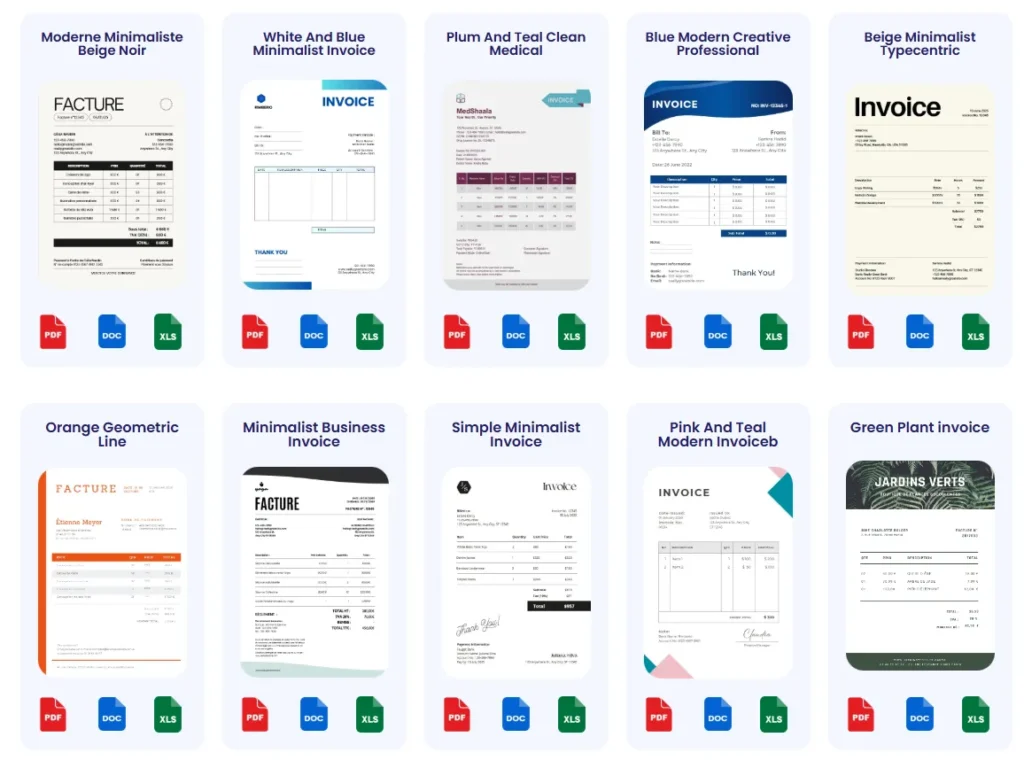
For those ready to try proven layouts, invoice templates offer downloadable, customizable formats that work seamlessly on smartphones and tablets, making invoice creation faster and more reliable.
Frequently Asked Questions About Creating Invoice on Mobile
Can I create an invoice on my phone without installing an app?
Yes. Many online invoice generators work directly in your mobile browser, letting you create an invoice on your phone quickly without app installation. These services often include mobile-optimized templates and PDF export. For example, freelancers can draft and send invoices on an iPhone immediately after client calls, simplifying cash flow management.
How do I create an invoice on iPhone quickly?
Speed comes from using templates and autofill. To create an invoice on iPhone efficiently, select a mobile-friendly template, enter client info from saved contacts, and customize payments terms. Export as PDF and send via email or messaging apps without switching devices. Dedicated apps or online tools help avoid manual formatting delays.
Are there free tools for creating invoices on iPad?
Free options exist, including web-based invoice generators optimized for iPad screens. These allow users to create and export professional invoices without subscription fees or downloads. Alternatively, using built-in apps involves manual formatting, which is less efficient. For a better experience, free tools with templates ease the process and ensure mobile compatibility.
What details must I include to make my mobile invoice valid?
Ensure client information is accurate, billing is itemized clearly, payment terms are explicit with due dates, and your contact details are present. Missing payment terms or unclear billing lines often cause payment delays. Always review before sending to maintain professionalism and compliance with IRS invoice requirements.
How can I send an invoice from my phone after creating it?
After creating the invoice—whether via app or browser—export it as a PDF to guarantee formatting. Then, share it directly through email, messaging apps, or cloud storage links on your phone. Many invoicing tools, including those that help create an invoice on iPhone or iPad, enable instant sending without switching devices.
Is creating invoices on mobile as professional as desktop methods?
Mobile invoicing can match desktop professionalism if you use optimized templates and add branding. For example, adding your logo and consistent payment terms on your iPhone preserves a polished appearance. Mobile PDF export also retains formatting integrity, which clients expect. The key is choosing tools designed for mobile ease and professional output.
Can I manage client and invoice data efficiently on mobile?
Yes. Many mobile invoice apps support client databases and autofill, reducing repeated manual input. This minimizes errors and saves time compared to manually creating invoices on iPhone or iPad. Keeping client info organized within your chosen invoicing tool speeds up future invoice creation and follow-ups.
What if my invoice template doesn’t display well on mobile screens?
Poorly optimized templates cause readability issues on small screens. Avoid cluttered, dense layouts that shrink text or hide key elements. Use mobile-friendly designs with clear sections and visible totals. Many online resources, including invoice templates, provide tested mobile-responsive options for better presentation.
Are payment tracking features available when creating invoices on mobile?
Some dedicated apps offer integrated payment tracking, allowing you to see when clients view or pay an invoice directly from your phone or tablet. This helps freelancers and small businesses manage cash flow proactively without relying on separate software.
How do I avoid common mobile invoicing mistakes?
Mistakes like entering inaccurate client details, missing payment terms, or delays in sending invoices are common. Cross-check information carefully, use templates designed for mobile, and send invoices immediately after creation. Employing autofill and reminder tools reduces errors and accelerates payments.
For hands-on experience, try the free invoice generator that supports creating invoices on iPhone and iPad with guided steps to minimize errors.
Start Creating Invoices Faster: Use Probill Mobile App
How Probill Simplifies Mobile Invoice Creation
Probill cuts down the hassle of invoice creation on mobile by offering an intuitive interface combined with essential features tailored for iPhone and iPad users. It streamlines tasks like template selection and client management, enabling freelancers and small business owners to produce professional invoices with minimal steps. For instance, a busy consultant can generate and send an invoice between meetings without losing time on formatting or input errors. The in-app PDF export ensures recipients get a polished, uneditable invoice—speeding up approval and payment cycles.
Try Probill Free Invoice Generator
The Probill free invoice generator provides a browser-based tool optimized for mobile screens, eliminating the need to install an app. This flexibility benefits users who want to create an invoice on their phone or tablet quickly, whether it’s an iPhone or iPad. The generator supports automatic saving of client data and preferences, so repeated invoicing feels seamless. Small business owners have found this tool useful to draft invoices instantly after service delivery, improving their cash flow and reducing time spent on administrative tasks. Explore it anytime at the free invoice generator.
Download the Mobile App for iPhone and iPad
Downloading the Probill mobile app unlocks full invoicing capabilities designed specifically for mobile devices. Beyond creating invoices, the app integrates client management and payment tracking to help users stay organized on the go. For example, a freelancer can see if an invoice has been viewed or paid directly from their iPad, enabling proactive follow-ups without desktop reliance. The app’s responsive design ensures that creating an invoice on iPhone or iPad is efficient, eliminating frustrations with small screens or clunky navigation. For a consistent professional look, the app includes access to well-designed invoice templates right within the interface. Users can download the app from Probill’s home page and start billing faster today.