Skip to content

How to Create Invoice Stripe: Quick Answer and Overview
Fast Steps to Stripe Invoice Creation
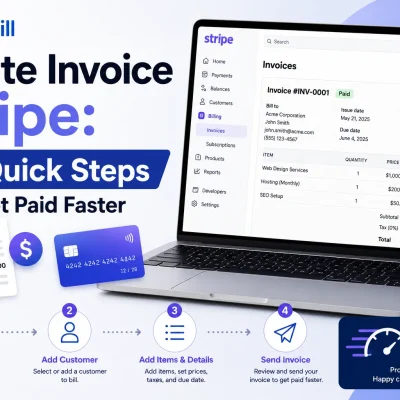
Creating an invoice with Stripe can be done swiftly by following a few streamlined steps. First, log into your Stripe dashboard and navigate to the “Invoices” section. Next, add your client’s details and specify the products or services you are charging for. Finally, review the invoice and send it directly through Stripe’s interface. This straightforward process ensures you can generate professional invoices quickly, minimizing delays in payment collection. For freelancers and small businesses, this reduces the often time-consuming task of manual invoice drafting. For the standard steps involved in creating an invoice, see our guide on how to create invoices .
Using Online Invoice Generator Page to Simplify Process
For users who find the native Stripe invoice create process complex or want to save time, using an online invoice generator page can dramatically simplify the task. These tools provide user-friendly templates and automate client data entry, enabling even those with no accounting background to create an invoice in Stripe easily. For example, the free invoice generator offered by Probill helps generate clean, compliant invoices that integrate well with Stripe payments, speeding up the billing cycle without sacrificing professionalism. Such tools also often include added features like PDF export and payment tracking, which complement Stripe’s basic invoicing functionalities. Explore the free invoice generator to experience a more efficient Stripe invoice creation workflow.For simpler invoicing needs, you can also create an invoice online for free.
Step-by-Step Guide to Stripe Invoice Create
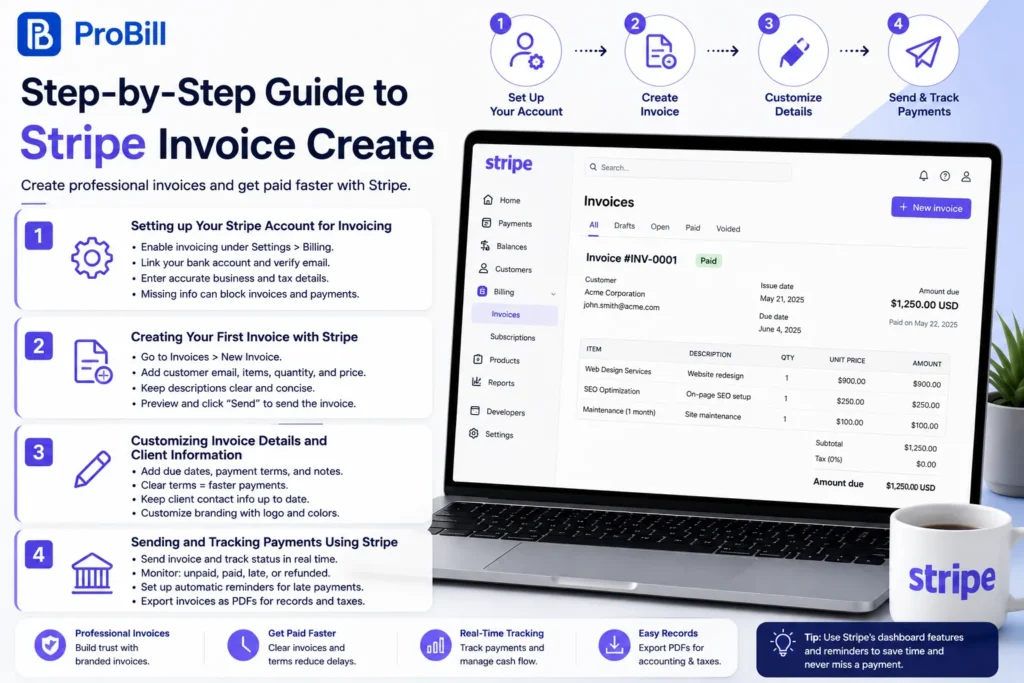
Setting up Your Stripe Account for Invoicing
Begin by activating the invoicing feature in your Stripe dashboard under “Settings” > “Billing.” Link your business bank account and verify your email to enable payments. Missing this setup often blocks invoice sending or payment receipt. For freelancers who skipped entering tax details here, client refunds got delayed due to compliance gaps. Stripe requires accurate business profiles to generate compliant invoices, so double-check every field before proceeding—especially your company’s address and tax ID.
Creating Your First Invoice with Stripe
Navigate to the “Invoices” tab and select “New Invoice.” Add your customer’s email, product or service description, quantity, and price. Avoid overcomplicating item entries; a clear, concise description reduces client queries. For example, a small business owner once duplicated line items by mistake, causing confusion and delayed payment. Once these fields are complete, preview the invoice, then click “Send.” Using Stripe for invoice creation is straightforward but demands accuracy to prevent payment delays due to client misunderstanding or billing errors.
Customizing Invoice Details and Client Information
Stripe allows you to tailor invoices by adding customized fields such as due dates, payment terms, and memo notes. A well-customized invoice speeds payment because clients know exactly when and how to pay. Neglecting to set clear payment terms is a common cause of overdue invoices. For instance, a freelancer who omitted specifying “Net 15” ended up waiting twice as long for payments. Additionally, update client contact details frequently—wrong emails or addresses lead to lost invoices. Customize branding elements like your logo and color schemes to reinforce professionalism without overloading the layout.
Sending and Tracking Payments Using Stripe
Once your Stripe invoice is ready, you can send it to the customer and manage the payment. After sending, monitor invoice status directly through Stripe’s dashboard. Stripe provides real-time updates: unpaid, paid, late, or refunded. This tracking prevents missed follow-ups. Many users mistakenly treat Stripe only as a payment processor and overlook its dashboard features, losing sight of outstanding invoices. Set up automated reminders for late payments within Stripe to reduce manual chasing. Stripe’s reporting tools enable quick recovery of financial data for taxes or accounting. For comprehensive records, export invoices as PDFs, a step that aligns with compliance and bookkeeping best practices.
Learn more about efficient invoice management using the free invoice generator that complements Stripe’s invoicing features perfectly.
For detailed compliance aspects of invoicing including required fields and record keeping, see the IRS invoice requirements.
Methods to Create an Invoice With Stripe Efficiently
Using Stripe Dashboard vs. API for Invoicing
Choosing between Stripe’s dashboard and API hinges on your volume and technical capacity. The dashboard suits freelancers and small business owners who want a straightforward, no-code way to create an invoice with Stripe. It offers a visual interface, quick edits, and easy sending. However, businesses processing numerous invoices benefit from automating creation via Stripe’s API, reducing manual workload and errors. For instance, a growing e-commerce seller shifted to API invoice creation to handle hundreds of orders daily, eliminating human error and speeding billing. If you’re not a developer, the dashboard remains efficient with less setup time.
Integrating Additional Invoice Generators to Speed Creation
Supplementing Stripe invoicing with third-party tools can bridge the gap between simplicity and automation. Many entrepreneurs integrate invoice generators that sync with Stripe, easing invoice design and data entry. For example, using an online invoice generator lets you draft brand-consistent invoices with fewer clicks, directly linked to Stripe payments. This is especially helpful for freelancers juggling multiple clients who struggle with repetitive manual entries. These generators often provide added perks like client management and quicker PDF export, improving workflow and reducing payment delays.
Advantages of Using Online Invoice Generator Tool
Online invoice generator tools enhance the Stripe create invoice process by offering intuitive, ready-made templates and smart automation features. They eliminate the steep learning curve involved in native Stripe invoicing, making professional billing accessible to those without accounting knowledge. For small business owners, these tools save time by automating calculations of taxes and discounts and ensuring compliance with local standards. Probill’s free invoice generator, for example, lets you create invoices faster and integrates seamlessly with Stripe payments, providing invoice tracking and PDF exports for record-keeping. The key advantage is reducing errors while improving payment turnaround. Explore the free invoice generator for a more efficient way to create invoices in Stripe.
Key Elements When You Create an Invoice in Stripe
Essential Invoice Fields to Include
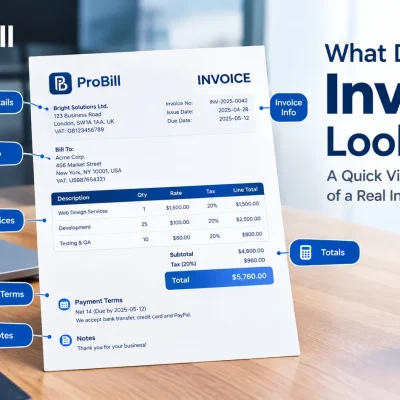
When you create an invoice in Stripe, including all necessary fields is non-negotiable. At minimum, your invoice should display:
- Client’s full name and contact information
- A clear description of products or services provided
- Quantity, unit price, and total amount due
- Invoice creation and due dates
- Unique invoice number for tracking
- Your business details including tax ID
Missing any of these can cause payment delays or compliance issues. For instance, a freelancer once forgot to add a unique invoice number, confusing both the client and their own records, which delayed payment reconciliation. Always use Stripe’s default template fields as a checklist before sending.
Ensuring Payment Terms Clarity
Most invoice disputes and delayed payments arise from vague or missing payment terms. Stating explicit terms such as “Net 30,” “Due on Receipt,” or installment plans minimizes confusion. For example, a small business owner who neglected to specify payment terms faced clients paying at random intervals, destabilizing cash flow. Stripe invoices allow you to set payment due dates and even add late fee policies, creating clear expectations. Highlight these terms prominently on the invoice to avoid follow-up emails and disputes.
Adding Taxes and Discounts Correctly
Tax and discount application can complicate the invoice creation process but must be handled precisely. Stripe allows detailed tax settings per line item or overall invoice, ensuring compliance with local laws. A typical error is applying taxes inconsistently, such as taxing a discount incorrectly, which leads to audit red flags and client confusion. Use Stripe’s tax features to automatically calculate and display taxes, and enter discounts as separate line items or percentage reductions. This clarity reassures clients and expedites payment processing.
For official guidelines on tax and invoice requirements, consult the IRS invoice requirements.
Common Mistakes to Avoid When Creating Stripe Invoice
Omitting Required Information
Missing critical data is the fastest way to stall payments. Freelancers often leave out client contact details or unique invoice numbers, causing confusion that delays processing. Even small slips like forgetting your business tax ID or bank info leave invoices incomplete and noncompliant. When you create an invoice in Stripe, double-check every mandatory field before sending. Using templates or a checklist helps catch these errors early and ensures smooth client approvals.
Delays Due to Manual Invoice Generation
Manually inputting all invoice details not only wastes time but invites mistakes. Small business owners juggling multiple clients sometimes retype data for each invoice, leading to duplicated entries or inconsistent pricing. These inefficiencies slow down your billing cycle and extend payment wait times unnecessarily. Automating parts of the process or leveraging tools that integrate with Stripe can eliminate repetitive tasks and speed up invoice delivery.
Confusing Payment Tracking and Status Updates
Treating Stripe just as a payment gateway without monitoring invoice status leads to missed follow-ups. Some users don’t distinguish between paid, overdue, or refunded invoices in Stripe’s dashboard, resulting in overlooked unpaid bills. For example, a freelancer lost revenue by assuming payment was received without verifying the invoice status. Always use Stripe’s tracking features to review invoice statuses and set automated reminders. This prevents revenue loss and maintains a clear payment record.
Learn more about improving your workflow with the free invoice generator to avoid manual errors and enhance payment tracking.
Tips for Creating Professional Invoices Using Stripe
Utilizing Invoice Templates for Consistency
Consistent invoice design builds trust and reduces client hesitation. Using professional templates ensures each invoice carries your brand clearly without reinventing the wheel every time. For instance, a freelancer who switched to pre-designed invoice templates in Stripe saw fewer billing disputes because clients immediately recognized familiar formatting and payment terms. Templates also minimize the risk of omitting crucial fields during the Stripe invoice create process. To streamline, consider template libraries that work well with Stripe or use built-in options to save a customized invoice as your default layout.
Automating Invoice Reminders
Late payments drain cash flow but setting manual follow-ups wastes time. Stripe supports automated reminders that notify clients about upcoming or overdue payments without extra effort. A common mistake is delaying reminders until weeks after the due date, which frustrates clients and prolongs payment cycles. Automate reminders to send a friendly notice a few days before due, on the due date, and at intervals after. This consistent nudge reduces overdue invoices and frees you from chasing payments manually, especially important for freelancers managing multiple clients.
Using PDF Export for Records
PDF exports of invoices are essential for record keeping, audits, and client sharing. Stripe allows PDF downloads but combining this with external tools improves organization. Small businesses often face difficulty finding invoices when needed because PDFs get lost in email or folder chaos. Export PDFs immediately after creating an invoice with Stripe and archive them systematically, ideally tagging files by date, client, or project. This practice not only keeps your accounting tidy but also speeds up answers to client queries or tax document requests.
For additional professional templates that work seamlessly with Stripe, check out the invoice templates to enhance your workflow.
Invoice Templates and Examples to Enhance Stripe Invoice Create
Accessing Free Invoice Templates Online
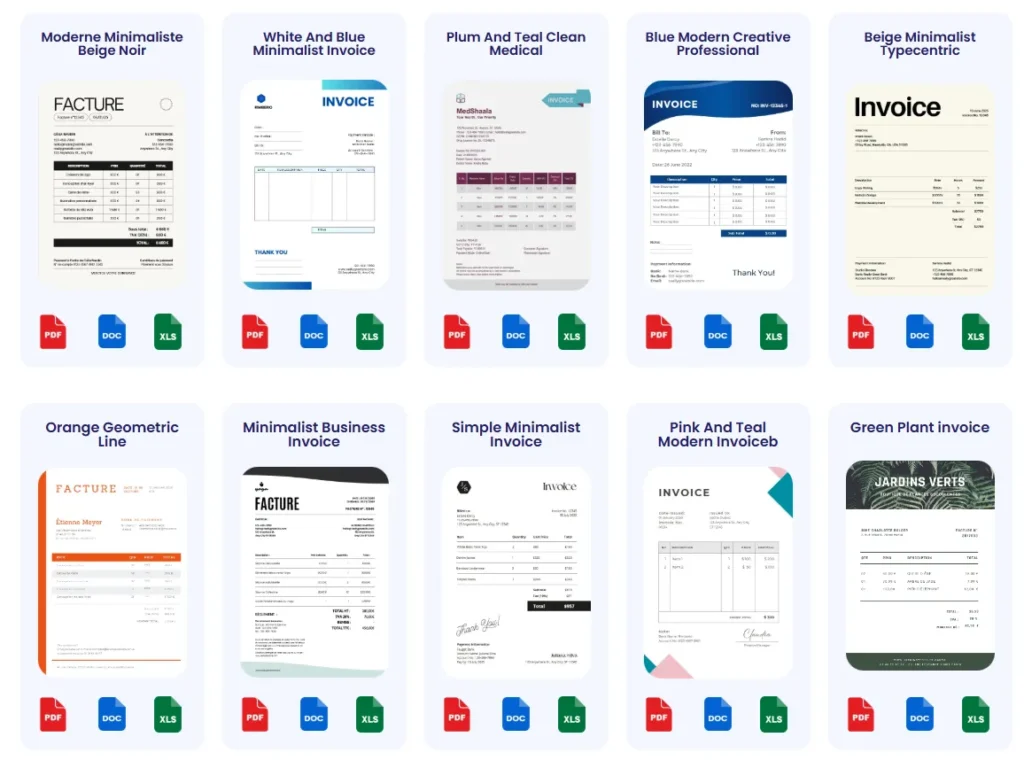
Finding high-quality invoice templates saves time and ensures your Stripe invoices look professional. Free templates often include essential fields and standard formatting, reducing guesswork when you create an invoice with Stripe. For example, a freelance graphic designer sped up billing by switching to a free template from a reputable online source, eliminating repeated layout tweaks. While Stripe’s own templates cover basics, external templates provide more style options and can handle different invoice types like services, products, or mixed billing. Use reputable sites offering customizable templates that support PDF export to maintain consistency and compliance.
Customizing Templates for Stripe Compatibility
Templates must align with Stripe’s invoicing requirements to avoid errors during invoice generation and payment processing. Key compatibility factors include supported fields (client info, invoice number, totals), clean layouts, and mobile responsiveness. A startup founder once custom formatted an invoice template that omitted the Stripe-necessary invoice number field, causing integration errors and payment delays. When tailoring templates, prioritize simplicity and test sending invoices through Stripe before wide deployment. Ensure template elements like tax lines and discounts are editable and that branding does not interfere with Stripe’s automatic fields or footer notes. Maintaining compatibility prevents workflow disruptions and client confusion.
How the Invoice Templates Page Can Help
Using a specialized invoice templates page designed for integration with Stripe can dramatically speed your billing routines. This centralized page offers varied templates built to work flawlessly with Stripe’s system, removing common formatting errors and manual re-entry. A small business owner who used such a page reported 30% time savings per invoicing cycle, thanks to pre-filled client data and automated totals. Moreover, these pages often link directly to online invoice generators so you can create an invoice in Stripe faster by importing template data. For freelancers and entrepreneurs juggling many clients, leveraging an invoice templates page minimizes mistakes and enforces professional consistency. Discover enhanced options on the invoice templates page to streamline your Stripe invoice create process.
Frequently Asked Questions About Creating Invoice with Stripe
Can I Create Recurring Invoices in Stripe?
Yes, Stripe supports recurring invoices through its subscription and billing features. You can set up automated recurring billing cycles with fixed or variable amounts. This is especially useful for freelancers or businesses with clients on retainer. A common mistake is manually recreating recurring invoices, which leads to errors and missed payments. Using Stripe’s native subscription tools ensures consistent, timely invoicing without repetitive manual effort.
How Do I Track Payments for Stripe Invoices?
Stripe’s dashboard shows real-time invoice statuses: paid, unpaid, overdue, or refunded. Effective tracking requires regular invoice status reviews and setting up automated reminders for late payments. Freelancers have lost revenue by assuming payments cleared without checking these statuses. Incorporating Stripe’s payment tracking with an online tool that syncs client data can simplify your follow-ups and keep your accounting accurate.
Is It Possible to Export Stripe Invoices as PDFs?
Yes, Stripe allows exporting invoices as PDFs directly from the dashboard. Exporting invoices immediately after creation is crucial for record-keeping, audits, and sharing with clients. However, relying solely on manual downloads can lead to disorganized files. Combining Stripe’s export feature with an online invoice generator offering systematic PDF management can enhance organization and compliance. For additional invoice management convenience, explore professional tools with PDF export functions.
Get Started with Online Invoice Generator and Mobile Invoicing App
Try Free Invoice Generator for Faster Invoice Creation
Manual invoice creation often slows down freelancers and small businesses, especially when juggling multiple clients. Using a free invoice generator like Probill eliminates repetitive data entry by storing client profiles and product details, allowing instant invoice drafts synced with Stripe payments. A freelance consultant reported cutting invoice prep time in half by switching to Probill’s online tool, which automatically formats invoices for Stripe compatibility. This tool streamlines the process from data input to sending, reducing errors often caused by manual invoice creation. Explore the free invoice generator to accelerate your Stripe invoice create workflow without technical skills.
Download Mobile App for Invoice Management On-the-Go
Having invoice management on mobile is a game changer for self-employed professionals who need to send bills immediately after service delivery. Probill’s mobile app offers full functionality to create, customize, and send invoices from anywhere, syncing instantly with Stripe payments. A small business owner shared how handling invoices on the go improved payment turnaround by allowing clients to pay within hours instead of days. The app supports PDF export and tracks payment status in real time, avoiding follow-up delays common with desktop-only setups. This mobility ensures you never miss billing opportunities while keeping professional invoicing consistent and accurate.
For effective invoicing that integrates with Stripe and suits your workflow, combining Stripe’s payment platform with Probill’s online generator and mobile app offers a balanced, powerful solution.