Skip to content

How to Create an Invoice on Squarespace: Quick Step-by-Step Answer
Basic steps to create an invoice on Squarespace
Creating an invoice on Squarespace starts by accessing your account’s commerce or billing section. Begin with selecting “Invoices” or “Billing” from your dashboard. Then, click “Create New Invoice” and fill in essential details such as client name, item descriptions, quantities, and prices. Finally, review payment terms and issue date before saving or sending. Many small business owners appreciate this streamlined approach as it keeps invoicing straightforward without needing extra software. For the general process of creating an invoice, see our guide on how to create invoices.
Using the invoice generator page for faster creation
For those seeking speed and simplicity, leveraging a dedicated free invoice generator can cut down the time significantly. This tool allows users to input data quickly via a guided form, instantly generating professional invoices optimized for digital delivery. Freelancers who juggle multiple projects find this especially useful to avoid repetitive manual entry and reduce human error. Using such a tool alongside Squarespace can greatly accelerate your billing process while maintaining a clean, professional look.
Step-by-Step Guide: How to Create an Invoice on Squarespace
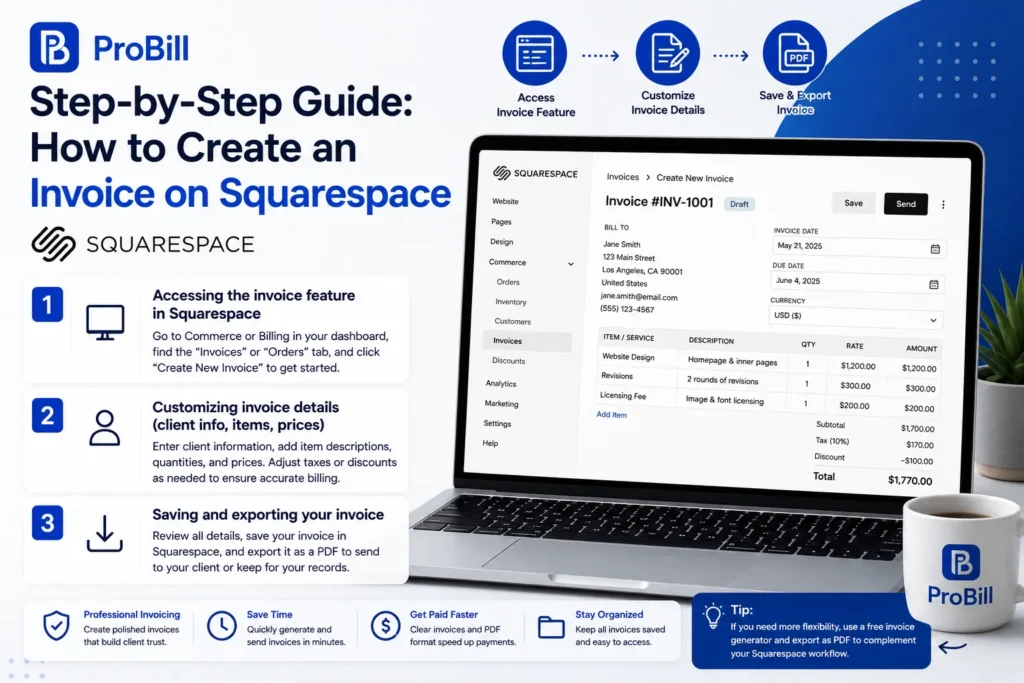
Accessing the invoice feature in Squarespace
Log into your Squarespace account and navigate to the Commerce or Billing area in your dashboard. Look specifically for the “Invoices” or “Orders” tab; this location can vary based on your site’s setup. Clicking “Create New Invoice” begins the process. Note: If you do not see an invoice option, your plan may require upgrades or third-party tools, common for freelancers needing tailored invoicing solutions.
Customizing invoice details (client info, items, prices)
Input precise client information including full name, billing address, and contact details—missing this often causes payment delays. Next, list invoice items carefully: add clear descriptions, specify quantities, and set accurate prices. For example, a graphic designer might include separate line items for design, revisions, and licensing fees. Accurate data here prevents confusion and ensures clients understand each charge. Adjust taxes or discounts if applicable, depending on your location and agreements.
Saving and exporting your invoice
After entering all details, review the invoice for accuracy, focusing on totals and due dates. Squarespace allows you to save invoices directly within the platform for later access. To maintain professionalism and facilitate client payments, export your invoice as a PDF—this format is widely accepted and preserves formatting. Use this file to email your client or keep for accounting. Integrating a free invoice generator alongside Squarespace can simplify exports and add flexible customization options. After preparing the invoice, you’ll need to send it to the customer and track the payment.
IRS invoice requirements offer additional insights into what legally must be included in your commercial invoices, a useful external reference for ensuring compliance.
Different Methods to Create an Invoice on Squarespace
Manual invoice creation within Squarespace
Creating invoices manually within Squarespace is straightforward but can become time-consuming with frequent billing. This method involves opening the commerce dashboard, selecting “Create New Invoice,” and entering each detail individually. For a small business owner with just a few clients, this works fine. However, manual entry risks errors like typos in pricing or missing client info, which lead to payment delays. A freelancer once missed including a payment due date this way, causing confusion and a late invoice dispute. For occasional invoices, manual creation suffices, but it can slow down billing workflows for busy users.
Using third-party invoice generator tools for Squarespace users
Third-party tools designed for invoice generation, such as the free invoice generator, provide a faster, error-resistant alternative. These tools offer templated fields, auto-fill client data, and instant PDF exports, which reduce turnaround time dramatically. Small business owners managing multiple projects benefit from automation features like saved client profiles and recurring invoice setup. For example, a consultant using such a tool saw a 50% decrease in administrative time and zero payment setbacks after switching. Integration with Squarespace is seamless, as invoices can be created separately and linked or uploaded as needed.
Pros and cons of each method
Manual creation within Squarespace:
- Pros:
- Fully integrated with your existing Squarespace dashboard
- No need for additional accounts or apps
- Cons:
- Time-consuming and repetitive for multiple invoices
- Risk of human error increasing payment delays
- Limited customization options
Third-party invoice generators:
- Pros:
- Fast template-based input with minimal manual typing
- PDF export and email-ready formats
- Client management and automation features improve accuracy
- Cons:
- Requires switching platforms or browser tabs
- May involve learning a new tool, though most are beginner-friendly
- Some advanced features could be behind paywalls
Choosing between these depends on your invoicing volume and need for accuracy. Freelancers and entrepreneurs handling several clients monthly benefit most from a dedicated invoice generator paired with Squarespace, while occasional users might prefer simplicity and stick to manual creation.
For more invoicing options, you can explore additional resources on the invoice templates page.
Key Invoice Elements to Include When Creating an Invoice on Squarespace
Client details and contact information
Accurate client information is critical for smooth payment processing. Always include the client’s full name, billing address, phone number, and email. Missing or outdated details often lead to delayed responses or lost invoices. For instance, a freelance writer once delayed payment because the invoice listed an old email address, requiring follow-up. Double-check this data every time to avoid unnecessary back-and-forth.
Itemized list with prices and quantities
A clear itemized list prevents disputes and clarifies each charge. Break down services or products into separate line items with precise descriptions, quantities, and unit prices. For example, a web designer might list “Homepage design,” “Additional revisions,” and “Hosting setup” individually. This transparency saves time in client communications and speeds up approvals.
Payment terms and due dates
Most invoice delays arise from unclear payment terms. State exact payment due dates and acceptable methods (e.g., bank transfer, credit card). Standard terms include “Net 15” or “Due on receipt.” Omitting these details can create confusion or late payments. One small business suffered a cash flow gap when they failed to specify their payment window, resulting in several clients paying weeks late.
Tax and invoice numbering
Including tax information, like VAT or sales tax, is mandatory in many jurisdictions and ensures compliance. Also, assign a unique, sequential invoice number for easy tracking and accounting. An invoicing system without consistent numbering risks duplication errors or missing records during audits. Squarespace users can manually add these or automate numbering with integrated tools. Proper tax and numbering maintain professionalism and legal integrity.
For standardized invoice requirements, refer to IRS invoice requirements. This external resource clarifies essential legal elements that all business invoices should contain.
Common Mistakes to Avoid When Creating an Invoice on Squarespace
Missing or incorrect client information
Incorrect client details are the top cause of payment delays. For example, a freelancer who sent invoices with outdated email addresses had to chase multiple clients for confirmations, costing valuable time. Always verify client names, billing addresses, and contacts before finalizing an invoice. Skipping this step often results in lost invoices or slow payments that hinder cash flow.
Failure to include payment terms
Leaving out payment terms generates confusion and slows down collections. An entrepreneur once struggled when invoices lacked clear due dates, prompting clients to assume “pay when convenient.” Specify terms like “Net 15” or “Due upon receipt” clearly on every invoice. This simple addition sets expectations and accelerates cash flow.
Formatting issues causing readability problems
Cluttered invoices confuse clients and increase disputes. Overloading invoices with dense text or inconsistent fonts leads to missed line items or incorrect totals. One small business owner lost a client’s payment because the invoice format hid the due date and payment amount. Use clear headings, spacing, and itemized lists to ensure your invoice is easy to navigate at a glance.
Forgetting to save or export the invoice
Failing to save or export invoices can cause invoicing chaos. Some Squarespace users rely solely on the screen view and accidentally lose records when closing tabs or devices. Always save your invoice within the platform and export a PDF copy for your records. PDFs ensure formatting stays intact when sharing with clients or accountants. Combining Squarespace with a reliable free invoice generator improves backup reliability and format flexibility.
Paying attention to these common pitfalls reduces confusion and expedites payments, making invoice creation on Squarespace much more efficient.
Tips for Faster and More Accurate Invoice Creation on Squarespace
Use templates to speed up creation
Templates eliminate repetitive data entry by providing ready-made formats. Freelancers juggling numerous clients benefit from saving templates with common line items and payment terms, cutting invoice preparation time by up to half. Squarespace itself doesn’t offer extensive invoice templates, so pairing it with external invoice templates can streamline your workflow and maintain consistent branding across invoices.
Double-check all invoice data before sending
Mistakes in pricing, client information, or payment terms are the main reasons invoices need reissuing. Small businesses often lose days chasing corrections. Invest two minutes to verify key details: client name, contact, item totals, due date, and taxes. A one-time error by a consultant led to a delayed payment that disrupted cash flow for weeks—avoiding small slip-ups avoids large operational headaches.
Keep client information organized
Disorganized client data leads to slow invoice creation and repeated mistakes. Maintain an up-to-date client list with contacts, billing addresses, and payment preferences. For example, a photographer who updated their client records regularly reduced invoice errors by 75%. Even simple spreadsheets or integrating a tool that stores client details can drastically speed up invoice generation on Squarespace.
Leverage automation tools for recurring invoices
Recurring invoices ensure timely billing without manual effort. Using automation tools alongside Squarespace to schedule and send repeat invoices saves hours monthly, especially for subscription or retainer-based services. An entrepreneur using an automated system eliminated 90% of their invoicing delays and freed up time for client work. Automation also reduces human errors and missed payments, vital for steady cash flow.
For quicker invoice creation combined with automation, consider a free invoice generator that supports client profiles and scheduling alongside your Squarespace invoicing.
Invoice Templates and Examples for Squarespace Users
Where to find downloadable invoice templates
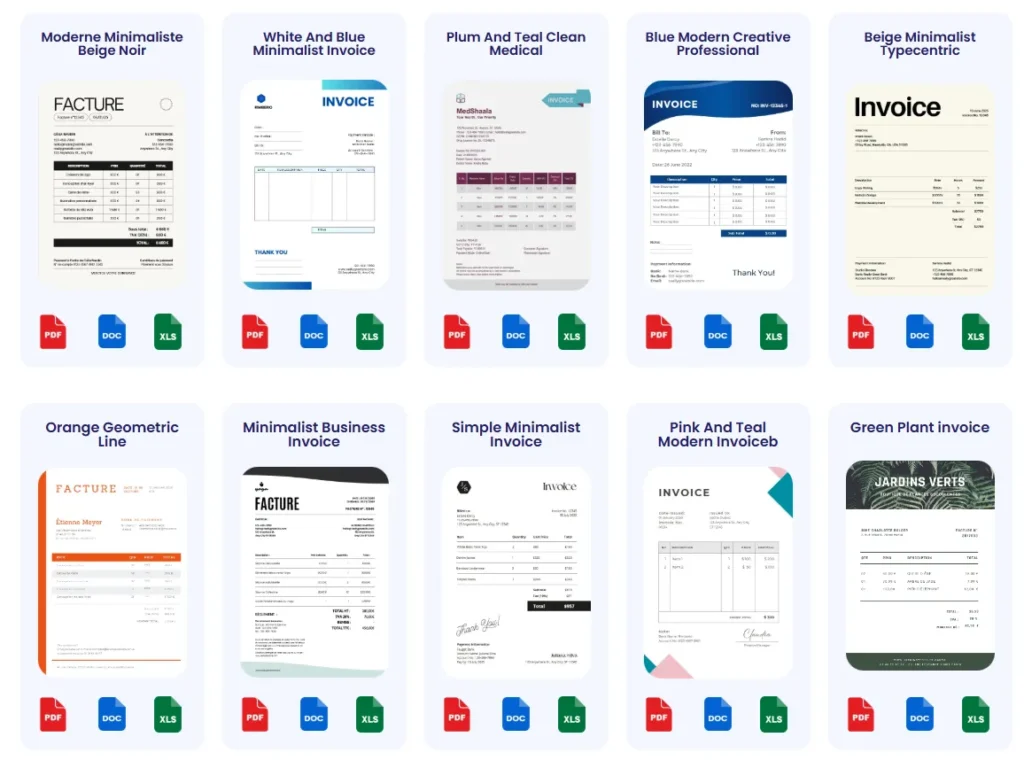
Freelancers and small business owners often struggle to find professional invoice templates compatible with Squarespace’s simple framework. Many turn to specialized sites offering free or paid downloadable templates in PDF, Word, or Excel formats. These templates come pre-formatted with essential invoice elements and clean designs suitable for various industries—from consulting to creative services. For example, a freelance copywriter downloaded a minimalistic template that matched their branding and saved hours formatting invoices from scratch.
How to import and customize templates on Squarespace
Squarespace does not directly support importing invoice templates into its commerce interface, so users typically upload completed invoice PDFs as files or email them externally. To customize templates, open them in common editors like Microsoft Word or Google Docs, then fill client details, itemized charges, and payment terms. Save as PDF for consistent formatting and professional presentation. A small business owner once created a master template in Google Docs for quick copying and editing, speeding up their monthly invoicing cycle.
Using the invoice templates page for more options
Exploring a dedicated invoice templates page provides a curated collection designed for easy editing and fast invoicing. Such resources often include multiple styles (modern, classic, minimalist) and formats tailored to different professions. Freelancers juggling multiple rates appreciate templates with customizable tax and discount sections. Having a variety at hand ensures you can match client expectations and maintain consistency without rebuilding invoices manually each time. Linking template resources with your Squarespace billing system through PDF uploads or external tools streamlines operations while preserving professional quality.
Frequently Asked Questions About Creating an Invoice on Squarespace
How do I create an invoice on Squarespace without a built-in invoicing feature?
Squarespace doesn’t offer a dedicated invoice generator in all plans. In this case, manually creating invoices via order summaries or using external tools is common. Many users export order details as PDFs for invoices or rely on third-party invoice generators to fill professional templates. For example, freelancers often pair Squarespace with a free invoice generator to produce clean, compliant invoices quickly.
Can I customize invoice templates on Squarespace?
Customization within Squarespace’s native commerce system is limited. You can add basic details but complex formatting or branding adjustments require external templates. The best practice is exporting invoices as PDFs and editing them with tools like Google Docs or Microsoft Word before sending. Alternatively, you can import professional templates from an invoice templates resource to maintain consistent branding and detailed customization.
What are the payment options I can include on my Squarespace invoices?
You can specify payment terms directly on your invoice, such as bank transfers, credit cards, or PayPal, depending on your business setup. While Squarespace supports payments through integrated gateways, the invoice itself should clearly state accepted methods and due dates to avoid confusion. Including precise payment instructions reduces client questions and speeds collections.
How do I ensure my Squarespace invoices comply with tax regulations?
Include all relevant tax information—like sales tax, VAT numbers, or GST—directly on your invoice. Since compliance requirements vary by location, it’s crucial to research your local laws. Assigning unique invoice numbers adds accountability and helps with audits. To cover all legal bases, consult official references like the IRS invoice requirements or your country’s tax authority to verify necessary details.
What’s the best way to track invoices sent via Squarespace?
Squarespace allows you to view orders and their payment status, but it lacks advanced tracking features. Many users combine Squarespace with invoice management tools that track sent, viewed, and paid invoices more precisely. For freelancers or small business owners, using these tools alongside Squarespace means better oversight of outstanding payments and automated reminders, significantly improving cash flow management.