Skip to content

How to Create Invoice for a Job in NetSuite: Quick Overview
Key Steps to Create Invoice from Job in NetSuite
Creating an invoice for a job in NetSuite begins with identifying the associated job record or sales order. The process typically involves locating the job or sales order linked to the work performed, then converting it into an invoice. This ensures all relevant project details carry over automatically. Key steps include verifying job costs, confirming pricing accuracy, and setting appropriate billing terms before finalizing the invoice.
For example, a freelancer managing multiple projects can avoid errors by always starting the invoice from the existing sales order tied to each job rather than manually entering line items. This preserves data integrity and reduces billing mistakes. For the broader NetSuite invoicing process, see our guide on how to create an invoice in NetSuite.
Link to Invoice Generator Page for Faster Invoice Creation
While NetSuite provides comprehensive invoicing functionality, users who want to streamline invoice creation can benefit from additional tools. External solutions, such as the free invoice generator offered by Probill, allow faster creation of job-linked invoices with customizable templates and simpler interfaces.
These tools support quick PDF export and mobile access, making them especially useful for small business owners who need to generate professional invoices on the go without navigating NetSuite’s full system. Leveraging such a resource alongside NetSuite improves efficiency and reduces manual workload when billing clients. For general invoicing guidance that applies beyond NetSuite, see how to create invoices.
Step-by-Step Guide to Create Invoice for a Job in NetSuite
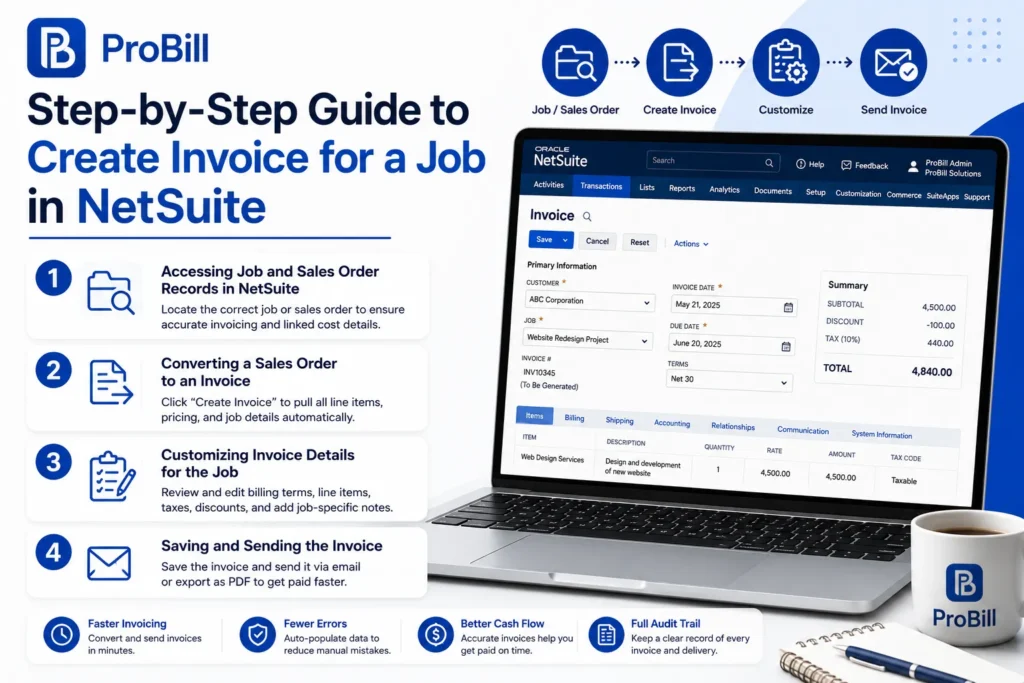
Accessing Job and Sales Order Records in NetSuite
Start by navigating to the specific job or sales order associated with the work performed. Use NetSuite’s global search or the Transactions > Sales > Sales Orders menu to locate the correct record. Freelancers often overlook double-checking the job code here, which can cause invoicing errors downstream. Confirm the job’s completion status and validate linked cost elements before proceeding.
Converting a Sales Order to an Invoice
From the sales order record, click the “Create Invoice” button. This conversion pulls all relevant job details, line items, and pricing into a new invoice form. It’s critical to avoid manually recreating invoices from scratch, as this often leads to skipped billable items or pricing inconsistencies. For example, a small business owner salvaged overdue payments simply by switching to this built-in conversion process, ensuring all sales order data translated accurately.
Customizing Invoice Details for the Job
After conversion, customize the invoice to fit the job’s specifics. Edit billing terms, due dates, or add any job-specific notes. Check each line item for rates and quantities since changes might have occurred post sales order approval. Adjust taxes and discounts as applicable. Omitting this step risks client disputes and delays. NetSuite’s flexibility here enables precise adjustments without losing the link to the original job.
Saving and Sending the Invoice
Once finalized, save the invoice and choose how to send it. NetSuite offers direct email dispatch or PDF export for manual forwarding. Delays in sending impact cash flow, so set reminders for invoicing deadlines. Many freelancers now use external tools like Probill’s free invoice generator alongside NetSuite for quick PDF sending, especially when working remotely or while traveling.
Streamlining this final step reduces errors, improves professionalism, and accelerates payments. Remember to log invoice delivery confirmations in NetSuite to maintain full audit trails.
IRS invoice requirements provide additional compliance details worth reviewing when tailoring your invoice process.
Methods to Create Invoice from Sales Order in NetSuite
Direct Invoice Creation via Sales Order Screen
Creating an invoice directly from the sales order screen in NetSuite is the most straightforward method. After confirming the sales order’s accuracy and job association, users click “Create Invoice.” This action automatically transfers all line items, pricing, and job details to the invoice form.
For example, a small business owner avoids billing errors by never recreating invoices manually but instead leverages this direct conversion. This method reduces input mistakes and ensures every billable item appears correctly. However, users must verify each line item before finalizing to catch any last-minute adjustments in quantities or pricing.
Batch Invoicing Multiple Jobs
Batch invoicing is crucial for businesses managing multiple jobs simultaneously, such as project-based firms or freelancers handling several clients. NetSuite enables generation of invoices for multiple sales orders or jobs in one go, saving time and minimizing repetitive work.
Consider an agency completing dozens of small projects monthly; batch invoicing consolidates these into separate invoices without manual entry. This method requires careful filtering to include only completed jobs to prevent premature invoicing. It’s also important to review billing terms collectively to avoid inconsistencies across invoices.
Automated Invoice Generation through NetSuite Workflows
Automation in NetSuite via workflows can trigger invoice creation upon specific events, like job completion or payment milestone achievement. This reduces manual processing and accelerates billing cycles.
A freelancer using automated workflows reports faster payment turnaround because invoices generate promptly once project statuses update. However, workflows need careful setup to link the correct jobs and sales orders; otherwise, invoices might miss crucial job data or contain errors. Regular audits ensure the workflows continue operating as intended, avoiding common pitfalls such as duplicated invoices.
To complement NetSuite’s methods, using a free invoice generator like Probill can further speed up invoice creation, especially when customers require quick, professional invoices on mobile devices. This tool integrates well with existing data exports and simplifies sending invoices outside NetSuite’s interface, helping small business owners and freelancers stay efficient.
IRS invoice requirements offer authoritative guidelines on necessary invoice components — useful when automating or batching invoice creation to remain compliant.
Key Elements for a Professional Invoice in NetSuite
Job Details and References
Accurate job identification is crucial on any invoice. Include clear job names, codes, or project numbers that correspond exactly to those in NetSuite records. This prevents confusion during client reviews and internal auditing. For instance, a consultant once delayed payment because the invoice referenced a generic project title rather than the client-assigned job code. Always cross-check these references against the sales order or job record before finalizing the invoice to ensure consistency and faster client approval.
Billing and Payment Terms
Specify precise billing terms on every invoice to avoid disputes and delayed payments. Common pitfalls involve vague due dates or missing payment methods. Use NetSuite’s terms settings to include deadlines, early payment discounts, and late fees clearly. A small-business owner noticed improved cash flow after adding net-30 terms and default payment instructions, reducing follow-ups by 40%. Omitting these details directly impacts receivables and client trust.
Line Items and Pricing Accuracy
Each invoice line must mirror the approved sales order or job contract exactly. Any discrepancies in quantities, rates, or descriptions raise red flags for clients and can stall payments. Take advantage of NetSuite’s automated line-item import from sales orders rather than manual entry. For example, a freelancer avoided underbilling by referencing sales order line items directly, catching a pricing update missed in the initial contract. Confirm taxes, discounts, and additional charges are applied properly before sending.
Client Contact Information
Invoices missing up-to-date client contacts lead to delivery failures and follow-up delays. Ensure billing contact names, email addresses, phone numbers, and company info are current in NetSuite’s customer records. Try reviewing contact fields each time you create an invoice, especially for repeat clients. One small firm lost several days waiting for payment because an outdated email bounced back unnoticed. Reliable contact information guarantees invoices get promptly received and acted upon.
Leveraging tailored invoice templates can help structure this information clearly, reducing common errors in key invoice elements.
Common Mistakes When Creating Invoice for a Job in NetSuite
Incorrect Job or Sales Order Linking
Linking the wrong job or sales order is the most frequent source of invoice errors in NetSuite. A small freelance designer once invoiced a client using a prior project’s sales order, causing confusion and delayed payment. Always verify the job ID and sales order number before creating the invoice. Mislinked invoices can lead to inaccurate billing, disputes, and accounting headaches. Using NetSuite’s search filters precisely prevents these costly mix-ups.
Missing Invoice Line Items
Omitting billable line items happens often when invoices are created manually instead of converting from the sales order. For example, a contractor forgot to add materials charges because they typed the invoice from memory instead of importing line items. This error not only lowers revenue but also requires reissuing corrected invoices. To avoid this, always generate invoices from the sales order or job record, ensuring all components are included automatically.
Billing Information Mismatches
Mismatches in billing addresses, payment terms, or contact details cause confusion and slow collections. One consultant delayed payments because the invoice listed an outdated billing contact. Double-check billing info against the latest client records in NetSuite. Keeping contact and payment terms updated centrally reduces errors and prevents invoice rejection or misdirected payments. Investing time here saves days waiting for client clarifications.
Delays in Invoice Sending
Even a perfectly created invoice loses value if not sent promptly. Many small businesses hold invoices for internal approval or lose track of when to dispatch them, risking cash flow interruptions. Use NetSuite reminders or scheduling tools to automate timely sending. Some freelancers combine NetSuite invoicing with external tools like a free invoice generator for faster PDF delivery on mobile. Faster invoice submission correlates strongly with quicker payments.
IRS invoice requirements offer additional guidance that helps avoid regulatory mistakes when issuing invoices in any system.
Tips to Speed Up Creating Invoice in NetSuite for Jobs
Use Invoice Templates and Saved Searches
Relying on built-in invoice templates cuts down on repetitive formatting tasks. NetSuite allows you to customize and save templates that pull key job information automatically. Freelancers who standardize their invoice layout save valuable time and reduce errors in data entry. Additionally, saved searches filter invoiceable jobs or sales orders, streamlining the process of identifying what needs billing next. This prevents overlooked jobs and accelerates batch invoicing cycles.
Leverage Automation Features
Automation tools like NetSuite workflows significantly speed invoice creation by triggering invoice drafts when jobs hit predefined milestones—completion, approval, or payment phases. A small business owner reduced administrative bottlenecks by automating invoice generation immediately after delivery confirmation. While setup requires initial effort, continual savings justify the investment, especially when handling dozens of jobs monthly. Automation also minimizes forgotten invoices, improving cash flow predictability.
Double Check Job Associations Early
Checking job associations before invoice creation avoids delays caused by correcting mislinked records. Many invoicing errors stem from invoices generated against incorrect jobs or sales orders, requiring rework and client confusion. Review job IDs and sales order links right at the start to ensure accuracy. One freelancer minimized payment disputes by maintaining a simple checklist verifying job codes upfront—saving hours of follow-up. Early validation protects both billing speed and invoice integrity.
Maintain Up-to-Date Client Data
Current client contact details and billing preferences reduce back-and-forth on invoice delivery and payment processing. Regularly update client records in NetSuite, including billing addresses, emails, and payment terms. A small agency experienced delayed payments when emails bounced due to outdated contacts. Keeping this information accurate shortens communication cycles and expedites payments. Pairing this with tools like Probill’s free invoice generator helps send invoices promptly from any device, especially when away from the office.
IRS invoice requirements remind that accurate billing and client details are not just practical but legally important for compliance, so invest time in maintaining them.
Invoice Templates and Examples for NetSuite Users
Standard Job Invoice Template (PDF/Excel)
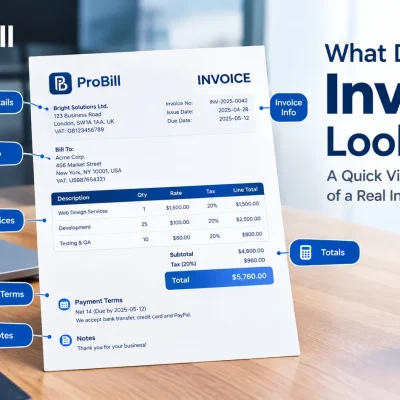
Standard templates for invoicing jobs in NetSuite should balance clarity with complete job and billing details. A well-structured PDF or Excel template typically includes:
- Job identifiers (project codes, job names) prominently displayed
- Detailed line items with descriptions, quantities, and pricing
- Clear billing and payment terms section
- Space for client contact information and invoice notes
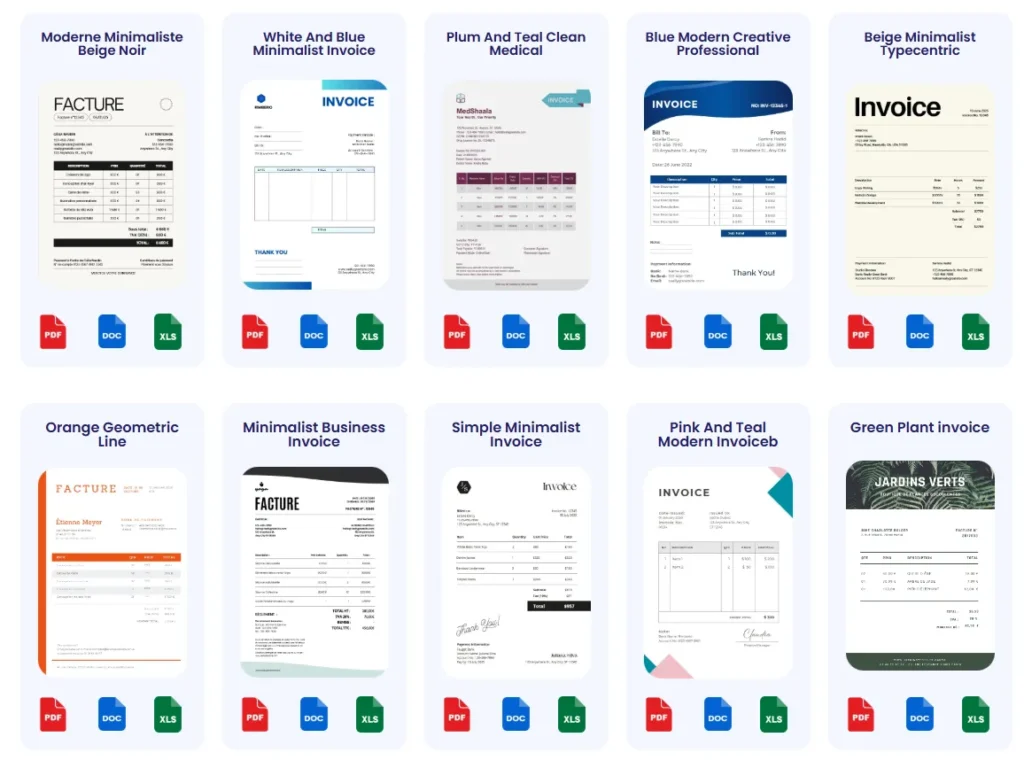
For example, a freelance graphic designer standardized on a PDF invoice template that automatically pulled job data exported from NetSuite. This reduced manual entry time by 30% and minimized errors in client billing. Excel templates offer more flexibility for customizing formulas but require more setup. Choosing the right format depends on client preferences and internal workflow needs.
How to Customize Templates for NetSuite Export
Customizing invoice templates to fit NetSuite exports often means adjusting layout and data mapping to ensure smooth integration. Common customization points include:
- Matching column headers with NetSuite export files (e.g., item, rate, amount)
- Adding custom fields relevant to jobs, such as project phases or cost centers
- Incorporating company branding and standard payment instructions
Many businesses experience issues when default templates omit critical job details, leading to confusion during client reviews. For instance, a small contractor had to add a separate “job milestone” field in their invoice template to reflect partial billing stages tracked in NetSuite. Templates saved and repeatedly adjusted in Excel or Google Sheets offer a balance between automation and customization.
For users seeking simplicity beyond NetSuite’s base templates, external tools can facilitate fast adjustments—see the internal link below.
Integrating with External Invoice Generator Tools
External invoice generator tools greatly assist users who find NetSuite’s built-in invoice templates cumbersome or slow to customize. These tools offer drag-and-drop customization, instant PDF export, and easier client management.
A small business owner replacing manual NetSuite exports with an online invoice generator reported 50% faster invoice turnaround, particularly for one-off jobs without complex line items. These tools also support mobile invoicing, enabling invoicing on-site or on the go.
Probill’s invoice templates provide customizable and job-ready options that export cleanly from NetSuite data. This reduces the back-and-forth between systems and limits manual entry mistakes while preserving professional presentation.
Integrating generators with NetSuite exports lets businesses maintain data integrity while improving invoicing speed and appearance—especially valuable for freelancers and entrepreneurs needing quick, polished invoices without technical hassles.
Frequently Asked Questions About Creating Invoice for a Job in NetSuite
How do I create an invoice for a job in NetSuite if I don’t have a sales order?
Without a sales order, create an invoice directly by navigating to the Transactions > Sales > Create Invoices menu. Then manually enter the job reference, line items, and pricing. This approach risks missing billable details, so always cross-check job records beforehand. For freelancers handling urgent tasks without prior sales orders, this method requires careful review to avoid underbilling.
Can I create an invoice from a sales order linked to multiple jobs?
Yes, but NetSuite requires invoicing each job separately if sales orders cover multiple jobs. Use filters to isolate line items by job before converting to invoices. Failing to separate them often leads to mixed billing that confuses clients and delays payments. Small businesses managing multi-job orders often batch invoice one job at a time to maintain clarity.
What are common errors when creating an invoice for a job in NetSuite?
Typical errors include mislinking invoices to wrong jobs, omitting line items, and mismatched billing details. For example, a service provider once invoiced a client with outdated contact info, causing payment delays. Always validate job codes, import line items from sales orders, and confirm client billing data prior to sending invoices to prevent these costly mistakes.
How do I handle partial invoicing for large jobs in NetSuite?
Use NetSuite’s progress invoicing feature to bill portions of a job incrementally. This requires setting up billing schedules tied to milestones or percentages of job completion. Incorrect setup leads to repeated or skipped charges. Project managers often rely on saved searches to track invoicing progress and ensure billing matches job delivery status.
How can I ensure invoices comply with tax and regulatory requirements?
Accurate tax calculation hinges on correct job location, client tax status, and line item classifications in NetSuite. Misconfigured tax codes on invoices frequently trigger audits or rejection. Regularly audit tax mappings and consult IRS invoice requirements or local tax authorities to maintain compliance. Updating NetSuite tax setups after regulatory changes is essential.
Is it possible to send invoices directly from NetSuite, or should I export them?
NetSuite supports direct email dispatch of invoices, but many prefer exporting PDFs for manual review or external sending. Exporting provides flexibility, especially when using external tools like the free invoice generator for custom formatting or mobile delivery. Choosing the right approach depends on workflow complexity and client preferences.
How do I track if a client has viewed or paid the invoice?
NetSuite tracks invoice status such as sent, viewed, and paid within its accounting records. However, advanced tracking may require integration with payment systems or third-party apps. Freelancers using additional tools can benefit from automated reminders and receipt confirmations, reducing follow-ups and improving cash flow.
Can I customize invoice layouts for different clients or job types?
Yes, NetSuite allows invoice template customization per customer or job classification. Tailored templates improve professionalism and client clarity but must maintain core job and billing data consistency. Over-customization risks losing standard required details, so test templates thoroughly before widespread use.
How do I correct an invoice after sending it if there is a mistake?
NetSuite permits invoice voiding or credit memo creation to amend errors, but this process requires careful documentation. Duplicate invoices or untracked credits cause accounting confusion and delay payments. Make corrections promptly and notify clients immediately to maintain trust and clear records.
Are there shortcuts to speed up invoice creation for jobs in NetSuite?
Leveraging saved searches, invoice templates, and automation workflows significantly reduces invoice preparation time. For on-the-go invoicing, external services like the free invoice generator supplement NetSuite’s tools by enabling quick PDF creation and mobile sending. Combining these strategies improves billing speed without sacrificing accuracy.