Skip to content

How to Create an Invoice in Google Sheets: Quick Answer
Step 1: Open a New Google Sheets File
Start by logging into your Google account and opening a fresh Google Sheets document. This blank canvas will house your invoice. Using Google Sheets ensures you can work from any device with internet access and save changes automatically. Freelancers often appreciate this flexibility for quick invoicing on the go.
Step 2: Set Up Invoice Header and Client Details
At the top of your sheet, create a header that includes your business name, logo (if available), and contact information. Just below, add client details such as name, address, and email. Including clear and precise client details avoids confusion and payment delays later.
Step 3: Input Services and Pricing
List each service or product on separate rows, detailing description, quantity, and rate. This breakdown offers transparency. For example, a graphic designer might list “Logo Design” and “Additional Revisions” separately with associated hourly rates.
Step 4: Use Formulas for Totals and Taxes
Apply simple formulas like =SUM() for subtotal and formulas to calculate taxes if applicable. Using formulas eliminates manual calculation errors, a common issue with beginners managing invoices on spreadsheets. Always double-check your formulas to ensure accuracy.
Step 5: Save, Export as PDF, and Send
Once your invoice looks professional, save your Google Sheets file and export it as a PDF. PDFs preserve formatting and are universally accepted by clients. Attach the PDF to an email for submission, ensuring your invoicing process stays smooth and professional.
For a faster and automated experience beyond manual setup, consider trying a free invoice generator that integrates with Google Sheets to save you time while maintaining customization.For the general invoicing process, see our guide on how to create invoices.
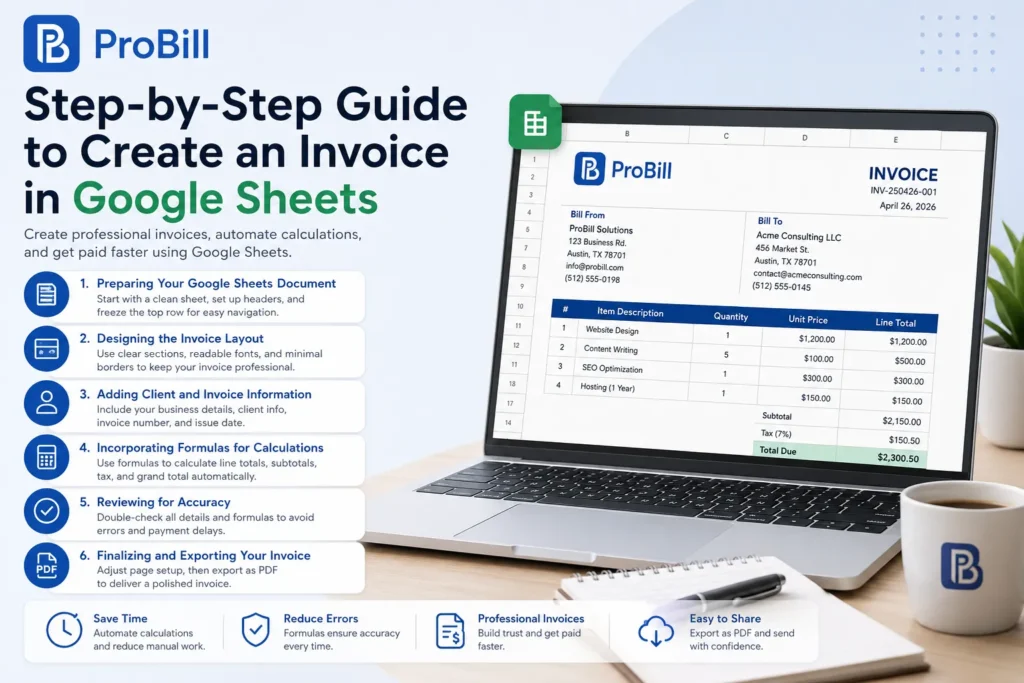
Step-by-Step Guide to Create an Invoice in Google Sheets
Preparing Your Google Sheets Document
Start with a clean sheet and name it clearly, such as “Invoice_April2026.” Set your columns for item description, quantity, unit price, and line total. Freezing the top row helps maintain header visibility when scrolling. Small business owners often skip this, causing confusion during data entry. Organizing your sheets upfront prevents such issues. If you prefer Microsoft Excel, you can use it to create and manage invoices in a similar way.
Designing the Invoice Layout
Balance simplicity with professionalism. Use merged cells for the header and client information, creating distinct sections. Pick readable fonts like Arial or Calibri and use borders sparingly to separate areas. Avoid clutter—too many colors or fonts reduce clarity and client confidence. Freelancers that simplify layout often receive quicker payments due to ease of review.
Adding Client and Invoice Information
Place your business name and contact info prominently along with a space for your logo. Below, allocate fields for client name, address, phone, and email. Insert the invoice number and issue date nearby for quick reference. Consistent invoice numbering avoids payment disputes. For example, using YYMMDD-001 format can keep records orderly and traceable.
Incorporating Formulas for Calculations
Enter formulas to automate total cost calculation. For example, in the “Line Total” column, multiply quantity by unit price (=B2*C2). Sum all line totals for subtotal (=SUM(D2:D10)). Add tax calculations if necessary (e.g., =D11*0.07 for 7% tax). Incorrect formulas are a top cause of delayed payments—always audit them before finalizing.
Finalizing and Exporting Your Invoice
Review every field to ensure no details are missing. Once confirmed, adjust page setup to fit invoice on one printed page and export as PDF to preserve format. Saving a PDF also reduces mistakes in client email attachments. This ensures your Google Sheets invoice looks polished and professional before sending it out.
For more convenience, consider exploring invoice templates that can speed initial setup and maintain consistency across your billing documents. Also, understanding official IRS invoice requirements can help ensure legal compliance in the U.S. market.
Methods to Create an Invoice on Google Sheets
Manual Invoice Creation from Scratch
Building an invoice from scratch gives full control over design but demands attention to detail. You start with an empty sheet, define columns for descriptions, rates, and totals, then manually input client info. For example, a freelance writer might enter article titles, word count, and per-word rates line by line. The tradeoff: it’s flexible but time-consuming and prone to formula errors if you’re not meticulous. Missing subtotals or tax miscalculations are common pitfalls.
For a document-based alternative, you can also create an invoice in Google Docs.
Using Google Sheets Invoice Templates
Templates save time by providing pre-designed layouts and built-in formulas. Google Sheets offers free invoice templates in its template gallery, ready for customization. Small business owners often prefer this method to maintain consistency without starting anew each time. Templates handle calculations automatically, reducing human error. However, customization beyond basic edits can be limiting, so ensure the template fits your business needs before fully committing.
Importing and Customizing Third-Party Templates
Third-party templates, often found on marketplaces or specialty sites, provide diverse design options and advanced features like built-in tax rates or multi-currency support. Importing such templates requires downloading and uploading them into Google Sheets. Entrepreneurs with specific branding or regulatory requirements find these templates useful. Be cautious—some complex templates might have hidden macros or unsupported formulas, which can break once imported. Testing their functionality is essential before adoption.
Automating with Invoice Generator Tools
Automation tools like Probill significantly streamline invoice creation beyond Google Sheets’ native capabilities. They integrate seamlessly with your Google Sheets data, auto-fill client info, calculate totals, and export polished PDFs instantly. Freelancers using Probill report cutting invoicing time in half and tracking payments more efficiently. Though it’s a step away from full manual control, the accuracy and speed gain outweigh this for most users. For quick experimentation, try the free invoice generator designed to work alongside Google Sheets and ease the entire billing workflow.
Key Elements of a Google Sheets Invoice
Business and Client Information
Clear and accurate business and client details prevent disputes and delays. Include your legal business name, address, phone number, and email at the top. For the client, add their full name, company name (if applicable), and contact details. A missing or incorrectly entered client address is a frequent cause of invoicing errors, especially in service contracts where billing location determines tax rules.
Invoice Number and Date
Every invoice must have a unique number and date for tracking and record-keeping. Use a logical system such as “20240615-001” combining date and sequence. This practice makes it easier to reconcile payments and audit your books. Many freelancers overlook this, resulting in duplicate invoice numbers that confuse clients and cause payment delays.
Detailed List of Products or Services
Break down the invoice into individual services or products with descriptions, quantities, and unit prices. Vagueness here invites client queries and slows payment. For example, a consultant should list “3-hour strategy session” rather than just “Consulting.” Explicit detail also supports legal and tax compliance, as explained in official IRS invoice requirements.
Subtotal, Taxes, and Total Amount
Configure subtotal, tax rate, and total fields clearly and visibly. Include formulas to minimize calculation mistakes. Small business owners sometimes forget to apply or show taxes properly, which can lead to regulatory issues or client mistrust. Displaying the tax percentage applied next to the tax amount builds transparency and professionalism.
Payment Terms and Instructions
Clearly state payment due dates, accepted payment methods, and any late fees or discounts. Most invoice delays come from missing payment terms. For instance, specify “Payment due within 15 days via bank transfer or credit card” to avoid confusion. Including concise payment instructions along with banking or digital payment details ensures clients can pay without extra emails or calls.
For efficient creation and consistent inclusion of these key elements, leveraging invoice templates can be a practical approach, ensuring all critical information is correctly formatted and present.
Common Mistakes When Creating an Invoice in Google Sheets
Incorrect or Missing Client Details
Omitting or misentering client information is a frequent error that triggers payment delays. For example, freelancers mistakenly using an outdated email or wrong billing address often face bounced communications and slow settlements. Always verify client names, addresses, and emails before sending. An invoice missing correct client data looks unprofessional and risks rejection.
Calculation Errors with Formulas
Formula mistakes—like incorrect cell references or missed tax calculations—are common and can distort totals. Even a small slip, such as summing wrong ranges or failing to fix cells with $ in formulas, results in billing inaccuracies. A small business owner once invoiced a client with a subtotal missing service fees, causing disputes. Double-check formulas aggressively or use tested invoice templates to prevent costly errors.
Unclear Payment Terms
Without explicit payment instructions and deadlines, clients often delay payments, questioning when and how to pay. For instance, simply stating “Payment due” without specifying timeframe or accepted methods invites confusion and follow-ups. Define due dates clearly—like “Payment within 14 days of invoice date via bank transfer or credit card.” This clarity improves cash flow by setting expectations in writing.
Poor Layout Affecting Readability
Cluttered invoices with inconsistent fonts, cramped columns, or missing headers impede quick comprehension. Complex layouts frustrate clients and increase the chance of errors during review. Freelancers reporting late payments often had dense tables with unclear line items. Use simple, well-spaced layouts highlighting key info such as totals and payment terms to foster professionalism and speed client approvals.
Failing to Save or Export Properly
Neglecting to save changes or incorrectly exporting invoices causes format loss or missing data. Some users email raw Google Sheets links, risking unauthorized edits or unreadable formatting. Exporting as PDF preserves your carefully designed structure and prevents accidental alterations. Always save a local copy and confirm the PDF output before sending to clients, ensuring your invoice appears exactly as intended.
Avoid these common errors to create efficient, clear invoices within Google Sheets and accelerate payments without confusion. For streamlined invoicing beyond manual setup, consider exploring tools like Probill’s free invoice generator that integrate smoothly with Google Sheets.
Tips to Make Creating an Invoice on Google Sheets Faster and Error-Free
Use Pre-Designed Templates
Starting with a well-crafted template cuts setup time dramatically and reduces errors. Templates often come preloaded with tested formulas and organized layouts that prevent miscalculations or overlooked invoice elements. For example, a small business owner switching from manual invoices to template use saw a 30% drop in client payment delays because invoices were clearer and more consistent. Check out reliable invoice templates tailored to various industries to breeze through your invoicing process.
Leverage Built-In Google Sheets Functions
Google Sheets offers powerful functions beyond simple SUM and multiplication. Use ARRAYFORMULA to auto-fill rows or IF statements to apply conditional logic like automatic discounts or tax exemptions. For instance, freelancers billing different VAT rates on international clients can use formulas to handle varied tax rules without manual edits. Investing time to learn a few advanced formulas pays off by avoiding repetitive work and costly manual errors. Google’s built-in help and forums provide great formula examples tailored to invoice needs.
Double-Check Formulas Regularly
Even a single incorrect reference can skew totals and damage professional relationships. Make auditing formulas part of your invoicing routine—test changes in a copy before live use and verify totals against calculator results. A freelancer who overlooked a cell reference error once undercharged by 15%, reducing month-end revenue. Automated alerts or color-coded cells highlighting formula errors can serve as checkpoints. Consistent formula review is practical and prevents embarrassment and repeated corrections.
Maintain a Consistent Invoice Numbering System
A unique, sequential numbering system is essential for quick tracking and legal compliance. Using a mix of date and sequential digits, like “230601-005,” prevents duplicate invoice IDs and eases reconciliation. Entrepreneurs juggling multiple clients took months tracking payments before applying a consistent scheme. Regularly updating a master spreadsheet or using Google Sheets’ built-in row numbering ensures seamless progression. This habit not only expedites bookkeeping but also simplifies resolving client queries swiftly.
Save as PDF for Easy Sharing
Google Sheets files can be unintentionally edited or lose formatting when shared directly. Exporting your invoice as a PDF locks the design and keeps calculations intact. For example, a freelance consultant faced problems when clients edited shared Sheets versions, altering prices accidentally. PDFs preserve your invoice’s integrity and look professional on all devices. Google Sheets makes PDF export straightforward with options to adjust page layout and scale, ensuring your invoice always fits a printable page perfectly.
For creating invoices faster while minimizing errors, consider integrating your Google Sheets workflow with a free invoice generator like Probill. It automates many manual steps without sacrificing flexibility.
Invoice Templates for Google Sheets You Can Use Today
Where to Find Free Google Sheets Invoice Templates
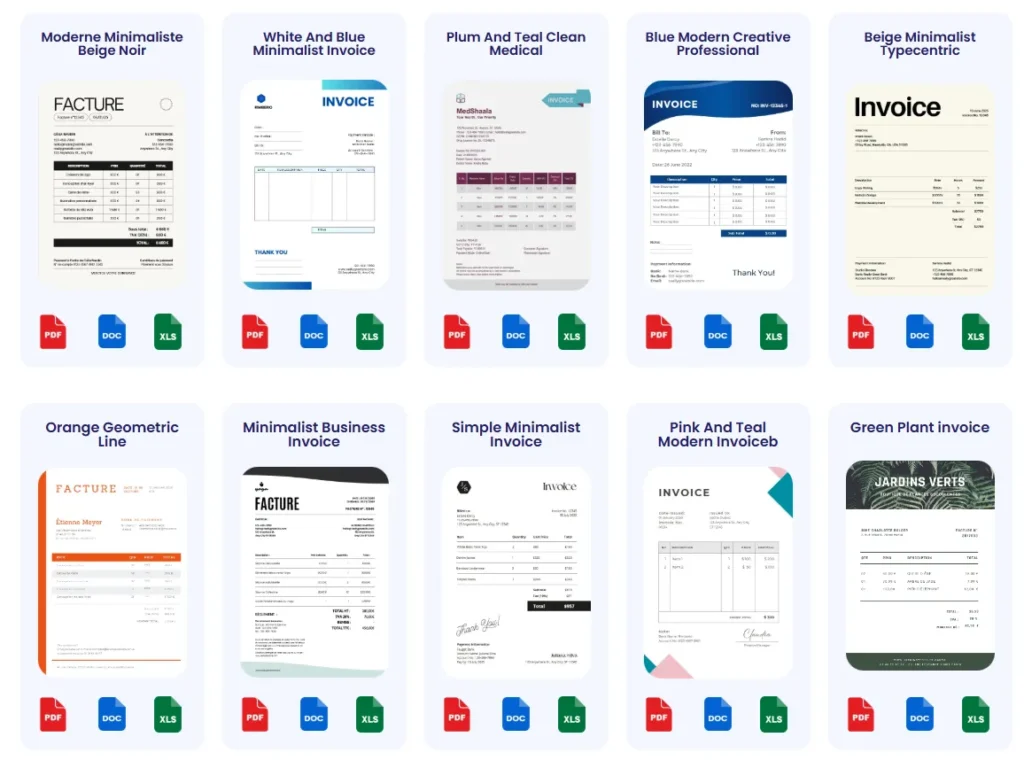
Google Sheets’ template gallery includes basic invoice templates suitable for freelancers and small businesses needing straightforward layouts. Beyond Google, websites like Vertex42 and Template.net offer extensive free invoice spreadsheets tailored for industries like consulting, retail, and design. These sources save hours by pre-configuring formulas and layouts. For example, a photographer found a free template that auto-calculates taxes and discounts, speeding up invoice preparation without manual formula input.
How to Customize Templates for Your Business
Customization goes beyond swapping logos and colors. Adjust templates to reflect your exact service descriptions and pricing structures. For instance, a graphic designer added sections for hourly rates with multiple tiers in one invoice, which the basic template didn’t include. Modify formulas where needed—such as applying different tax rates or discount conditions—to match your billing rules. Over-customizing, however, risks breaking embedded formulas. Always test changes on a duplicate file to avoid invoice errors.
Integrating Templates with Invoice Management Tools
Linking Google Sheets invoice templates with tools like Probill lets you automate repetitive tasks—auto-populating client details, generating invoice numbers, and exporting final bills as PDFs. Small business owners report reduced invoicing times and fewer errors by syncing their customized templates into Probill’s platform. While Google Sheets offers flexibility, combining its templates with an online invoice generator bridges the gap between manual entry and full automation, making invoicing scalable without losing control over template design.
For more ready-to-use resources, explore a curated collection of invoice templates designed to work seamlessly with Google Sheets and accelerate your billing process.
Frequently Asked Questions About Creating Invoices in Google Sheets
How do I create an invoice in Google Sheets quickly?
To create an invoice fast, start with a clean Google Sheets file, enter your business and client details, list services with prices, use formulas for totals, and export as PDF. Leveraging templates or invoice generators can speed this up. For an easy boost, try a free invoice generator that pairs well with Google Sheets to automate these steps.
Can I customize invoice templates in Google Sheets?
Yes, Google Sheets templates are customizable. You can add your logo, adjust columns, change fonts, and modify formulas for taxes or discounts. However, excessive changes risk breaking formula logic. Always test your customized invoice on a duplicate sheet to avoid errors before invoicing clients.
What formulas are essential in Google Sheets invoices?
Key formulas include =SUM() for subtotals, multiplication (=quantity*unit_price) for line totals, and tax calculations (e.g., =subtotal*0.1). Locking cell references with $ prevents calculation errors when copying formulas. Incorrect formulas often delay payments and confuse clients, so double-check each before sending.
How do I prevent invoice errors in Google Sheets?
Verify client and invoice details carefully, double-check formulas, keep layouts simple for readability, clearly state payment terms, and always export invoices as PDFs to preserve formatting. Common mistakes include misspelled client info and incorrect totals, which can cause serious delays.
Can I automate invoice creation in Google Sheets?
Automation is possible by using add-ons or integration with dedicated invoice generators like Probill. These tools can auto-fill client info, calculate totals, assign invoice numbers, and export PDFs, reducing manual work and errors significantly.
What’s the best way to send invoices made in Google Sheets?
Export your invoice as a PDF to preserve layout and prevent edits, then email it as an attachment. Avoid sharing the raw Google Sheets file directly, as this risks unauthorized changes and formatting issues.
How do I track payments from Google Sheets invoices?
Google Sheets alone has limited payment tracking. Use dedicated tools or integrations, such as Probill, which can sync with your Google Sheets data to track invoice status, send reminders, and manage client payments efficiently.
Where can I find reliable invoice templates for Google Sheets?
Google’s template gallery is a good starting point, but specialized sites like Vertex42 or Template.net offer industry-specific templates. You can also explore curated collections of invoice templates optimized for use with Google Sheets.
How often should I update the invoice numbering system?
Keep invoice numbers sequential and consistent, ideally updating the system monthly or per batch of invoices. Using date prefixes helps organize numbers. Irregular numbering leads to confusion during audits and client disputes.
Are Google Sheets invoices compliant with tax regulations?
Google Sheets invoices can be compliant if they include required elements such as business info, invoice number, dates, detailed descriptions, and tax breakdowns. Consult official tax guidelines to ensure compliance. For U.S. businesses, review IRS invoice requirements to stay aligned with regulations.
How to Use Probill Alongside Google Sheets for Faster Invoicing
Benefits of Combining Google Sheets with Probill Invoice Generator
Integrating Google Sheets with Probill transforms manual invoice creation into a streamlined process. While Google Sheets offers flexibility in designing invoices, Probill automates data entry, calculations, and PDF generation, cutting errors drastically. For example, a freelance consultant who used to spend hours finalizing invoices reduced that time by 50% after adopting Probill alongside their sheets. This combo balances control with speed, making it ideal for freelancers and small business owners who want to maintain a custom invoice style but need faster turnaround.
Exporting Google Sheets Data to Probill
Exporting invoice details from Google Sheets to Probill is straightforward: save your invoice data as a CSV file or use copy-paste functions to transfer client and service info. Probill can then auto-fill invoice fields using this imported data, eliminating repetitive entries. A common mistake is manually retyping client info in Probill, which defeats purpose of the integration and causes discrepancies. Automating this step ensures data accuracy and saves time for bulk invoicing or recurring clients.
Tracking Payments Efficiently via Probill
Probill’s dashboard offers real-time tracking of payment statuses, something Google Sheets alone cannot manage reliably. Small business owners benefit by having one interface to see unpaid invoices, pending payments, and overdue notices without toggling between multiple documents. This centralized tracking reduces missing payments and improves cash flow visibility. For instance, a small graphic design studio streamlined their accounts receivable after switching to Probill’s tracking tool, linking seamlessly with their Google Sheets system.
Probill’s features complement Google Sheets perfectly, offering a practical hybrid approach: design invoices easily in Sheets, then leverage Probill’s automation for sending, tracking, and managing payments. For those ready to speed up invoicing without abandoning customization, try the free invoice generator by Probill to see how it enhances your Google Sheets workflow.