Skip to content
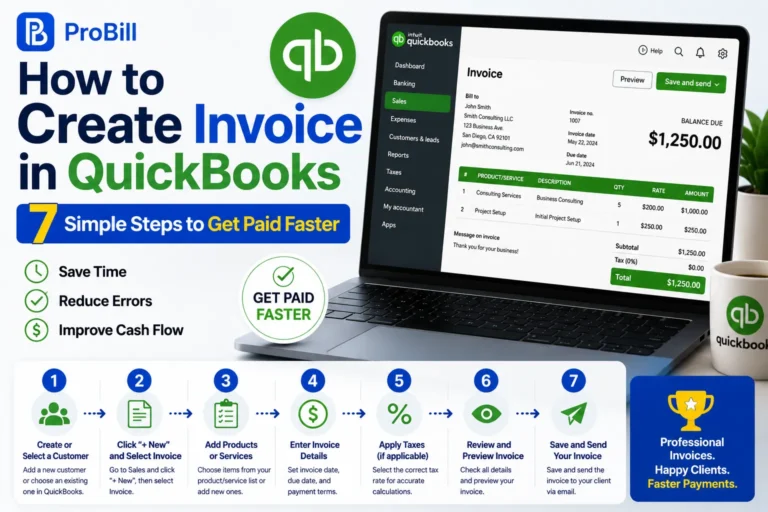
How to Create Invoice in QuickBooks: Quick Answer
Step-by-step summary for QuickBooks Online and Desktop
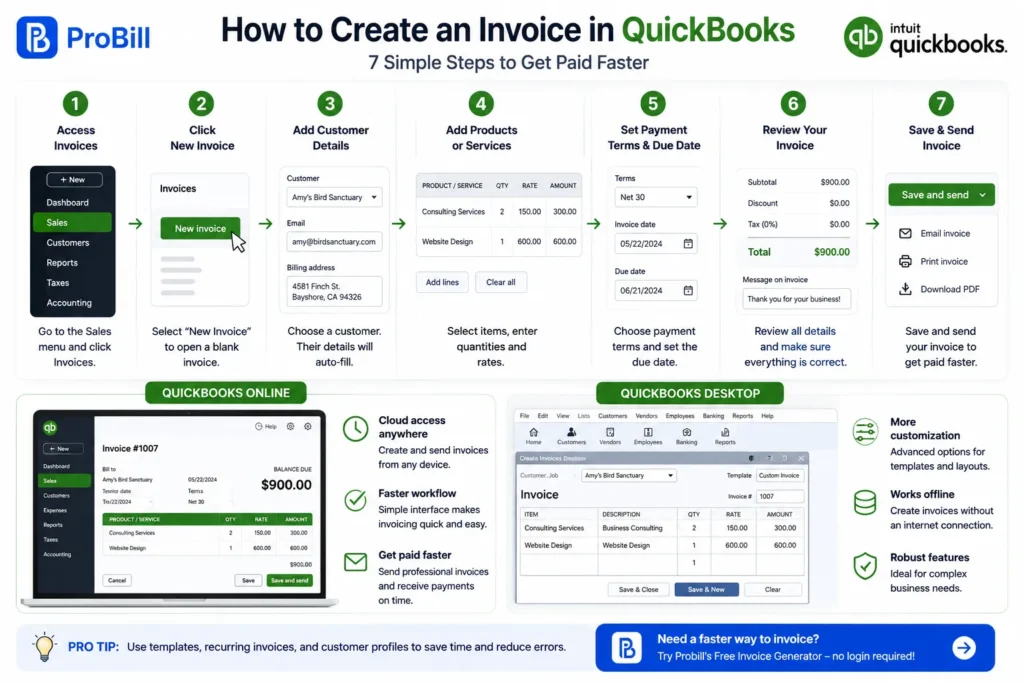
Creating an invoice in QuickBooks starts with logging into your account, either on QuickBooks Online or Desktop. For QuickBooks Online, navigate to the “Sales” tab, then select “Invoices” and hit “New Invoice.” Enter customer details, add products or services, specify quantities and rates, and set payment terms before saving and sending.
In QuickBooks Desktop, open the software, choose “Customers” from the top menu, then select “Create Invoices.” Fill in customer and item information, customize if needed, then save or print the invoice.
Freelancers often find QuickBooks Online’s cloud-based interface faster, while small business owners using QuickBooks Desktop benefit from its extensive customization options.
Link to Probill invoice generator page for alternative fast invoicing
If you need to bypass QuickBooks or want quicker invoice creation without software installation, consider using the free invoice generator by Probill. It offers a simple, no-login setup ideal for freelancers or entrepreneurs who want to create professional invoices on any device within minutes. This tool complements QuickBooks by handling invoice creation when speed and ease are priorities. If you want to understand the general process beyond QuickBooks, see this guide on how to create invoices.
How to Create an Invoice in QuickBooks Online: Detailed Steps
Accessing the Invoice Module
Start by logging into your QuickBooks Online dashboard. Locate the “Sales” menu on the left sidebar and click “Invoices.” The interface is designed for efficiency—click the “New Invoice” button to open a blank invoice template. This direct access saves time compared to navigating complex menus, a common frustration for new users. Freelancers appreciate this streamlined path when juggling multiple clients.
Entering Customer and Product Details
After accessing the invoice, input your customer’s name. QuickBooks Online auto-fills customer details if profiles are pre-saved, minimizing errors. When adding products or services, select from your existing items to keep consistency in pricing and descriptions. Avoid manually typing these fields each time—this prevents mistaken entries that can delay payment. For example, a consultant who reuses client records finds fewer invoicing delays when product codes are selected from lists rather than typed.
Setting Payment Terms and Due Dates
Specify payment terms clearly to avoid confusion. QuickBooks Online offers preset options like Net 30 or Due on Receipt, but custom terms can be added. Setting the correct due date aligns expectations and reduces late payments. Neglecting this step is a frequent cause of invoice disputes. Invoices missing clear payment instructions are often returned or ignored, causing cash flow gaps.
Reviewing and Sending the Invoice
Before sending, double-check all entries—customer info, items, rates, and totals. QuickBooks Online allows you to preview the invoice exactly as the client will see it. Use this to catch calculation errors or missing details. Sending invoices without review is a common mistake that leads to corrections later. After creating the invoice, send the invoice via email directly through QuickBooks or download it as a PDF for manual sending. This flexibility supports different client preferences and maintains a professional image.
For those needing additional invoice customization or faster multi-client invoicing, exploring tools like Probill’s free invoice generator can provide a valuable supplement for simpler or quicker invoice creation.
How to Create an Invoice in QuickBooks Desktop: Step-by-Step Guide
Opening QuickBooks Desktop and Navigating to Invoices
Launch QuickBooks Desktop and from the top menu bar select “Customers.” This opens a dropdown where you click “Create Invoices.” Unlike QuickBooks Online, the desktop version has a traditional software layout that some users find more detailed but less intuitive. For a small business owner accustomed to desktop apps, this method offers granular control right from the start. Be aware of the occasionally slower navigation compared to the cloud-based QuickBooks Online.
Filling in Customer Information and Invoice Items
Begin by selecting a customer or adding a new one through the “Customer:Job” dropdown. Inputting precise customer info avoids invoice processing errors later. Next, fill in invoice items by choosing from your pre-set list of products or services—this ensures consistent pricing and descriptions. Freelancers creating multiple invoices benefit from preloaded items, which cut down repetitive typing. One operational mistake here is manually entering product details, which leads to mismatched prices and client disputes.
Customizing Invoice Layouts
QuickBooks Desktop allows modifying invoice design via the “Formatting” tab on the invoice screen. Adjust fields, colors, and fonts to match your branding or comply with specific client requirements. For example, a consultant may add purchase order fields or hide certain columns irrelevant to their services. This customization helps maintain professionalism but can slow down invoice creation if overdone. Save your custom templates to reuse during future invoicing, striking a balance between personalization and speed.
Saving and Sending the Invoice
After completing the invoice, use the “Save & Close” or “Save & Send” options. The latter opens an email window with the invoice attached as a PDF, streamlining client delivery from the application. Small businesses often overlook verifying email settings, which can cause delays if the invoice isn’t sent properly. QuickBooks Desktop also lets you print or export invoices if clients prefer physical copies. Integrating with email clients like Outlook ensures smoother communication and quicker payments.
For faster invoicing without switching environments, tools like Probill’s free invoice generator can be paired with QuickBooks Desktop workflows, especially for freelancers who need simple but professional invoices on demand.
IRS invoice requirements provide additional guidance ensuring your invoices comply with tax regulations.
Methods to Create Invoices Faster in QuickBooks
Using Invoice Templates in QuickBooks
Invoice templates save time by pre-filling common fields and maintaining brand consistency. QuickBooks offers built-in templates that can be customized with your logo, colors, and layout. For example, a freelance designer often uses templates to avoid repeatedly setting up identical invoice formats. Sticking to one optimized template reduces errors and speeds up each invoice’s preparation. However, over-customizing templates without saving can slow you down — always save changes to reuse efficiently.
Importing Invoice Data for Bulk Creation
For businesses managing many clients or recurring orders, importing invoice data in bulk is a game-changer. QuickBooks Desktop supports importing using Excel or CSV files, allowing you to generate multiple invoices simultaneously. A small retail business might export sales data weekly, then import it to create dozens of invoices at once. The tradeoff is the initial setup effort to format data correctly. Mistakes in CSV files can cause invoice errors, so validating data before import is crucial.
Leveraging Automation Features
QuickBooks Online and Desktop include automation tools like recurring invoices and scheduled reminders. Freelancers billing fixed monthly fees benefit from setting up recurring invoices that auto-generate and send without manual intervention. Automation reduces the risk of missed billing cycles and improves cash flow predictability. Be cautious not to overlook review steps; auto-sent invoices should still be monitored to catch outdated or incorrect charges.
Probill’s Online Invoice Generator as a Supplement
Probill’s free invoice generator offers a fast alternative for creating professional invoices without logging into QuickBooks. It’s especially useful when you need a quick invoice on the go, such as for a consultant meeting a new client or a freelancer closing a last-minute gig. Since it’s web-based and device-agnostic, you can generate invoices offline and later sync them with your bookkeeping software. Using Probill alongside QuickBooks provides flexibility when speed is more critical than integrated accounting.
IRS invoice requirements establish necessary invoice elements, which these faster methods still must include for compliance and payment efficiency.
Key Elements Every QuickBooks Invoice Needs
Customer Contact Information
Accurate customer contact details are critical. Missing or incorrect addresses and emails cause delayed payments or lost invoices. For instance, a freelance graphic designer once mailed invoices without updated client addresses, resulting in weeks of follow-up. Always double-check customer profiles, especially if invoices are created manually. QuickBooks Online’s auto-fill helps reduce this risk, but verifying contacts before invoicing remains essential for smooth payment cycles.
Invoice Date and Numbering
Consistent invoice numbering prevents confusion and aids bookkeeping. Using random or duplicate numbers creates tracking problems and compliance issues during audits. QuickBooks automatically assigns sequential invoice numbers, but manual edits can cause gaps. For example, a consultant who manually re-used invoice numbers faced payment disputes and had to resubmit corrected invoices. Set date fields carefully; invoice date affects payment terms and tax reporting, so always confirm it matches the service delivery or billing period.
Itemized Product or Service List
Detailing every product or service separately on your invoice improves clarity and client trust. Aggregated or vague descriptions prompt payment hesitations and questions. A small business owner failed to list individual consulting hours, which caused client confusion and delayed payment by two weeks. Utilizing QuickBooks’ saved item lists supports consistent line items with correct pricing. Each entry should include quantity, unit price, and total to maintain transparency and professionalism.
Payment Terms and Instructions
Most invoice delays come from missing or unclear payment terms. Explicitly state due dates, accepted payment methods, and late fee policies. QuickBooks offers preset terms, but customization ensures they suit your business model and client agreements. One freelancer included neither due date nor payment options, forcing clients to request clarification—lengthening payment times unnecessarily. Clear payment instructions streamline the process and reduce disputes, enhancing cash flow predictability.
IRS invoice requirements provide detailed mandates on mandatory invoice content to help ensure your billing complies with tax regulations.
Common Mistakes When Creating Invoices in QuickBooks and How to Avoid Them
Incorrect Customer or Item Entries
Entering wrong customer details or item descriptions is a frequent and costly error. For instance, a freelancer who mistyped a client’s email repeatedly sent invoices to the wrong address, causing delayed payments and follow-ups. Similarly, manually typing product names without selecting from preloaded lists often results in price mismatches or wrong item codes. Relying on QuickBooks’ auto-fill and saved item lists avoids these errors and streamlines how to create invoice QuickBooks processes.
Missing Payment Terms
Omitting payment terms leads to confusion or disputes. A small business owner once sent invoices without specifying due dates or accepted payment methods, forcing clients to seek clarification and delaying cash flow. QuickBooks provides preset terms, but customizing them to fit client agreements can prevent these issues. Always double-check that payment instructions and due dates appear on your invoices to reduce follow-up delays.
Not Using Invoice Templates
Skipping templates and building invoices from scratch every time wastes time and increases human error risk. Freelancers often spend extra minutes formatting each invoice instead of using reusable templates. This neglect increases inconsistency and diminishes professionalism. QuickBooks’ built-in templates maintain brand uniformity and speed up invoice creation. Adopting templates supports smoother workflows and reinforces customer confidence.
Overlooking Invoice Review Before Sending
Sending invoices without a thorough review is a common operational mistake. Errors such as incorrect totals, missing items, or invalid contact details frequently slip through and result in returned or disputed invoices. For example, a consultant once invoiced without verifying rates, leading to underbilling and client confusion. Using QuickBooks’ preview feature or downloading the invoice as a PDF before sending helps catch these errors, ensuring accuracy and professionalism.
For faster, error-resistant invoicing, consider integrating with tools like the free invoice generator by Probill, which simplifies invoice creation and minimizes common mistakes.
Tips to Optimize Your QuickBooks Invoice Creation Process
Set Up Customer Profiles in Advance
Preparing detailed customer profiles in QuickBooks saves crucial time during invoicing. Pre-stored addresses, emails, and payment preferences eliminate repetitive data entry and reduce errors. For example, a freelancer managing multiple clients found setting up profiles upfront cut invoice creation time by half. Without this, manual input risks data mismatches or sending invoices to wrong contacts, delaying payments.
Use Recurring Invoices for Regular Clients
For ongoing projects or subscription services, recurring invoices automate billing cycles in QuickBooks Online and Desktop. This prevents missed invoices and minimizes administrative overhead. A small business owner billing monthly service fees noted improved cash flow stability after switching to recurring invoices. The only caution is to periodically review templates to avoid sending outdated fees or terms, which can confuse clients.
Export Invoices as PDFs for Professionalism
Saving invoices as PDF files ensures consistent formatting and easy sharing outside QuickBooks. Clients who prefer attachments rather than QuickBooks emails benefit from clean, universally accessible documents. A consultant reported that sending PDFs directly via email improved perceived professionalism and reduced client confusion over invoice layout variations. Make PDF export a standard step to reinforce your brand image and prevent formatting issues seen in some email clients.
Use Mobile Apps for Invoicing on the Go
Mobile invoicing apps linked to QuickBooks enable fast invoice creation directly from smartphones or tablets. Freelancers and entrepreneurs who attend client meetings or work remotely find mobile tools indispensable for immediate billing. This cuts waiting time caused by having to return to a desktop. While mobile invoicing is convenient, keep in mind screen size limits detailed editing; use it for quick creation and finalize any complex customizations later on desktop or online.
For even faster invoice generation outside QuickBooks, explore Probill’s free online invoice generator, which supports mobile-friendly access and simple invoice management without installing software. Small business owners may also want to follow a guide specifically focused on creating invoices for a small business .
Invoice templates can also speed workflow by providing ready-to-use formats aligned with your brand standards.
Invoice Templates for QuickBooks: Examples and How to Use Them
Built-in QuickBooks Invoice Templates Overview
QuickBooks offers several built-in invoice templates designed to fit common business needs—ranging from simple service invoices to detailed product sales. These templates standardize essential fields like customer info, item descriptions, and totals, reducing manual input and errors. For instance, a freelancer billing hourly services benefits from the “Time/Service” template, which highlights hours worked and rates clearly. However, some users find default templates too generic and miss branding elements, which can affect client perception.
Choosing the right template depends on your business type: retail businesses often prefer itemized sales templates, while consultants need service-focused formats. Regularly using templates shortens the how to create invoice in QuickBooks online process by eliminating layout decisions each time.
Customizing Templates to Match Branding
Customizing templates enhances professionalism and client trust by aligning invoices with your brand identity. QuickBooks Desktop and Online allow changes to colors, fonts, logos, and adding fields like purchase order numbers or custom messages. A small design agency, for example, adjusts templates to include brand colors and payment instructions tailored to key clients, which strengthens their brand recognition and reduces payment queries.
Beware over-customization that complicates invoice creation. Save your changes as new templates to reuse them instead of editing each invoice manually. This streamlines how to create invoices in QuickBooks and keeps workflow consistent.
Accessing and Using Templates on the Probill Platform
Probill offers a straightforward platform with a growing library of customizable invoice templates designed for freelancers and small businesses. Its simple interface lets users pick a template, fill in customer and item details, and generate a professional PDF invoice in moments—much faster than navigating QuickBooks’ sometimes complex template editor.
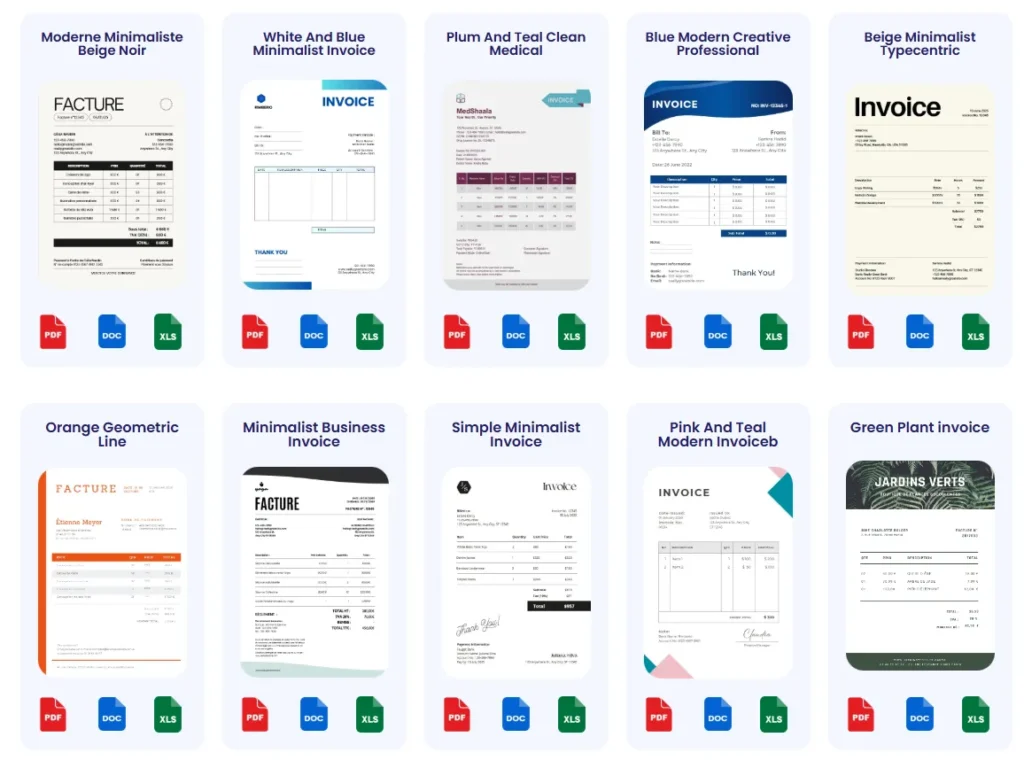
For example, a solo consultant juggling on-site visits uses Probill to create branded invoices on her phone immediately after meetings. This contrasts with desktop QuickBooks where generating a customized invoice might require additional steps.
Using Probill alongside QuickBooks can optimize your workflow—quickly producing well-designed invoices on the go, then syncing or referencing them in your main bookkeeping software for compliance and records.
For more efficient invoice creation without sacrificing design quality, using both QuickBooks templates and Probill’s accessible customizable options streamlines the entire process.
Frequently Asked Questions about Creating Invoices in QuickBooks
How do I create an invoice in QuickBooks Online?
To create an invoice in QuickBooks Online, go to the “Sales” tab and select “Invoices.” Click “New Invoice,” then enter your customer details and add products or services. Set payment terms and due dates, review the invoice, and send it via email or download as PDF. Using saved customer profiles speeds this up and reduces errors.
How to create invoice in QuickBooks Desktop?
Open QuickBooks Desktop, choose “Customers” in the top menu, then click “Create Invoices.” Select or add your customer, enter invoice items from your saved lists, customize layout if needed, and save or email the invoice. Preloading item details avoids manual mistakes common in desktop invoicing.
Can I create invoices faster in QuickBooks?
Yes. Use built-in invoice templates or set up recurring invoices to automate billing cycles. Importing invoice data in bulk accelerates processing for larger client bases. Automation features like scheduled reminders reduce manual follow-up and missed payments. For quick one-off invoices, third-party tools like Probill’s free invoice generator offer an efficient alternative.
What are the key elements every QuickBooks invoice needs?
Essential elements include accurate customer contact info, a unique invoice number with date, an itemized product or service list with prices, and clear payment terms. Missing any of these leads to client confusion and payment delays. QuickBooks’ auto-numbering and saved item lists help maintain these standards.
How do I avoid mistakes when creating invoices in QuickBooks?
Common errors include inputting wrong customer or product info, omitting payment terms, skipping invoice templates, and sending without review. Use QuickBooks’ auto-fill features, customize and save templates, and always preview invoices before sending to avoid costly invoicing mistakes that disrupt cash flow.
What tips optimize the QuickBooks invoice creation process?
Set up detailed customer profiles ahead of time and use recurring invoices for regular clients to save time. Export invoices as PDFs to ensure consistent formatting and professionalism. Use mobile apps linked to QuickBooks for invoicing on the go, but finalize complex invoices via desktop.
Are there recommended invoice templates for QuickBooks?
QuickBooks provides several templates designed for common business needs. Choose the one that fits your services, customize colors and logos to match your branding, and save it to streamline your invoicing. Alternatively, Probill offers easy access to professional invoice templates that complement QuickBooks and accelerate creation.
How can I send invoices if I don’t use QuickBooks?
Non-QuickBooks users can leverage online invoice generators such as Probill’s free tool, which creates professional invoices quickly without account setup or software installation. This works well for freelancers and small businesses needing a fast way to bill clients directly from any device.
Is it possible to automate invoice reminders in QuickBooks?
Yes, QuickBooks Online and Desktop allow scheduling automatic payment reminders to clients. Setting these up reduces manual follow-ups and improves the chances of on-time payments. Regularly monitoring these automations is crucial to ensure outdated invoices aren’t mistakenly sent.
Where can I find official guidelines for invoicing compliance?
Refer to IRS invoice requirements for detailed mandates on invoice content to maintain tax compliance. Adhering to these standards in QuickBooks or any invoice creation tool prevents legal issues and supports smooth audits.