Skip to content
How to Create Invoice in Microsoft Word in 5 Easy Steps
Step 1: Open a Blank Document or Invoice Template
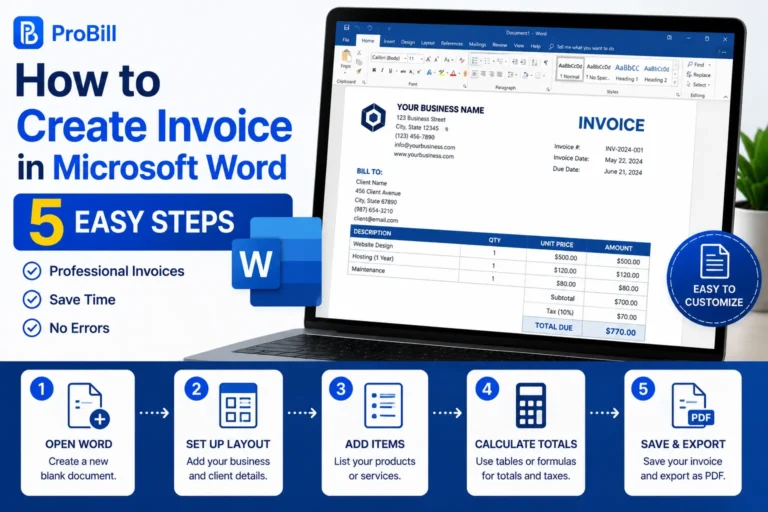
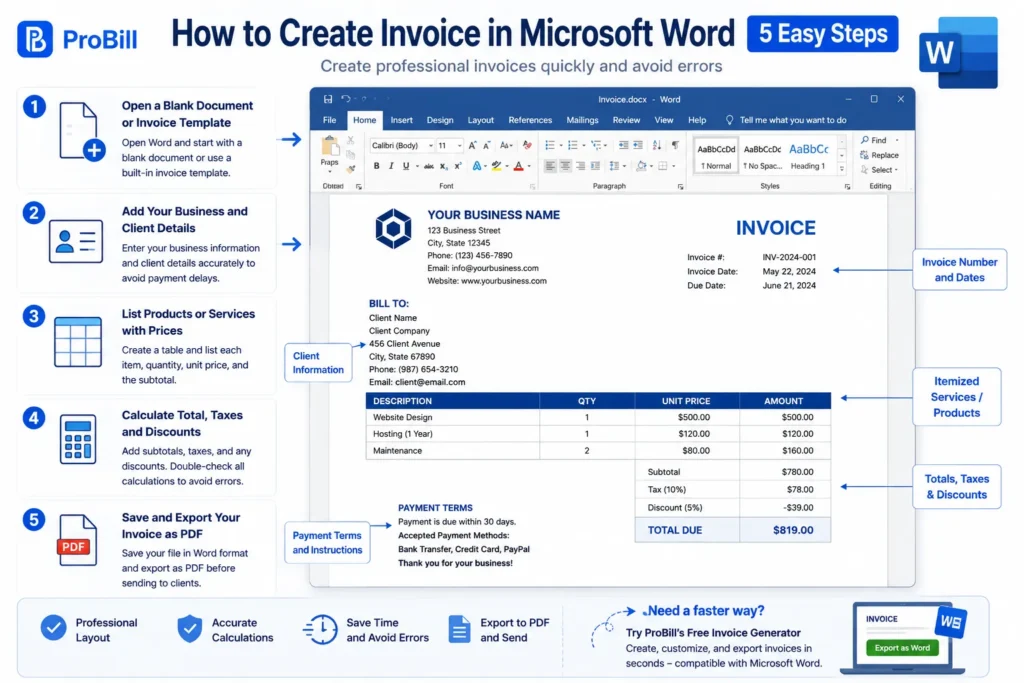
Start by launching Microsoft Word. You can either open a blank document for full customization or use Word’s built-in invoice templates for a faster setup. Templates already have a professional structure, which helps avoid common formatting errors. For freelancers needing a simple invoice in Word, a template reduces setup time and keeps details organized.
Step 2: Add Your Business and Client Details
Enter your business name, address, contact information, and logo at the top. Below that, include your client’s details—name, company, and address. Accurate client info prevents confusion and payment delays. Missing or incorrect contact details are frequent mistakes when creating an invoice in word documents, so double-check this section.
Step 3: List Products or Services with Prices
Create a clear table listing each product or service, quantity, and unit price. Descriptions must be concise yet detailed enough for the client to recognize charges easily. Using Word’s table features maintains alignment and readability. A well-organized item list avoids disputes about charges and supports faster payments.
Step 4: Calculate Total, Taxes, and Discounts
Add a row for subtotals, then include any applicable taxes or discounts. Word doesn’t auto-calculate these, so ensure manual calculations are correct. Errors here often cause payment delays or undercharging. To minimize mistakes, use calculator tools outside Word or consider your accounting software for complex invoices.
Step 5: Save and Export Your Invoice as PDF
Save the invoice as a Word document for future edits, then export it as a PDF to ensure formatting stays intact when sending to clients. PDFs also enhance professionalism and security. Saving invoices in both formats helps maintain records and supports payment tracking.
For a quicker alternative to creating invoices in Word, consider a free invoice generator that automates these steps while allowing PDF export compatible with Microsoft Word. This approach saves time and eliminates calculation errors while preserving a professional look. For the broader process, see our complete guide on how to create invoices.
Different Methods to Create an Invoice in Word
Using Microsoft Word Invoice Templates
Starting with an invoice template can make building your Word invoice much quicker. Microsoft Word offers a selection of built-in invoice templates accessible inside the app. These templates save time and guarantee a professional layout. For instance, a small business owner can quickly create an invoice by selecting “File > New” and searching for “invoice.” Templates include preformatted tables and placeholders for all essential data, reducing errors common in manual entry. However, customization beyond basic changes can be limited, which might frustrate users needing unique branding.
Creating an Invoice from Scratch in Word
Building an invoice completely from scratch gives full control over design and content but requires more effort. This method suits freelancers with specific branding needs who want unique invoices. You start with a blank document, then manually insert tables, text boxes, and formulas for totals (not auto-calculated). A typical mistake in this approach is inconsistent formatting or missing critical fields like invoice number, which might cause payment delays. This method is flexible but demands more design attention and verification of calculations. Google Docs offers a similar document-based approach with the advantage of online collaboration .
Using Online Invoice Generators and Exporting to Word
Online invoice generators simplify and speed up invoice creation by automating layout, calculations, and data entry. After creating the invoice, you can export it as a Word document for further editing or record-keeping. For example, Probill’s free invoice generator lets entrepreneurs produce polished invoices quickly, then download them as Word files. This prevents errors like incorrect pricing or formatting issues common in Word-only workflows. This hybrid method blends the ease of automation with the editing flexibility of Word, especially useful for those wanting accurate, professional invoices without technical skills. Consider trying a free invoice generator to streamline your invoicing process.
If you prefer working with spreadsheets, you can also create an invoice in Excel. For official guidelines on invoice requirements, visit the IRS invoice requirements.
Key Elements Every Invoice Created in Microsoft Word Should Include
Business and Client Contact Information
This is the foundation of any invoice. Your business name, address, phone number, and email must appear clearly at the top. Equally important is the client’s full contact information. Omitting or misspelling client details leads to payment delays or disputes. For example, a freelance graphic designer who sent invoices without a client’s updated address experienced significant late payments. Precise contact data ensures invoices reach the right person and can be verified easily.
Invoice Number and Date
Every invoice needs a unique invoice number for tracking and record-keeping. Skipping invoice numbering complicates audits and can cause payment confusion. Use a logical sequence, such as INV-001, INV-002. The invoice date marks when the billing cycle starts, setting the clock for payment deadlines. Missing or inaccurate dates often extend payment terms unintentionally. For small businesses, consistent numbering and dating reduce bookkeeping errors and improve professionalism.
Detailed Item Description and Pricing
List every product or service separately with a concise description, quantity, unit price, and total. Ambiguity here creates client disputes and slows payments. For instance, labeling a service as “Consulting” without details generated questions from clients who expected specifics. Use Word’s table feature to maintain clarity and alignment. Clear descriptions backed by straightforward pricing prevent confusion and support easy cross-checking by clients.
Payment Terms and Due Date
Most invoice delays arise from unclear or missing payment terms. Specify accepted payment methods, due date, and penalties for late payment. For example, stating “Payment due within 15 days by bank transfer” sets clear expectations. Without this, clients often assume flexible timing, which can hurt cash flow. Including terms transparently helps enforce timely payments and avoids follow-up emails. This element is critical for turning your Microsoft Word invoice into an effective billing document.
For additional structure and examples, consider exploring professional invoice templates that integrate these key elements seamlessly. Also, verify your invoice components comply with the guidelines from the IRS invoice requirements.
Common Mistakes When Creating Invoice in Word and How to Avoid Them
Skipping Invoice Numbering
One of the quickest ways to cause confusion and delay payments is not assigning a unique invoice number. Without numbering, tracking payments or matching invoices to records becomes a mess. For example, a small business owner who created invoices without numbers found it difficult to reconcile accounts and follow up on overdue payments. Always assign a clear, sequential invoice number like INV-1001 to maintain order and professionalism.
Incorrect Pricing or Calculations
Manual entry of prices and totals in Word often leads to miscalculations. Since Word doesn’t auto-calculate, it’s easy to overlook taxes, discounts, or subtotals, resulting in undercharges or overcharges. Freelancers charging hourly rates sometimes forget to multiply hours correctly, causing billing errors. Use external calculators or double-check sums to avoid these costly mistakes that can affect cash flow and client trust.
Poor Formatting Affecting Readability
Invoices cluttered with misaligned tables, inconsistent fonts, or excessive colors confuse clients and look unprofessional. A startup owner once lost a payment because their invoice was hard to read, causing the client to question the charges and delay payment. Stick to simple layouts using Word’s table tools and limit font styles to ensure clear, professional presentation that facilitates fast approval.
Forgetting Payment Terms
Leaving out payment terms creates ambiguity and often slows down the payment cycle. Clients may assume flexible deadlines or ignore preferred payment methods. For instance, a consultant didn’t specify payment deadline or methods on invoices, resulting in late payments and extra follow-ups. Always add clear terms like “Payment due within 15 days via bank transfer” to set expectations and avoid disputes.
For best results, consider pairing your Microsoft Word invoices with reliable invoice templates designed to minimize common errors. This can streamline your workflow while enhancing professionalism. Also, verify your invoice details against official IRS invoice requirements to ensure compliance.
Tips for Creating Professional Invoices in Microsoft Word Quickly
Use and Customize Invoice Templates
Starting with a built-in Word invoice template speeds up creation and ensures a clean layout. However, many users fail to adapt templates to their branding, leaving generic invoices that reduce professional appeal. For example, a freelancer who simply replaced placeholder text without adjusting fonts or adding a logo found clients less responsive. Customize colors, fonts, and logos to reflect your business identity while preserving the template’s structure for clarity and speed.
Utilize Table Features for Layout Consistency
Consistent alignment and spacing are essential for readability. Word’s table tools keep product descriptions, prices, and totals neatly organized, avoiding the scattered look common with manual spacing. For instance, small business owners often struggle when pricing columns aren’t aligned, causing confusion. Using tables with fixed column widths and cell padding maintains a uniform appearance across different devices and printouts, enhancing professionalism instantly.
Double-Check Calculations and Details
Word doesn’t automatically calculate totals or taxes, making manual checks critical. Overlooking small errors can lead to underbilling or client disputes that delay payment. A consultant once sent invoices with miscalculated tax due to copied errors, forcing multiple corrections. Establish a quick verification routine: use a calculator or spreadsheet before entering figures, then cross-verify totals on the Word invoice. This habit prevents costly mistakes without slowing down your workflow.
Save Templates for Reuse
Saving your customized invoice as a Word template (.dotx) can cut creation time in half for future invoices. Many independent professionals miss this step, recreating headers and tables repeatedly, which wastes time and risks inconsistencies. A reusable template ensures you start every invoice with your tailored design and formulas intact. Even minor improvements—like pre-filled payment terms—streamline the process, letting you focus on updating client and item details only. Once your Word invoice is finished, you can convert it to PDF before sending it.
For hassle-free and customizable invoicing, explore reliable invoice templates that integrate these best practices and simplify your Microsoft Word invoicing process.
Where to Find and How to Use Invoice Templates in Microsoft Word
Accessing Built-in Templates in Microsoft Word
Microsoft Word includes several ready-to-use invoice templates that cover basic invoicing needs. To access these, go to File > New and search for “invoice.” Selecting a built-in template saves time and guarantees a consistent, professional layout without manual formatting. However, these templates often feature generic designs and limited branding options. For example, a small business owner found it helpful to start from a Word template but had to tweak colors and fonts extensively to match their brand. Relying on in-app templates is ideal for quick invoicing but may lack the flexibility needed for business-specific details.
Downloading Free Invoice Templates Online
Many websites offer free Microsoft Word invoice templates with various styles and purposes—from simple service invoices to detailed product billing. Downloading these can provide better customization options than Word’s built-in set. However, beware of outdated or poorly designed templates that cause formatting issues when opened. For instance, a freelancer downloaded a free template that did not scale well on mobile devices, causing readability problems for clients viewing invoices on phones. Always test downloaded templates thoroughly and select sources that ensure compatibility and clear structure.
Customizing Templates to Fit Your Business
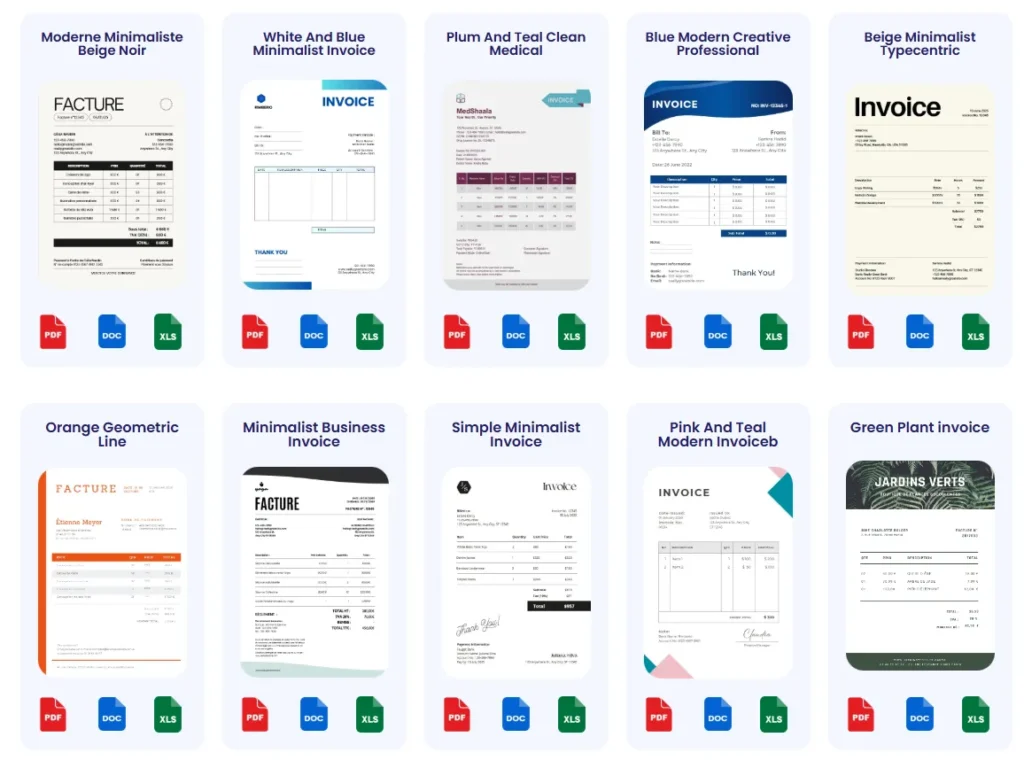
Templates save effort but rarely match every business need out of the box. Effective customization includes adding your logo, adjusting fonts, modifying colors, and ensuring all necessary invoice fields are present. For example, a consultant customized an online downloaded template by inserting extra rows for taxes and discounts while aligning all columns for neatness. Without proper customization, an invoice may look generic or omit critical details, which can delay payments. Remember to save your customized file as a template (.dotx) for consistent reuse. For hassle-free template options designed for entrepreneurs, explore the invoice templates that allow quick personalization with minimal design effort.
Frequently Asked Questions About Creating Invoice in Microsoft Word
How do I create an invoice in Microsoft Word?
Start by opening a blank document or choosing an invoice template in Word. Add your business and client details, then list your products or services with prices in a table. Manually calculate totals, taxes, and any discounts since Word doesn’t do this automatically. Finally, save your document and export it as a PDF for sending. This process covers the basics of creating an invoice in Microsoft Word efficiently.
Can I create an invoice in Word without using a template?
Yes, creating an invoice from scratch in Word is possible but requires manually building tables and formatting text. This method is flexible for unique branding but prone to alignment and calculation errors. For example, freelancers who skip templates often forget to include essential fields like invoice numbers. It’s important to maintain consistent formatting and double-check details to avoid mistakes.
How do I add calculations like totals and taxes in a Word invoice?
Word does not automatically calculate totals or taxes, so you must perform calculations outside Word, using a calculator or spreadsheet, then enter the values manually. Another option is embedding formulas in tables, but this is limited and error-prone. Incorrect calculations are a common cause of late payments or disputes, so always verify sums carefully to maintain invoice accuracy.
Is it better to create invoices in Word or use an invoice generator?
Using Word provides full design control but involves manual effort prone to errors. Invoice generators automate layouts, calculations, and can export results to Word for further editing. For example, Probill’s online invoice generator speeds up creating professional invoices and avoids common Word pitfalls like miscalculations or formatting inconsistencies. For faster workflows, consider blending both methods by generating invoices online and refining them in Word.
How do I save or export invoices created in Word?
After finishing your invoice in Word, save the file as a .docx for future editing. To ensure clients see consistent formatting, export the invoice as a PDF before sending. PDF files prevent layout shifts and look more professional. Keeping both formats helps you update invoices later and maintain clear records for accounting.
Can I customize invoice templates in Word for my business branding?
Yes, Word templates are customizable. You can add your logo, change fonts, colors, and modify layouts to reflect your branding. However, built-in templates have structural limits, so deep customization may require creating an invoice from scratch or using third-party templates. Customizing templates improves client recognition and invoice professionalism, which can positively impact payment timeliness.
What common mistakes should I avoid when creating an invoice in Word?
Avoid skipping invoice numbers, which complicates tracking. Double-check pricing and calculations carefully as Word won’t auto-fill them. Keep formatting simple and clean to ensure readability—overly complex layouts can confuse clients. Also, never omit payment terms and due dates, as this often leads to delayed payments. Attention to these details ensures your Word invoices are clear, accurate, and actionable.
How do I create a simple invoice in Word quickly?
The fastest way is to use a built-in invoice template, then replace the placeholders with your details. Stick to tables for item listings and avoid over-customization to save time. Save the customized file as a reusable template so you can generate future invoices faster. Combining templates with manual edits offers a practical balance between speed and personalization.
Can I create invoices in Word on mobile devices?
Microsoft Word apps on mobile support opening templates and basic editing, but limited screen space and input tools reduce efficiency in creating detailed invoices. For mobile invoicing, consider specialized apps or online generators that export to Word, allowing better functionality with less hassle. Tools like Probill provide mobile-friendly environments tailored for quick, professional invoicing.
For more streamlined invoicing in Word format, try a free invoice generator to simplify and speed up your workflow.
Try a Faster Way: Use an Online Invoice Generator to Create Invoices and Export to Word
Benefits of Online Invoice Generators for Word Users
Online invoice generators eliminate manual formatting and calculation errors common when creating an invoice in Microsoft Word. They speed up the process by automating numbering, tax computations, and total calculations. A freelancer juggling multiple clients can generate accurate invoices in minutes, avoiding costly mistakes like missing taxes. These tools also ensure consistent, professional designs without spending hours adjusting tables and fonts in Word. For Word users who want accuracy without complexity, generators bridge the gap between manual entry and polished output.
How Probill Supports Quick Invoice Creation and Export
Probill offers a streamlined invoice generator that creates professional invoices ready to export as Word documents. Users input business data, client info, and line items through an intuitive interface—no Word formatting skills needed. Calculations for totals, taxes, and discounts happen automatically, eliminating human error. After completion, invoices export in .docx format, allowing further customization with Word if desired. This workflow suits small business owners who want both speed and flexibility: start fast online with Probill, then fine-tune invoices in Word before sending.
Accessing Invoices on Any Device with Probill
Probill’s cloud-based platform supports creating and managing invoices from desktops, tablets, or smartphones. This flexibility empowers entrepreneurs to generate invoices on-the-go, unlike traditional Word-only methods restricted to a single computer. For example, a consultant can draft an invoice during a client meeting on a mobile device, export it to Word for branding tweaks later, then email it immediately. Probill syncs invoice data securely across devices, so you never lose progress or version history. This mobility enhances cash flow by reducing delays common with manual Word invoicing.
Try the free invoice generator by Probill to simplify invoice creation and easily export invoices compatible with Microsoft Word.