Skip to content
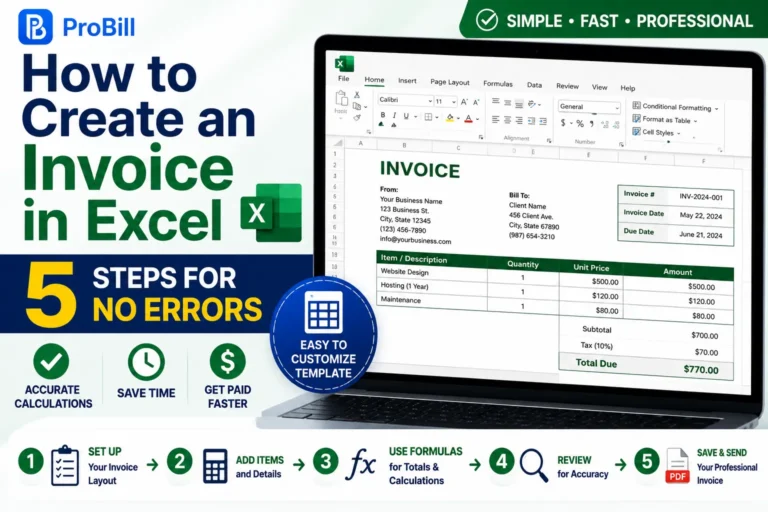
How to Create an Invoice in Excel: Quick Answer
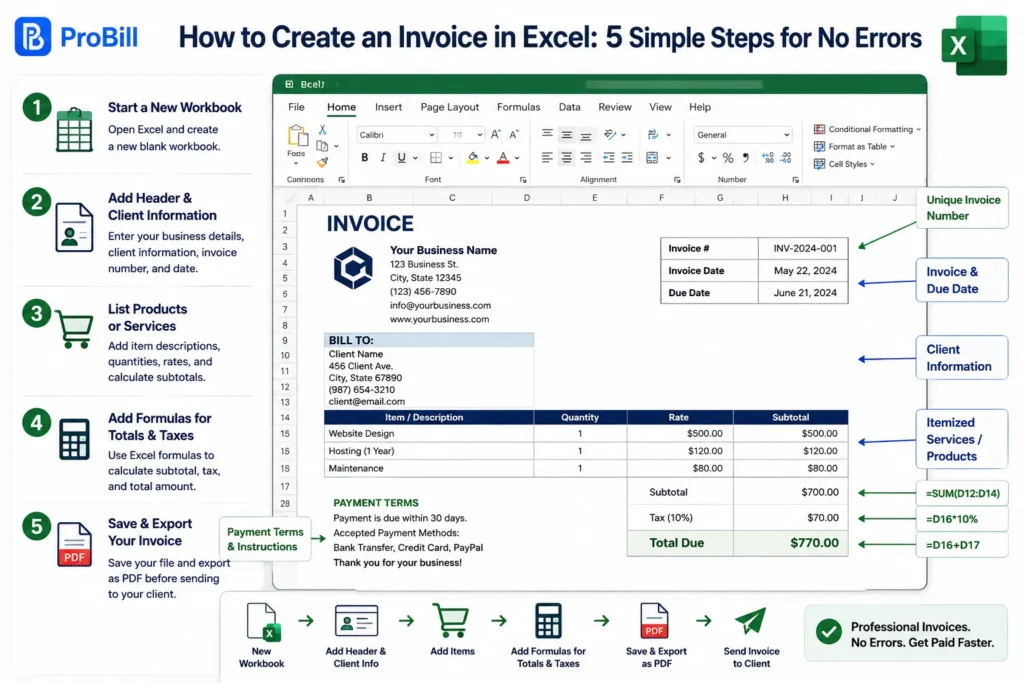
Step 1: Open Excel and Start a New Workbook
Begin by launching Excel and opening a blank workbook. This clean slate lets you build your invoice layout from scratch or customize a ready-made template. Starting fresh helps avoid clutter and ensures fields relevant to your business needs.
Step 2: Set Up Invoice Header and Client Information
Create a clear header displaying your business name, logo, and contact details, followed by client information such as name, address, and phone. This section ensures your invoice looks professional and helps recipients quickly identify the transaction. Including invoice number and date here sets the foundation for tracking payments efficiently.
Step 3: Input Itemized Services or Products
List each product or service with a description, quantity, rate, and subtotal. Itemizing prevents disputes and clarifies charges. For example, a freelancer billing hourly work should specify hours worked for transparency. Properly structured line items boost invoice accuracy and client trust.
Step 4: Add Formulas for Totals and Taxes
Use Excel formulas to automatically calculate subtotals, taxes, and total amounts. This reduces errors from manual math and speeds up the process. For instance, implementing =SUM() for totals and =SUBTOTAL()*tax rate maintains accuracy across invoices, especially important when handling multiple tax rates or discounts.
Step 5: Save and Export Your Invoice
Save the invoice file in Excel format for future edits, then export a PDF version before sending to clients. PDFs preserve formatting and prevent accidental changes. Naming invoices systematically—such as “Invoice_123_May2026”—simplifies record keeping and retrieval during tax season. Using an invoice template can give your Excel invoice a professional structure from the start.
Using an Online Invoice Generator for Faster Creation
For freelancers or small businesses needing speed and ease, an online invoice generator offers a powerful alternative to manual Excel creation. Tools like a free invoice generator automate layout design, tax calculations, and client management without Excel skills. This frees time, reduces errors, and supports professional payment tracking. Though Excel remains flexible, online generators combine ease with consistent, branded invoices—ideal when managing multiple clients and frequent billing cycles.
IRS invoice requirements mention the importance of including accurate tax calculations on invoices, reinforcing why formulas or automated tools matter.
Step-by-Step Guide to Creating an Invoice in Excel
Preparing Your Workbook for Invoice Creation
Start by organizing your workbook with clear sheets or sections for different data: one for invoice details, another for client info, and optionally a separate list for products or services. This separation simplifies referencing cells and reduces errors in formulas. A common mistake is mixing raw data and invoice layout, which complicates updates. For example, a freelancer might maintain a product catalog sheet linked to the invoice sheet, streamlining invoice item entry.
Designing Invoice Layout and Sections
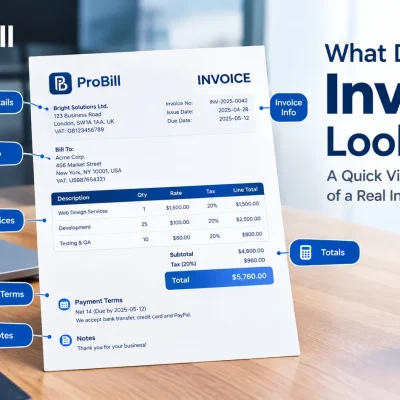
Divide your invoice into logical blocks: header, client details, line items, totals, and payment terms. Use borders and shading sparingly to improve readability without clutter. Align fields uniformly, such as right-aligning prices and left-aligning descriptions. Avoid overcrowding by limiting each section’s width, which benefits both screen viewing and printing. Well-planned layout prevents confusion during invoice reviews or audits.
Entering and Formatting Client Details
Input client information consistently, using the same format on every invoice to build professionalism and ease of recognition. Include name, address, phone, and email if applicable. Employ data validation or dropdown lists when billing recurring clients to avoid typos. An overlooked error is missing or incomplete client details, causing payment delays or disputes, especially for small businesses handling multiple customers.
Setting Up Invoice Line Items with Formulas
List each item or service clearly, detailing description, quantity, unit price, and subtotal. Incorporate formulas like =B2*C2 for line totals and =SUM(D2:D10) to calculate the invoice subtotal automatically. Add tax calculations with fixed cell references to the tax rate, e.g., =subtotal*tax_rate. Testing formulas before use is crucial—incorrect references can cause incorrect totals, leading to billing issues or client mistrust.
Including Payment Terms and Notes
End the invoice with clear payment terms—due date, accepted payment methods, and late fee policies if any. This transparency reduces late payments. Adding a polite note or thank you message can improve client relationships. For example, a small business might include “Payment due within 15 days to avoid a 2% late charge.” Omitting terms is a frequent cause of payment disputes.
Explore versatile invoice templates to find well-structured models that can be customized to your brand and workflow.
Methods to Create an Invoice in Excel Efficiently
Manual Invoice Creation from Scratch
Creating an invoice in Excel manually offers full control over layout and customization but demands Excel proficiency and time. You build each section: header, client info, line items, formulas, and totals. This method suits users with unique billing needs but risks formula errors or inconsistent formatting if not carefully managed. For instance, freelancers often start from scratch to tailor invoices by project yet may overlook automatic tax calculations, leading to inaccuracies. Manual creation requires diligence to keep data accurate and ensure the invoice reads professionally. For the general invoicing process, see our guide on how to create invoices.
Using Excel’s Built-in Invoice Templates
Excel includes diverse pre-built invoice templates accessible via the “New” menu. These templates simplify creating an invoice on Excel by providing structured layouts and basic formulas. For small business owners, this method accelerates invoice creation while maintaining a polished appearance. However, templates can be generic and sometimes include unnecessary fields or miss features like automatic tax adjustments or payment tracking. Customizing templates to match your brand and billing specifics is important. Using Excel’s native templates is a solid middle ground between full manual setup and automation. If you prefer a document-based format, you can also create an invoice in Microsoft Word.
Automating Invoice Creation with Invoice Generator Tools
Automated invoice generators, like the free invoice generator from Probill, drastically reduce time spent creating invoices in Excel format. These tools pre-fill client data, apply tax rules, and produce error-free invoices ready for export or sending. Entrepreneurs managing multiple clients and frequent billing cycles benefit most, as tools help avoid manual mistakes and speed up payment processing. Unlike creating an invoice using Excel alone, automated tools also incorporate client management and payment tracking, enhancing workflow efficiency without requiring Excel expertise. Google Sheets is another spreadsheet-based option for creating and managing invoices.
IRS invoice requirements emphasize consistent, accurate invoicing for tax compliance, highlighting why automation can boost reliability.
Key Elements of a Professional Invoice Created in Excel
Clear Invoice Number and Date
Every professional invoice needs a unique invoice number to prevent confusion and ease payment tracking. Sequential numbers work best, such as INV-001, INV-002. Include the invoice date prominently—clients and accounting systems rely on this for due date calculations. Not specifying the date or repeating invoice numbers often causes payment delays and accounting errors. For freelancers juggling multiple clients, automating numbering with Excel’s =MAX() function plus one avoids duplicates.
Detailed Client and Seller Information
Complete contact details are essential for clarity and professionalism. Include full names, addresses, phone numbers, and emails for both seller and client. Missing or inconsistent client info is a common reason invoices are disputed or payments get delayed. For a small business owner, entering client details manually leads to errors—using dropdown lists in Excel or referencing a client database sheet improves accuracy and speeds up invoice creation.
Accurate Itemization with Pricing and Taxes
A well-structured invoice lists all products or services with descriptions, quantities, individual prices, and line totals. Apply formulas (=Quantity*UnitPrice) to avoid manual calculation errors. Tax rates should be clearly applied with references to ensure all totals compute correctly. A small mistake here can lead to undercharging or overcharging. For instance, a consultant should specify billable hours per project clearly to justify charges and reduce client disputes.
Payment Terms and Instructions
Payment terms define when and how the payment should be made, significantly reducing follow-up work. Include due dates, accepted payment methods (e.g., bank transfer, credit card), and specify penalties for late payments if applicable. Omitting or vague terms are the prime cause of late payments, particularly for startups and freelancers. Adding a brief note thanking the client or offering support can improve payment responsiveness and client relations.
Explore professional invoice templates to ensure your Excel invoices include all these key elements with clean layouts.
Common Mistakes When Creating an Invoice in Excel and How to Avoid Them
Incorrect or Missing Formulas
One of the most frequent errors when creating an invoice in Excel is misconfigured formulas. A small mistake like referencing the wrong cell or using the wrong function can cause totals and taxes to be inaccurate, leading to undercharging or overcharging clients. For example, a freelancer once submitted invoices missing sales tax because the formula referred to an empty cell. Always test your formulas with sample data and lock tax or discount cells with absolute references (e.g., $B$2) to maintain consistency across multiple invoices.
Omitting Important Client or Payment Details
Invoices lacking essential client contact information or clear payment instructions cause confusion and delay payments. Missing phone numbers, incorrect billing addresses, or absent payment terms leave clients unsure how or when to pay. A common scenario: a small business owner delays getting paid because invoices miss a due date or omit bank details. Use dropdown lists or linked client databases in Excel to keep these details standardized and accurate.
Poor Layout Affecting Readability
An invoice cramped with too many columns or inconsistent alignment can frustrate clients and slow processing. Overcrowding crucial invoice sections — like line item descriptions or totals — creates confusion about charges. For instance, squeezing item descriptions into a narrow column made it hard for one freelancer’s clients to understand the billing, stalling payment. Keep the layout clean by grouping fields logically, using borders or shading sparingly, and aligning numeric values right and text left to enhance clarity.
Not Saving or Exporting Properly
Failing to save your Excel invoice correctly or skipping PDF export risks sending files clients can accidentally edit or lose formatting. Saving only in .xlsx format and emailing that version opens possibilities for unintended changes. For example, a startup learned the hard way when a client altered invoice numbers before payment. Exporting invoices as PDFs preserves formatting and professionalism. Name files systematically (e.g., Invoice_ClientName_Date.pdf) for easier archiving and retrieval. After completing your Excel invoice, you can save it as a PDF for easier sharing.
Explore versatile invoice templates to reduce layout and formatting errors when creating invoice in Excel efficiently.
Tips for Creating an Invoice in Excel Faster and More Accurately
Use Pre-made Templates and Customize
Starting with a professional invoice template cuts creation time dramatically. Excel’s built-in templates or downloadable options from trusted sites offer ready-made layouts with formulas in place. For example, a small business owner using a template can skip building formulas and focus on branding and client-specific details. Customize templates—like replacing generic logos or adjusting color schemes—to maintain professionalism without the extra design work. This approach balances speed with quality and reduces errors compared to creating an invoice on Excel from scratch.
Set Up Auto-fill for Frequent Clients
Manually entering identical client details each time wastes time and increases typo risk. Use Excel features like dropdown lists or data validation to auto-fill recurring client information. For instance, a freelancer who frequently invoices the same clients can create a client table on a separate sheet and reference it via formulas or dropdowns. This method speeds up the process and ensures consistency across invoices, preventing delays caused by incorrect billing addresses or contact data.
Double-check Formulas Before Sending
Inaccurate totals or tax calculations are the fastest way to erode client trust and delay payments. Even when using basic formulas to create invoice in excel, always test under various scenarios—different tax rates, discounts, or quantity changes—to validate results. A business owner once missed an incorrect tax formula referencing a wrong cell, resulting in undercharging and financial loss. Lock key cells with absolute references ($) and audit formulas regularly to avoid costly mistakes. Incorporating a quick formula review step can save hours in client follow-ups.
Explore professional invoice templates to speed up invoice creation and ensure accuracy in your Excel invoices.
Where to Find and How to Use Invoice Templates for Excel
Downloading Templates from Reputable Sites
Reputable sites offer a variety of Excel invoice templates tailored for freelancers, small businesses, and entrepreneurs. These templates often come with pre-set formulas, professional layouts, and customizable branding elements. For example, using a template from a trusted source reduces the risk of formula errors and inconsistent formatting common in self-made invoices. Avoid generic or outdated downloads; always pick templates updated for current tax rules and usability. Websites like Microsoft Office’s official portal or specialized invoicing sites deliver reliable templates that streamline the process of creating an invoice in Excel.
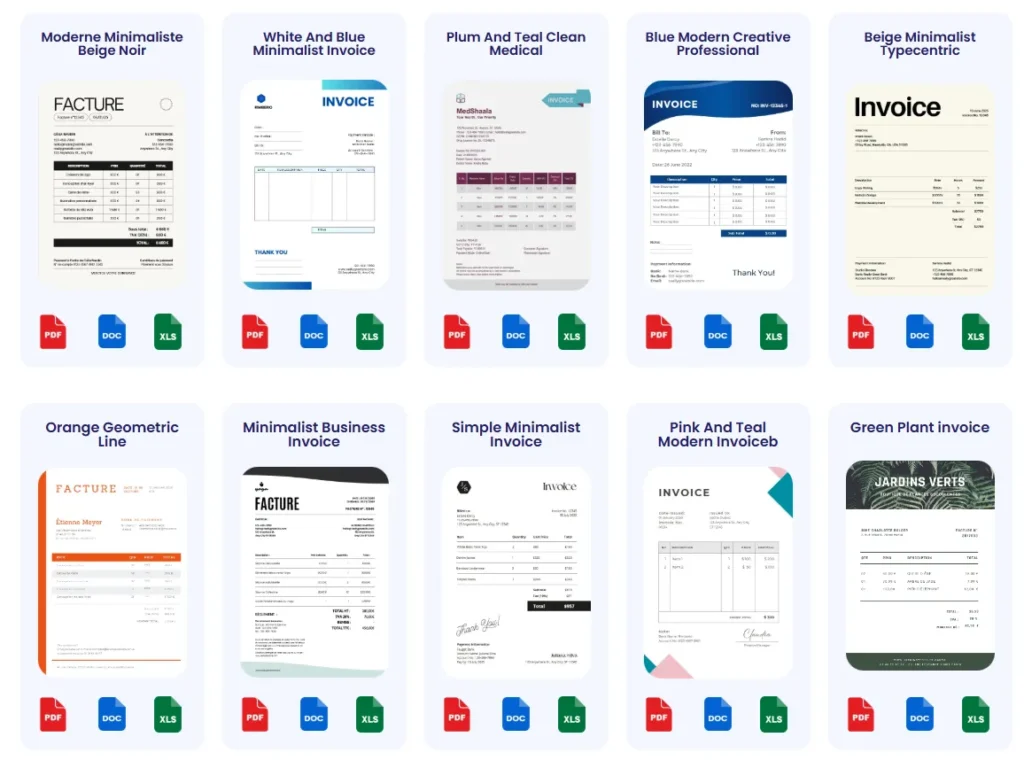
Customizing Templates to Match Your Brand
Simply downloading a template isn’t enough—customization is key to maintaining a professional image. Modify colors, fonts, and logos to align with your brand identity. For instance, a freelancer can add a personal logo and select brand colors for headers and footers to create consistency across client communications. Equally important is adjusting invoice fields to match your business needs: remove unnecessary columns, add tax rates relevant to your region, or include payment terms specific to your policies. Tailored templates enhance client trust and reduce confusion compared to generic formats.
Using Templates with Invoice Management Tools
Modern invoice management tools often integrate Excel templates or offer export options compatible with Excel. This lets small business owners create invoices quickly while retaining control of formatting and formulas. For example, using a tool that exports data into a customized Excel invoice template saves the effort of manual entry and ensures accuracy in totals and taxes. Some tools also offer client information syncing, preventing repeated data entry errors. While creating an invoice in Excel manually serves many needs, combining it with template-supporting invoice management software balances customization with efficiency.
Explore a curated set of invoice templates designed for Excel users that simplify customization and improve invoice professionalism.
Frequently Asked Questions About Creating an Invoice in Excel
What is the easiest way to create an invoice in Excel?
The easiest method is to use Excel’s built-in invoice templates. They come pre-designed with basic formulas and structured layouts, saving setup time. For small business owners or freelancers, customizing these templates to fit branding and billing specifics offers a smooth blend of speed and professionalism without starting from scratch.
Can I create an invoice in Excel without any formulas?
Yes, but it’s not recommended. Invoices without formulas require manual total calculations, increasing the risk of errors and delays. Using formulas like =SUM() for totals or referencing a tax rate cell ensures accuracy and speeds up invoice creation, especially when handling multiple items or taxes.
How do I ensure my Excel invoice looks professional?
Maintain a clean layout with well-defined sections for header, client details, line items, and totals. Use consistent fonts, avoid clutter, and right-align numeric data for clarity. Including clear invoice numbers, dates, payment terms, and branded elements upgrades professionalism and helps prevent payment delays.
Is it safe to send Excel invoices directly to clients?
Sending .xlsx files can expose your invoice to accidental edits, causing confusion or payment errors. Exporting invoices as PDF preserves formatting and prevents unintentional changes. Naming files systematically, e.g., “Invoice_ClientName_Date.pdf,” also aids in organization for both sender and recipient.
How do I automate invoice numbering in Excel?
You can automate invoice numbering by using a formula like =MAX(A:A)+1 where column A stores previous invoice numbers. This approach prevents duplicate numbers and simplifies tracking. However, keep a backup to avoid loss from accidental deletions or overwrites.
Can I create invoices for multiple clients in one Excel file?
Yes. Set up separate sheets or a client database table and use dropdown lists or lookup formulas to pull client details into the invoice sheet. This reduces data entry errors and speeds up creating invoices for recurring clients.
How do I include taxes in my Excel invoice?
Add a fixed tax rate in a designated cell, then apply formulas like =Subtotal * TaxRate to calculate tax amounts automatically. Lock the tax rate cell using absolute references (e.g., $B$2) to ensure formulas copy correctly without errors.
What are common mistakes when creating an invoice in Excel?
Frequent errors include incorrect formulas, missing client details, poor layout, and failure to export as PDF. For example, referencing the wrong cell can cause undercharging, while skipping client info fields causes payment delays.
Can I track payments using an Excel invoice?
Excel alone offers limited tracking abilities. For better payment tracking, consider combining Excel invoice creation with invoice management software or online tools that sync client info, track payment status, and send reminders efficiently.
When should I consider using online invoice generators over Excel?
If you handle multiple clients, frequent billing cycles, or need fast, error-free invoices, online generators streamline the process. These tools, like a free invoice generator, automate calculations, formatting, and client management without requiring Excel skills — ideal for entrepreneurs and freelancers seeking efficiency.
Are Excel invoices tax compliant?
Excel invoices can be tax compliant if they include all required components like correct tax calculations, invoice numbers, dates, and client details. Follow official guidelines such as IRS invoice requirements to ensure compliance and avoid issues during audits.