Skip to content

How to Create an Invoice on Square
Step 1: Log In to Your Square Dashboard
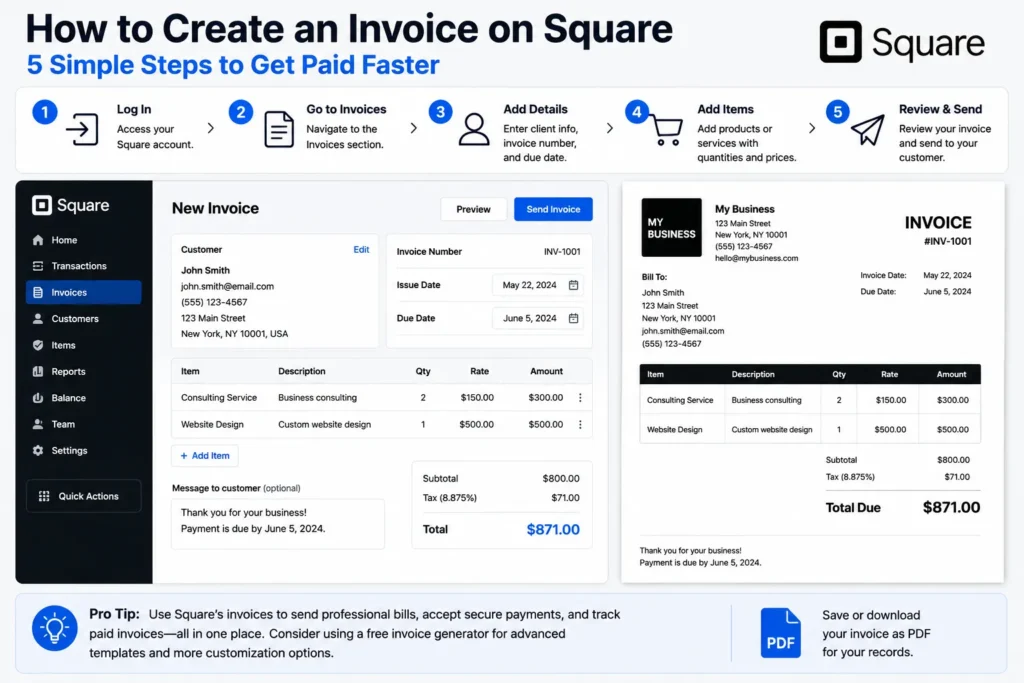
Start by accessing your Square account through the official website or app. Logging in gives you access to the dashboard where you can manage all invoicing tasks. For example, freelancers frequently log in to track ongoing projects and payment statuses without needing separate software. This step is essential before you can create invoice on Square.
Step 2: Navigate to the Invoices Section
Once inside the dashboard, look for the “Invoices” tab in the menu. This section is dedicated to invoice creation and management. It’s designed for quick access to your billing features, making it easy to create invoice on Square without digging through unrelated menus. Small businesses especially benefit from this focused area for daily invoice needs.
Step 3: Fill Out Invoice Details
Input the necessary invoice information such as client name, contact details, invoice number, and due date. Precision here prevents common errors like incorrect client information or missing payment terms that delay payments. Clear details help ensure prompt responses from customers and reduce back-and-forth communication.
Step 4: Add Items or Services
Add each line item, whether products sold or services rendered, including quantities and prices. Square’s interface allows for easy adjustment and adding taxes or discounts if needed. For example, a graphic designer can list design services separately from printing costs, ensuring clients understand what they’re paying for.
Step 5: Review and Send Invoice
Before sending, review the entire invoice to catch any input mistakes or omissions. Confirm payment terms and recipient details. Once confirmed, you can send the invoice directly through Square’s system via email or SMS. This final review step minimizes errors that cause payment delays and streamlines your billing process.
Create invoices on Square efficiently to maintain professionalism and speed up payment cycles. For additional invoice formats and ready templates, consider exploring an external free invoice generator to complement your workflow and improve customization options.For the basic invoicing process that applies across different platforms, see how to create invoices.
Step-by-Step Guide to Create an Invoice on Square
Accessing the Square Invoicing Tool
To create an invoice on Square, start by logging into your dashboard and selecting the “Invoices” tab. This tool centralizes your billing workflow, eliminating the need for external software. Small business owners often appreciate how it streamlines managing multiple invoices without clutter. Remember, only after opening this tool can you begin to create invoice Square entries effectively.
Customizing Invoice Fields for Your Business Needs
Square offers customizable fields such as payment terms, item descriptions, and tax rates. Tailoring these ensures each invoice matches your business’ legal and operational requirements. For example, a freelancer might add a “project milestone” field, providing clarity to clients on deliverables tied to payments. Skipping customization risks generic invoices that confuse your recipients or delay payments.
Setting Up Payment Preferences
Selecting appropriate payment options directly in Square speeds up client transactions. You can enable credit cards, ACH bank transfers, or Square Wallet payments. Consider your client base—for instance, service providers working with older clients may offer multiple modes to accommodate preferences. Failure to set payment preferences upfront may require later modifications, slowing down the billing cycle.
Adding Recipients and Personalizing Messages
Square allows you to add client emails and personalize your invoice messages. Adding a brief, clear note increases the chance of prompt payment by clarifying the invoice purpose. Freelancers find that adding deadlines or thank-you notes builds rapport, reducing back-and-forth. Avoid generic texts as they can appear impersonal, decreasing payment urgency.
Sending and Scheduling Invoices
Square lets you send invoices immediately or schedule them for future dates. Scheduled sending helps maintain steady cash flow and aligns reminders with client payment habits. A scenario involves boutiques sending monthly invoices before billing cycles begin, preventing last-minute rushes. Use this feature strategically to keep your receivables predictable and timely. Once the invoice is prepared, the next step is sending it to the customer.
For additional ease in managing your invoices, consider using a free invoice generator to supplement the Square create invoice process.
Common Mistakes to Avoid When Creating an Invoice on Square
Incorrect Client Information
Errors in client details—such as misspelled names, wrong email addresses, or outdated phone numbers—are the leading cause of invoice delays. For example, a freelance consultant once sent a well-prepared invoice on Square but used an old client email, resulting in weeks of delay. Always double-check recipient information to ensure your invoice reaches the correct party immediately.
Missing Payment Details
Invoices lacking clear payment instructions or terms generate confusion and slow down collections. Frequently omitted details include accepted payment methods, due dates, and late fees. A small retailer who forgot to include payment terms on a Square invoice faced repeated calls from customers unsure when to pay. Including exact payment instructions on every invoice prevents such inefficiencies.
Not Adding Clear Descriptions or Prices
Vague or incomplete item descriptions create disputes and payment hesitations. For instance, a service provider who simply listed “consulting” without detailing hours or rates found clients questioning charges. Square invoices should explicitly list each product or service with accurate quantities and pricing to avoid ambiguity and speed up payment processing.
Ignoring Invoice Due Dates
Neglecting to specify or highlight invoice due dates undermines payment urgency. Small businesses often lose revenue when clients perceive invoices as open-ended. Setting and clearly marking due dates in your Square invoice creates accountability. Use reminders or follow-ups automatically to reinforce deadlines and maintain cash flow.
For a streamlined, error-minimized process that complements your Square create invoice workflow, try a free invoice generator to enhance accuracy and save time.
For official guidelines on invoicing clarity and requirements, review IRS invoice requirements.
Tips for Faster and More Accurate Invoice Creation on Square
Use Invoice Templates
Leveraging invoice templates saves time and ensures consistency. Square’s native templates standardize layout and fields, reducing manual entry errors. For freelancers juggling multiple clients, templates prevent missing vital details like payment terms or tax IDs. When you repeatedly create invoice on Square, a well-designed template cuts task duration by half while maintaining professionalism.
Save Frequent Clients to Speed Up Entry
Square lets you store client data, avoiding repeated re-entry of contact info. A small business owner who services recurring clients can quickly pull customer profiles rather than typing details anew each time. This reduces input mistakes and accelerates the Square create invoice process. Over time, saved profiles create a client database that simplifies tracking and communication, preventing invoice delays caused by wrong recipient info.
Automate Reminders
Set up automatic payment reminders within Square to nudge clients before and after due dates. This reduces the need for manual follow-up calls or emails. For example, consultants who forget reminder emails often face late payments, disrupting cash flow. Automations help keep your accounts receivable predictable without extra overhead, especially when you create invoice on Square frequently.
Preview Before Sending
Always preview invoices to catch formatting glitches or incorrect pricing before sending. Mistakes like omitted taxes or unclear item descriptions can confuse clients and delay payment. A retailer once sent multiple invoices missing discount details due to lack of preview, causing customer frustration and refund requests. Previewing in Square ensures your invoice reaches clients error-free, increasing the chance of prompt payment.
For streamlined invoicing, consider enhancing your process with a free invoice generator that complements the Square dashboard features.
Methods and Tools to Complement Creating an Invoice on Square
Using Square’s Mobile App for Invoice Creation
Square’s mobile app mirrors most desktop invoicing features, letting you create invoice on Square anytime, anywhere. For example, a self-employed photographer can draft and send invoices right after a shoot without waiting to access a computer. While slightly pared down, the app supports adding items, setting due dates, and sending via SMS or email, making it indispensable for on-the-go entrepreneurs who need immediate invoicing solutions.
How Probill’s Online Invoice Generator Can Support You
Probill offers a simple, fast alternative to create square invoice entries with no technical skills required. Unlike directly creating invoices on Square, Probill allows freelancers and small business owners to quickly build and customize invoices using ready templates, then export PDF versions. This flexibility is ideal for those who want to prepare invoices offline or supplement Square’s system with additional formats. You can try the free invoice generator anytime to speed your invoicing process.
Exporting and Managing PDFs
Square lets you save invoices as PDFs, essential for record-keeping and sharing outside the platform. However, managing multiple PDFs can become cumbersome without dedicated tools. Exported invoices facilitate clients who prefer offline review or bookkeeping systems that require printable files. Freelancers often combine this feature with dedicated document management apps to keep track of sent and paid invoices effortlessly.
Tracking Payments Through Square Dashboard
One of Square’s strongest tools outside invoice creation is its payment tracking dashboard. It consolidates pending, paid, and overdue invoices in one view, reducing accounting errors. For small businesses juggling multiple clients, this real-time overview is critical to maintaining cash flow. While Square excels at tracking, integrating with tools like Probill can further enhance payment analytics and client reporting.
This blend of Square’s native features with complementary tools like Probill streamlines the workflow for those learning how to create an invoice on Square efficiently and effectively.
Invoice Templates and Examples for Use with Square
Basic Invoice Template Example
A straightforward basic invoice template includes essential components like client info, service/product descriptions, quantities, prices, taxes, and the total amount due. For instance, a freelance writer billing several article projects can use this template to clearly list each deliverable and its rate without extra sections. Keeping the template minimal speeds up creation while ensuring no key data is overlooked, which improves invoice accuracy when you create an invoice on Square.
Service Invoice Template
Service invoices typically require detailed descriptions and may include hourly rates or project milestones. An independent consultant often needs to break down charges by phases or deliverables, helping clients understand value and progress. Square’s customizable fields support this by letting you elaborate on service scopes directly on the invoice. Utilizing a service invoice template tailored to your industry eliminates ambiguity and reduces payment disputes common when service specifics aren’t clearly itemized.
Product Sales Invoice Template
Product sales templates emphasize item lists, quantities, unit prices, taxes, and shipping fees. A small retailer using Square to invoice customers benefits from a template layout that highlights these elements for simple review. Including SKU or product codes within the invoice can also improve inventory tracking. Leveraging a product invoice template ensures consistency and professional presentation, important factors in encouraging fast payment and repeat business.
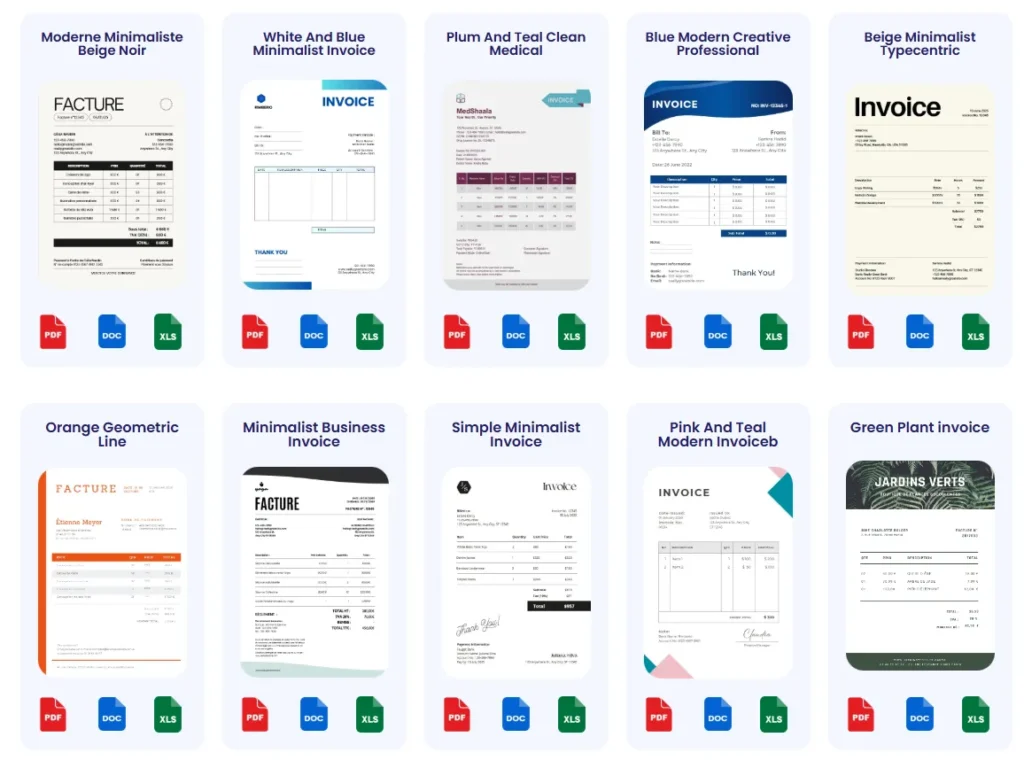
For freelancers and small business owners seeking variety beyond Square’s native templates, external resources like the invoice templates page offer free, ready-to-use formats tailored to different business models. Integrating these templates with Square can streamline your billing process and elevate invoice professionalism.